Space Before and Space After
|
Time for another sweeping pronouncement: Never, ever, under any circumstances should you have more than one consecutive carriage return in your document. Or to put it another way, Never create line spaces by pressing Return (Enter). No exceptionsat least none that I can think of. If text that you import into InDesign has extra carriage returns (very likely), then zap 'em with Find/Change. Now, you might be thinking, what's the big deal? Why not type a harmless extra carriage return between paragraphsno one gets hurt. And it's true; the sun will still rise if you insist on this bad habit. But there are good reasons why not:
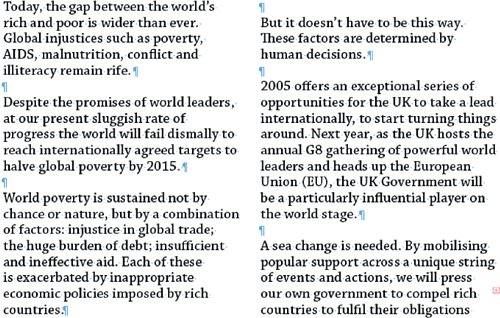
Instead of pressing Return (Enter) twice, orheaven forbidmore than twice, use Space Before or Space After. I say or because using both, while occasionally necessary, is apt to get confusing. Most of the time, I use Space Before; only when working with a baseline grid do I use both. As well as giving you complete flexibility in the size of the space between paragraphs, paragraph spacing is smart enough to disappear when not needed, i.e., at the top or bottom of a column or page. Figure 9.10. Don't use extra carriage returns. The spacing between the paragraphs is too big, and you can get blank lines at the tops of columns.
ProximityMake sure any paragraph spacing accentuates rather than detracts from the connection between different pieces of text. Simply put, things that belong together get placed together. Organizing your type into clusters of informationsubhead and paragraph, for examplewill help establish the rhythm of your type. The reader will interpret the spaces between such clusters as representing a pause, the next cluster as being a new idea. To reinforce the relationship your subhead should always be closer to the text that follows it than to the text that precedes it. An obvious point, but this rule is frequently broken. And to ensure that this relationship is never brokenby a column or page break, for exampleset your Keep Options for the style definition of your subheads to Keep With Next 2 lines. (See Chapter 13: "Styling with Style Sheets.") Figure 9.11. Creating a visual relationship. In example A, the subhead floats ambiguously between the text before and after it. In example B, the subhead is closer to the text that follows, establishing a visual connection between the two paragraphs. .[View full size image] 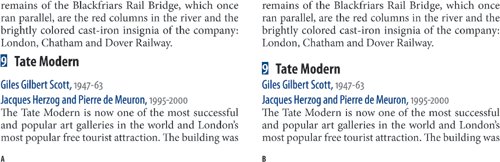
Figure 9.12. Using Keep Options. In example A, no Keeps are specified and the subhead is stranded at the bottom of the first column. In example B, the Subhead is set to Keep With Next 2 lines.[View full size image] 
Figure 9.13. The Keep Options section of the Paragraph Style Options dialog.[View full size image] 
|