3.5 Roaming Networks
A WDS extends your wireless network, but you can get similar functionality with multiple base stations that are all connected to an Ethernet network. This creates a single wireless network, called a roaming network. Roaming networks use the same Network Name (SSID) and password for all of the base stations on the network, allowing clients to move freely between the coverage areas of each base station. One benefit of a roaming network is that you can use more than five base stations (you're limited to five in a WDS) to create your wireless network and extend your wireless network's coverage.
A roaming network has one DHCP server and cannot use NAT, so you'll need to assign a range of IP addresses for the DHCP server to hand out to the wireless clients.
To set up a roaming network, follow these steps:
Connect all of the base stations to the same subnet on your Ethernet network and use the AirPort Admin Utility to give them all the same Network Name and password.
On the base station that you've selected to be the DHCP server, go to the Network tab of the AirPort Admin Utility.
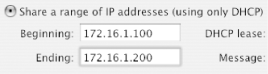
Select "Share a range of IP addresses (using only DHCP)," then enter the beginning and ending range of IP addresses that you want to use for the wireless network (if necessary, discuss what address block to use with your network administrator), as shown in Figure 3-32.
Figure 3-32. Setting an IP address range
Click Update to save your configuration changes on the base station that is the DHCP server.
Use the AirPort Admin Utility to turn off Internet sharing on all the other base stations by deselecting "Distribute IP addresses" on those base stations.


