3.7 Computer to Computer Networks
When needed, you can connect your Mac via Wi-Fi directly to another computer wirelessly. Most companies call this an ad-hoc connection, but Apple calls it a Computer to Computer Network. You can use this kind of connection to transfer files between computers, to use iChat AV, or to play multiplayer games without the bother of wires. As befits a connection that you're setting up on the fly, it's easy to set up a Computer to Computer Network. Follow these steps:
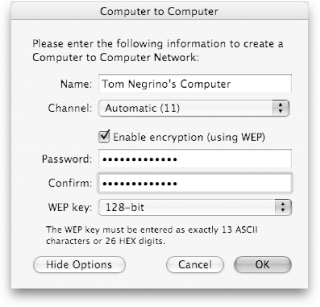
From the AirPort menu, choose "Create network." The Computer to Computer dialog will appear, as shown in Figure 3-35.
Figure 3-35. Computer to Computer dialog, displaying WEP options
Enter a name for the network. By default, it will be your computer's name as listed in the Sharing panel of System Preferences.
Choose the channel for the network from the pop-up menu, or leave it on Automatic, which uses channel 11.
If you want to enable WEP for the connection, click Show Options. The window expands to show the WEP settings.
Select "Enable encryption (using WEP)."
From the WEP key pop-up menu, choose the bit length for the WEP encryption.
|

Enter the password, then enter it again to confirm you typed it correctly.
Click OK. The Computer to Computer Network will start.
To join your Computer to Computer Network, other Macs should select the network name from their AirPort menus. Windows or Linux users should use their regular methods of connecting to a wireless network.


