8.8 Collaborative Editing with SubEthaEdit
One of the challenges in working in a group is maintaining version control on shared documents. SubEthaEdit (created by a group of three computer science students known as "The Coding Monkeys") redefined the meaning of collaborative working. Using SubEthaEdit, multiple users can edit a single document at the same time. SubEthaEdit uses Rendezvous to discover other users who can join in and collaborate.
You can download SubEthaEdit from http://www.codingmonkeys.de/subethaedit/.
Launch SubEthaEdit.
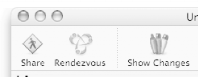
You can start editing or writing your document in the text editing area Click on the Share button (see Figure 8-15) to share your document with other Rendezvous users.
Figure 8-15. Sharing a document
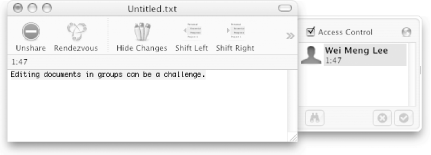
SubEthaEdit will reveal the access control list, showing the people who are currently editing the document (see Figure 8-16).
Figure 8-16. Viewing the access control list
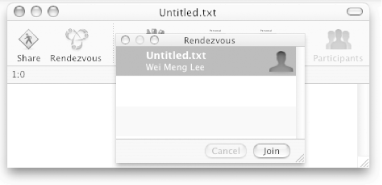
Other users who want to join in need to run SubEthaEdit as well. To see a list of shared documents, click on the Rendezvous button (see Figure 8-17). Here, you can see that Wei Meng Lee is editing a document entitled Untitled.txt.
Figure 8-17. Viewing the list of users via Rendezvous
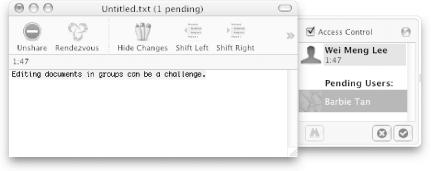
Double-click on the document that you want to edit, and your name will appear in the access control list of the document master (see Figure 8-18). The document owner can then simply select your username and click on the check (to allow access) or cross icon (to deny access).
Figure 8-18. Granting (or denying) permissions to a user using the access control list
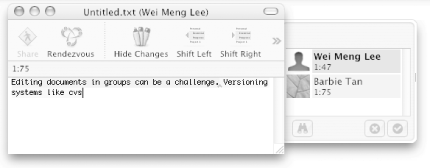
By default, text that every user types is highlighted with a pink background. To choose your own color, go to SubEthaEdit
 Preferences. You can now distinguish who typed what using the
different background colors (see Figure 8-19).
Preferences. You can now distinguish who typed what using the
different background colors (see Figure 8-19).
Figure 8-19. Multiple users editing a document