10.3 The SimplePlayer Application
As discussed in the last chapter, using these APIs is the best way to get a feel for them. To demonstrate QuickTime, look at the SimplePlayer example. This player can load and play a variety of media formats, including QuickTime movies and MP3 audio files. Additionally, the application allows you to export files to other formats, demonstrating that facet of the QuickTime API. As they are put to use in SimplePlayer, try to recognize the key classes and methods from the last section.
The source for this application, shown in Example 10-1, is surprisingly concise. Much of this code is actually spent in setup and user interface. The actual QuickTime APIs used are fairly simple to understand.
Example 10-1. The SimplePlayer application
package com.wiverson.macosbook.quicktime;

import quicktime.std.movies.Movie;

import java.awt.event.*;
import quicktime.QTException;
import quicktime.io.QTFile;
import java.awt.FileDialog;
import java.awt.Frame;
import javax.swing.JButton;
import javax.swing.JLabel;
import javax.swing.JPanel;
import javax.swing.JDialog;

public class SimpleMoviePlayer
    extends javax.swing.JFrame
    implements quicktime.std.StdQTConstants,
               quicktime.Errors,
               quicktime.io.IOConstants
{
    public static void main(String args[])
    {
        try
        {
            // Required to initialize the QuickTime environment.
            // Performs checks to ensure QuickTime is installed and
            // also loads and sets up QuickTime.
            quicktime.QTSession.open(  );

            SimpleMoviePlayer myPlayer = new SimpleMoviePlayer("Simple Player");

            myPlayer.pack(  );
            myPlayer.show(  );
            myPlayer.toFront(  );
        } catch (Exception e)
        {
            e.printStackTrace(  );
            quicktime.QTSession.close(  );
        }
    }

/* ------------------- User interface ------------------------------------ */

    JButton importButton = new JButton("Import Media...");
    JButton referenceButton = new JButton("Export Reference Media...");
    JButton exportButton = new JButton("Export Full Media...");
    JPanel commandPanel = new JPanel(  );
    JLabel statusLabel = new JLabel("Ready.");

    // The QTCanvas is the "heavy lifter" QuickTime component
    // that does all the hard work for punching the QuickTime
    // viewer through and into the JFrame.
    quicktime.app.display.QTCanvas myQTCanvas;

    /* Creates the application user interface. You'll
     * notice that there is no reference to new user interface
     * options for QuickTime features - those are controlled by
     * the "punched through" QuickTime capabilities.
     */
    SimpleMoviePlayer(String title)
    {
        super(title);

        getContentPane(  ).add(statusLabel, "North");

        importButton.addActionListener(new ActionListener(  )
        {
            public void actionPerformed(java.awt.event.ActionEvent ae)
            {
                importMedia(  );
            }
        });
        commandPanel.add(importButton);

        referenceButton.addActionListener(new ActionListener(  )
        {
            public void actionPerformed(java.awt.event.ActionEvent ae)
            {
                makeReferenceMovie(  );
            }
        });
        commandPanel.add(referenceButton);

        exportButton.addActionListener(new ActionListener(  )
        {
            public void actionPerformed(java.awt.event.ActionEvent ae)
            {
                exportMovie(  );
            }
        });

        commandPanel.add(exportButton);

        this.getContentPane(  ).add(commandPanel, "South");

        addWindowListener(new WindowAdapter(  )
        {
            public void windowClosing(WindowEvent e)
            {
                // Go ahead and clean up the QuickTime layer
                quicktime.QTSession.close(  );
                dispose(  );
            }

            public void windowClosed(WindowEvent e)
            {
                System.exit(0);
            }
        });
    }

/* ------------------------- Importing Media ------------------------------- */

    public void importMedia(  )
    {
        try
        {
            FileDialog myFileDialog =
           new FileDialog(this, "Choose Media to Import...", FileDialog.LOAD);

            myFileDialog.show(  );

            if (myFileDialog.getFile(  ) == null)
                return;

            QTFile importFile =
                new QTFile(myFileDialog.getDirectory() + myFileDialog.getFile(  ));

            // You can import any supported media type into QuickTime using
            // the QTFactory.

            // QTFactory.makeDrawable(  ) methods take a variety of inputs,
            // from URLs to an InputStream, and produce a usable media object.
            // The media object might represent a sound file (such as an MP3),
            // a picture (such as a GIF), or a full movie (such as a
            // QuickTime .mov)

            quicktime.app.display.QTDrawable media = null;

            try
            {
                media = quicktime.app.QTFactory.makeDrawable(importFile);
            } catch (quicktime.QTException qtException)
            {
                // If not a user cancel, go ahead and report error
                if(qtException.getMessage(  ).indexOf("cantFindHandler") > 0)
                    qtException.printStackTrace(  );
                else
                {
                    java.awt.Toolkit.getDefaultToolkit().beep(  );
                    statusLabel.setText("Unable to open this file type.");
                }
            }

            if(media != null)
            {
                if (myQTCanvas == null)
                {
                    myQTCanvas = new quicktime.app.display.QTCanvas(  );
                    this.getContentPane(  ).add(myQTCanvas, "Center");
                }
                myQTCanvas.setClient(media, true);
                statusLabel.setText(importFile.getPath(  ));

                // This resizes the UI. Note that the "preferred" size
                // for myQTCanvas has been changed to whatever works for
                // the player.
                pack(  );
            }
        } catch (QTException err)
        {
            if (err.errorCode(  ) == userCanceledErr) return;
            err.printStackTrace(  );
        } catch (java.io.IOException ie)
        {}
    }

/* ------------------------- Playing Movies ------------------------------- */

    public void displayMovie(Movie m) throws QTException
    {
        // make a QTPlayer out of the Movie and set it as the
        // client of the QTCanvas

        quicktime.app.players.QTPlayer p =
          new quicktime.app.players.QTPlayer(
             new quicktime.std.movies.MovieController(m)
          );

        if (myQTCanvas == null)
        {
            myQTCanvas = new quicktime.app.display.QTCanvas(  );
            getContentPane(  ).add(myQTCanvas, "Center");
        }

        myQTCanvas.setClient(p, true);
        pack(  );
    }

/* ------------------------ QuickTime References ------------------------ */

    public void makeReferenceMovie(  )
    {
        try
        {
           FileDialog rfd =
            new FileDialog(this, "Choose Movie to Reference...", FileDialog.LOAD);
           rfd.show(  );

           if (rfd.getFile(  ) == null)
               return;

           QTFile movieFile = new QTFile(rfd.getDirectory() + rfd.getFile(  ));

           FileDialog ofd =
            new FileDialog(this, "New Movie to create...", FileDialog.SAVE);

           ofd.show(  );

           if (ofd.getFile(  ) == null)
           {
                return;
           }

           makeReferenceMovie(movieFile, ofd.getDirectory() + ofd.getFile(  ));
        } catch (QTException err)
        {
           if (err.errorCode(  ) == userCanceledErr)
                return;
           err.printStackTrace(  );
        }
    }

    //makes a new movie that references the data in an existing movie
    public void makeReferenceMovie(QTFile movieFile, String outputPath)
        throws QTException
    {

        // Create the movie object from the original movie
        Movie theMovie = Movie.fromFile(quicktime.io.OpenMovieFile.asRead(movieFile));

        displayMovie(theMovie);
        QTFile outputMovie = new QTFile(outputPath);

        //shortcut movies are movies that just contain a reference
        //to another movie.  It can begin to be complicated for users
        //to track which is which - you may wish to expose a flag
        //indicating handles to movies as opposed to flattened
        //movies in your user interface.

        //make a Data ref out of a URL that references the movie
        quicktime.std.movies.media.DataRef targetDataRef =
        new quicktime.std.movies.media.DataRef("file://" + movieFile.getPath(  ));

        //make the very small short cut movie
        outputMovie.createShortcutMovieFile(
        kMoviePlayer, smSystemScript, createMovieFileDeleteCurFile, targetDataRef);
    }


/* ------------------------ Exporting Movies ------------------------ */

    public void exportMovie(  )
    {
        try
        {

            FileDialog efd =
              new FileDialog(this, "Choose Movie to Export...", FileDialog.LOAD);

            efd.show(  );

            if (efd.getFile(  ) == null)
                return;

            QTFile movieFile = new QTFile(efd.getDirectory() + efd.getFile(  ));

            exportMovie(movieFile);
        } catch (QTException err)
        {
            err.printStackTrace(  );
        }
    }

    // export (to a movie) the incoming movie
    // user dialog allows user to customise media formats and
    // tracks that are exported

    public void exportMovie(QTFile movieFile) throws QTException
    {
        // Create the movie object from the original movie
        Movie theMovie =
         Movie.fromFile(quicktime.io.OpenMovieFile.asRead(movieFile));

        displayMovie(theMovie);

        // we do this in a different thread because exporting can take some time
        // and the event thread should not be blocked for so long... but it tends
        // to really drag the UI anyways on Mac OS X for serious exporting.

        new Thread(
         new com.wiverson.macosbook.quicktime.SimpleMoviePlayer.Runner(
          theMovie, statusLabel)
        ).start(  );
    }

    static class Runner implements Runnable
    {
        Runner(Movie mov, JLabel inStatus)
        {
            theInputMovie = mov;
            status = inStatus;
        }

        Movie theInputMovie;
        JLabel status;

        public void run(  )
        {

            try
            {
            // this determines both the exporter type, the resulting file type.
            // thus one could specify this to be AIFF and the resulting file will
            // be an AIFF file - in this case the result will be a movie.

                int exportType = kQTFileTypeMovie;

            //an application can alternatively configure exporter through setting
            //up the exporter in code to conform to the format appropriate

                FileDialog ofd =
            new FileDialog(new Frame(  ), "Export Movie to...", FileDialog.SAVE);
                ofd.show(  );
                if (ofd.getFile(  ) == null)
                    return;

                QTFile outFile = new QTFile(ofd.getDirectory() + ofd.getFile(  ));

            // Create a movie exporter so we can customise its settings
            // this could also be used in the convertToFile version, but
            // if we don't have custom settings then we allow the convertToFile
           // to create the exporter for us-based on the exportType we pass to it

                quicktime.std.qtcomponents.MovieExporter theMovieExp =
            new quicktime.std.qtcomponents.MovieExporter(exportType);

            // Set export settings from the user.
                theMovieExp.doUserDialog(
            theInputMovie, null, 0, theInputMovie.getDuration(  ));

            //this returns a dupFNErr on windows and is also more work for
            //the application create the output file but don't open it
                outFile.createMovieFile(kMoviePlayer,

                status.setText("Starting export...");
                // do the export of the movie
                theMovieExp.toFile(
            outFile, theInputMovie, null, 0, theInputMovie.getDuration(  ));
                status.setText("Export complete.");
            } catch (QTException e)
            {
                e.printStackTrace(  );
            }
        }
    }
}
10.3.1 Imports and Startup
The class begins with a few basic QuickTime imports, including quicktime.std.movies.Movie (a core class that encapsulates a great deal of abstract media information). Then the main( ) method merely sets the application up, initializing the QuickTime environment and then creating the user interface. The interest lies in the actual methods, as usual.
10.3.2 User Interface
The next chunk of code sets up the player's user interface, which has been kept simple so you can get to the good stuff. A few buttons are added to a window to let you select media types, and a few event listeners are created and attached. The most interesting portion of this code is the reference to quicktime.app.display.QTCanvas:
// The QTCanvas is the "heavy lifter" QuickTime component
// that does all the hard work for punching the QuickTime
// viewer through and into the JFrame.
quicktime.app.display.QTCanvas myQTCanvas;
This panel represents the QuickTime interface to media types. It's not actually added to the user interface until a user decides to load data, which you'll see in the next method, importMedia( ).
10.3.3 Importing Media
The importMedia( ) method lets you open any supported media type, not just a movie. Regardless of the format being loaded, it displays a standard file dialog box (configured by QuickTime), as shown in Figure 10-4.
Figure 10-4. Selecting media to load
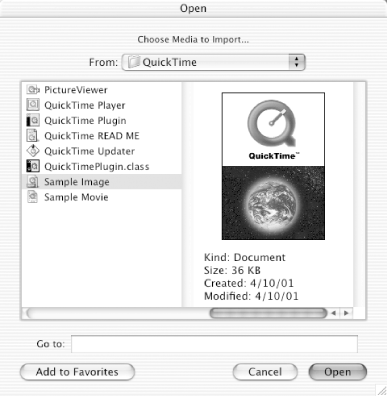
Assuming that the user selects a valid media file, the quicktime.app.display.QTCanvas object instance (discussed in the last section) is created and added to the Swing user interface, and the media file is set for that canvas (similar to a standard Java panel).
Look at the quicktime.app.display.QTDrawable object below. This object is the representation of a QuickTime data type. The media object might represent a sound file (such as an MP3), a picture (such as a GIF), or a full movie (such as a QuickTime .mov file). The QTFactory returns a playable QTDrawable media object when it's able to import from a URL successfully:
    quicktime.app.display.QTDrawable media = null;

    try
    {
        media = quicktime.app.QTFactory.makeDrawable(importFile);
    } catch (quicktime.QTException qtException)
    {
        // If not a user cancel, go ahead and report error
        if(qtException.getMessage(  ).indexOf("cantFindHandler") > 0)
            qtException.printStackTrace(  );
        else
        {
            java.awt.Toolkit.getDefaultToolkit().beep(  );
            statusLabel.setText("Unable to open this file type.");
        }
    }

    if(media != null)
    {
        if (myQTCanvas == null)
        {
            myQTCanvas = new quicktime.app.display.QTCanvas(  );
            this.getContentPane(  ).add(myQTCanvas, "Center");
        }
        myQTCanvas.setClient(media, true);
        statusLabel.setText(importFile.getPath(  ));

        // This resizes the UI. Note that the "preferred" size
        // for myQTCanvas has been changed to whatever works for
        // the player.
        pack(  );
    }
} catch (QTException err)
{
    if (err.errorCode(  ) == userCanceledErr) return;
    err.printStackTrace(  );
} catch (java.io.IOException ie)
{}
The complicated process of loading a file now becomes a matter of about 50 lines of code (including the user interface manipulation). This is one of the draws of the QuickTime APIs: they do a lot of the work for you, with minimal developer coding.
10.3.4 Playing a Movie
Once you've loaded the appropriate media types, playing them is simple. The displayMovie( ) method plays a QuickTime movie and is centered around the QTPlayer and QTCanvas objects:
    public void displayMovie(Movie m) throws QTException
    {
        // make a QTPlayer out of the Movie and set it as the
        // client of the QTCanvas

        quicktime.app.players.QTPlayer p =
          new quicktime.app.players.QTPlayer(
             new quicktime.std.movies.MovieController(m)
          );

        if (myQTCanvas == null)
        {
            myQTCanvas = new quicktime.app.display.QTCanvas(  );
            getContentPane(  ).add(myQTCanvas, "Center");
        }

        myQTCanvas.setClient(p, true);
        pack(  );
    }
This method is largely a utility function, called when the current movie is changed. This method is called when the user loads another movie or changes the reference being used.
10.3.5 QuickTime References
QuickTime movies support the notion of references as well as direct data representations of media types. Imagine that you're editing a movie, and hours of video are stored on your hard drive. While you're working with the movie, you cut and paste several smaller movie pieces. It would be terribly inconvenient to copy hundreds of megabytes between files every time you select a section of video and then copy and paste; you'd have to watch your computer export the data, recompress it to fit into the rest of the stream, and then save the modified movie to disk again. This task would be very time consuming, as well as an inefficient use of your drive space.
A QuickTime reference, therefore, is an indirect way to point to a large media set without actually pointing to the entire set. It's very useful when you're editing a video or other large multimedia file. In fact, this player lets you create references for movies, which is accomplished programmatically through the makeReferenceMovie( ) methods. The first version, with no parameters, simply determines those parameters and calls the second overloaded version. In the overloaded version of this method, the movie is loaded and played, and then a reference is created:
        //make a Data ref out of a URL that references the movie
        quicktime.std.movies.media.DataRef targetDataRef =
        new quicktime.std.movies.media.DataRef("file://"  +
                movieFile.getPath(  ));

        //make the very small short cut movie
        outputMovie.createShortcutMovieFile(
        kMoviePlayer, smSystemScript,
            createMovieFileDeleteCurFile, targetDataRef);
    }
Ultimately, the QuickTime API exports a movie as a reference rather than as a full copy. This is a fast operation?don't by shy about creating and using references this way.
10.3.6 Exporting Movies
The final portion of the application exports movies. This is the most complex part of the code, as quite a bit of work is involved in taking a movie and converting it into another format. First, the movie must be flattened. A flattened media file is self-contained, without references to other files on disk. This type of file is basically the converse of the references we just talked about?the flattened version is a single file with all of its movie content represented physically on disk (rather than with references to other files). Fortunately, the QuickTime API handles this task implicitly; you won't see any line of code like this:
theInputMovie.flatten( );
Instead, when you convert the movie to another format, the API handles this task transparently. This also happens automatically when you save the file out to disk, which is important for distribution of movies; you can't burn a reference of a movie onto a DVD, for example.
Flattening and exporting were handled in a separate thread. Unlike creating references, flattening takes a lot of time, especially when export formats are specified (for example, converting from one format of high-resolution video to another). While this separate thread still may not let a user do much other work, it at least keeps the player from "freezing" until the export is done, and even lets you create a nice process indicator for the user.
|

10.3.7 Running the Player
Once you've gotten the code entered, compiled, and ready to roll, fire up SimplePlayer. You should see the simple Swing interface, illustrated in Figure 10-5.
Figure 10-5. The Simple Player

Load up some QuickTime files (which have a .mov extension) and look at what the player can do. If you don't have any video available, you'll find some samples in /Applications (Mac OS 9)/iMovie/iMovie Tutorial/Media. One is shown in the player in Figure 10-6.
Figure 10-6. Movie playback
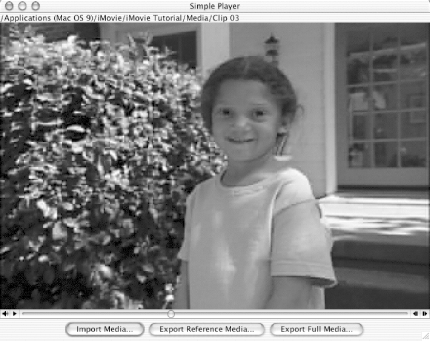
As mentioned back in this section's introduction, SimplePlayer can also play back other media types, such as MP3 files. Figure 10-7 shows a little Johnny Cash blaring out of my Apple speakers. If you can play an audio or video format through your normal QuickTime player included with OS X, then you can play it with SimplePlayer.
Figure 10-7. MP3 playback

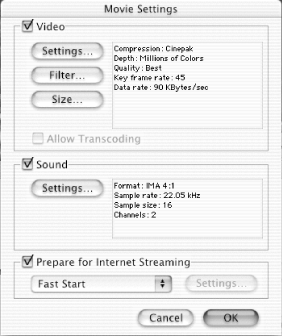
Figure 10-8 demonstrates the player's export features, showing you the output file, as well as the export format and what encoding to use. You'll also see an "Options" button that you can select, and the resultant screen is shown in Figure 10-9. All these options are essentially "freebies"; the QuickTime API handles them automatically, and you don't have to add any extra code to deal with them. In this way, users can adapt their multimedia to different outputs. For example, you could export a video clip in one format to support playback via the Web, or another for playback on a custom DVD.
Figure 10-8. Export media
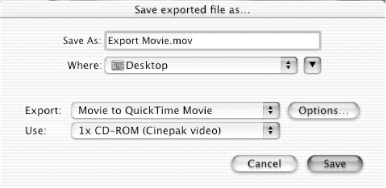
Figure 10-9. Export options
|


