11.1 Getting Set Up
To get started, download the Spelling Framework from ftp://ftp.apple.com/developer/Sample_Code/Java/JavaSpellingFramework.sit. Expanding the archive creates a folder called JavaSpellingFramework with the following contents:
build/
com/
doc/
Images/
Native/
JavaSpellingFramework.pbproj
ReadMe.txt
The build directory contains an example and is the target for other examples and compilation targets within the distribution. You'll find the source in the com directory, Javadoc for the source in the doc directory, and support files in the Images and Native directories. Project Builder uses the .pbproj file to assemble the project, and I'm sure you know what ReadMe.txt is all about.
Once you've expanded these files, build the project to create classes for use by your application. First, though, you might need to perform a few tweaks to get the code in the proper state for your platform.
11.1.1 Mac OS X 10.2
If you're running Mac OS X 10.2 or later, you'll need to take care of a few extra steps. First, rebuild the libraries to get them to work properly. Expand the JavaSpellingFramework.sit archive, and double-click on JavaSpellingFramework.pbproj to open the application in Project Builder. This will load up the entire framework, including its source files and images. In fact, the directory pane in Project Builder will look just like your Finder window, complete with all Spelling Framework directories and files, plus a few extras (the .framework files).
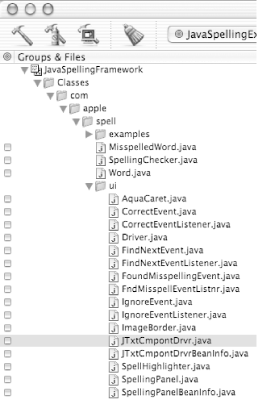
Once you open the project, navigate to the JTxtCmpontDrvr.java source file, as shown in Figure 11-1. You'll find this file in Classes/com/apple/spell/ui. Clicking on the file will open up the source in Project Builder. You should then navigate to line 230 or so, and uncomment lines 236 and 237:
if ((!ignoreWSIssue) && (!Character.isWhitespace(s.array[posOfChange])))
            return;
Figure 11-1. JtxtCmpontDrvr.java in Project Builder
|

You also need to change line 247:
while ((p0 < d.getLength(  ))&& (!Character.isWhitespace(s.array[p1]))
                            && (p1 < d.getLength(  )))
  p1++;
The first change fixes a problem in which words are prematurely marked as errors, and the second change fixes an array-out-of-bounds error. By the time you read this, these errors may already be fixed in the code; just check it out in your own downloaded version. At this point, you're ready to build the framework.
11.1.2 Building the Framework
To compile the
Spelling API, open the project in Project Builder (if you
haven't already). Simply select
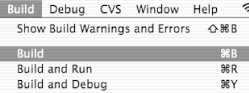
"Build  Build...", as shown in Figure 11-2.
Figure 11-2. Building the framework
In my compilation, I received 10 warnings and no errors. You should expect similar results. If you do encounter errors, you may have introduced a typo when you made a change specified in the previous section. Check your changes and build again.
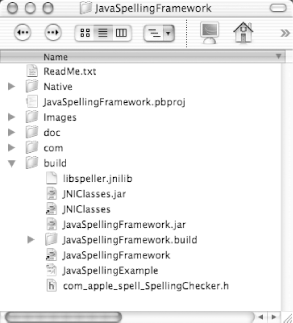
Once the build is successful, you will have libraries and samples in the target directory, build. Open this folder in the Finder, and you should see the generated files as shown in Figure 11-3.
Figure 11-3. The spelling libraries after building
11.1.3 Setting Up the Java Environment
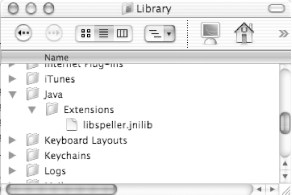
Now you need to ensure that your Java environment can access these libraries. The two files you should focus on are the native portion of the framework (packaged as a Java Native Interface library), libspeller.jnilib, and the Java classes, in JavaSpellingFramework.jar. Copy the libspeller.jnilib file to your ~/Library/Java/Extensions directory (you'll need to create the Java and Extensions directories yourself), as shown in Figure 11-4.
Figure 11-4. Installing the JNI Library
Now, as long as the JavaSpellingFramework.jar file is on your application's classpath, you'll be able to access the spelling functionality.


