8.1 Applets
An applet is a restricted Java application invoked by and running inside of an ordinary web browser. It has a specific base class (java.applet.Applet) with some lifecycle APIs added to interact with the browser. Most of the complexity associated with developing applets (as opposed to ordinary Java applications) derives from the interface and interactions between the JVM and the HTML-based web browser. The basic delivery model for an applet is illustrated in Figure 8-1.
Figure 8-1. Applet delivery
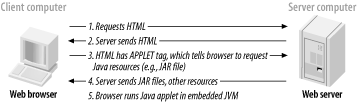
Note that the browser controls resource loading and the manner in which the JVM is embedded. There is no support for running an application if the user is not connected to the Web.
8.1.1 Mac OS X Web Browsers
Several different browsers are available for Mac OS X, each with a different level of support for applets. All rely on the underlying JDK installed with Mac OS X.
|

Mac OS X provides a robust environment for applet development through the use of Sun's Java Plug-in (although some browsers rely on the Java Embedding Framework). This means that applets use the same VM used by Java applications. Unfortunately, the default Java installation included with other operating systems (notably, most releases of Windows) is woefully out of date, and typically based on JDK 1.1.7 or 1.1.8 releases. You'll need to pay careful attention to the APIs used if you wish to maintain compatibility with these ancient releases. You may consider requiring that your users upgrade to JDK 1.3 or 1.4, in which case you might consider migration to Java Web Start, discussed later in this chapter.
If you do decide to use applets, you should expect behavior similar to that of applets running on other platforms that use Sun's Java Plug-in. To properly manage the execution of your applet, you'll need to understand how web browsers interpret your HTML code to launch the applet.
8.1.2 Creating an Applet
Example 8-1 shows the source code for a simple applet. It defines an applet and adds a button that, when pressed, launches the SimpleEdit application developed in Chapter 4.
Example 8-1. A simple applet
package com.wiverson.macosbook;
public class SimpleApplet extends javax.swing.JApplet
{
    private javax.swing.JButton launchButton;

    public SimpleApplet(  )
    {
        launchButton = new javax.swing.JButton(  );
        launchButton.setText("Launch SimpleEdit");
        launchButton.addActionListener(new java.awt.event.ActionListener(  )
        {
            public void actionPerformed(java.awt.event.ActionEvent evt)
            {
                com.wiverson.macosbook.SimpleEdit.main(null);
            }
        });

        getContentPane(  ).add(launchButton, java.awt.BorderLayout.CENTER);
    }
}
To launch the applet, you will use a set of tags within an HTML page. You'll structure the HTML as shown in Example 8-2. You should then place this file, saved as SimpleEditLauncher.html, in a ~/Sites directory.
Example 8-2. HTML for launching an applet
<HTML>
<HEAD>
   <TITLE>Applet HTML Page</TITLE>
</HEAD>
<BODY>
<H3><HR WIDTH="100%">SimpleEdit<HR WIDTH="100%"></H3>
<P>
<APPLET archive="SimpleEdit.jar"
        code="com/wiverson/macosbook/SimpleApplet"
        width="160" height="35">
</APPLET>
</P>
</BODY>
</HTML>
8.1.3 Deploying an Applet
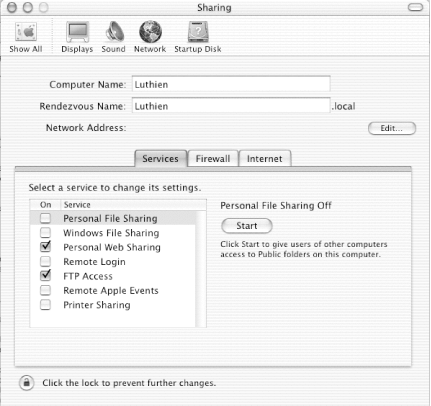
To
deploy the application, place the SimpleEdit.jar file created in Chapter 7 and the launcher HTML file into your
~/Sites directory, and turn on
Personal Web Sharing via
"System Preferences  Sharing
Services" (as shown in Figure 8-2).
Sharing
Services" (as shown in Figure 8-2).
Figure 8-2. Apache Personal Web Sharing
|
Assuming you have placed the files in the ~/Sites directory, you should be able to view the applet by going to http://127.0.0.1/~username/SimpleEditApplet.html. This 127.0.0.1 (or loopback) IP address won't work for deployment, but it is useful when developing and testing an application.
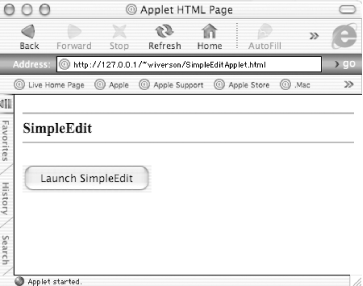
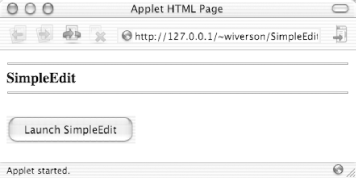
When the applet is run, clicking on the button will launch a new window from inside the browser. This is shown in Figure 8-3 on Internet Explorer (the default web browser that ships with Mac OS X), and in Figure 8-4 on Camino (a Mozilla/Gecko-based browser).
Figure 8-3. Applet running in Internet Explorer
|
Figure 8-4. Applet running in Camino
8.1.4 Accessing Mac OS X-Specific Properties from Applets
Mac OS X includes specific system properties that you might want to use in your applets, as described in Chapter 7. Except for the com.apple.macos.useScreenMenuBar and mrj.version properties, unsigned applets cannot access these Mac OS X-specific properties (and useScreenMenuBar is ignored by most current browsers). If you want to use any of the properties discussed in Chapter 7, you must grant permission to access them by adding a line to your systemwide java.policy file located at /Library/Java/Home/lib/security/. The line should be in the following form:
java.util.PropertyPermission systemPropertyName, read ;
8.1.5 The Java Applet Plug-in
Some web browsers use the Java Embedding Framework (based on Sun's reference appletviewer class) to embed Java applets in web pages, and other browsers rely on the Java Plug-in. The Java Plug-in is considered a superior solution, but unfortunately you usually have little control over the installation and configuration of this plug-in in user desktop browsers. When examining interactions between the applet and the browser, this is another variable to keep in mind.
The default tag for an applet, for both the Java Plug-in and the Java Embedding Framework, is the well-known <APPLET> . However, this tag does not always work as well as the <OBJECT> or <EMBED> tags in different situations.
Figure 8-5 shows the effect of the <APPLET> tag compared to the <OBJECT> and <EMBED> tags. You can see that the <APPLET> tag maps to the Java Plug-in only for users of Mozilla, Netscape, or Camino browsers. This means that you may get different results on an Internet Explorer browser than on a Mozilla or Camino browser (a very bad thing!).
Figure 8-5. Applet functionality based on tag usage
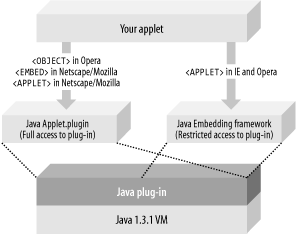
To work around the different interpretations of the <APPLET> tag, you have a few options. If you know that your application is targeted for a specific web browser, you can use the appropriate tag, as listed in Table 8-1. This assumes that one specific browser is targeted, though, and that is an extremely rare situation. A better approach is to use a tool that creates HTML that works in any browser. This tool, called the HTML Converter, is provided by Sun and is available online at http://java.sun.com/products/plugin/1.3/docs/htmlconv.html. This converter processes an HTML file and generates HTML and JavaScript that should work across any platform. Using this tool will ensure that the Java Plug-in is activated, regardless of the browser used.
|
|
Browser |
<APPLET> |
<OBJECT> |
<EMBED> |
|---|---|---|---|
|
Microsoft Internet Explorer 5.2.x |
Targets the Java Embedding Framework |
Functions normally |
Functions normally |
|
Netscape / Mozilla / Camino |
Treated as <EMBED> tag, which maps to application/x-java-applet mime type |
Functions normally |
Targets the Java Plug-in |
|
OmniWeb |
Functions normally |
Targets the Java Plug-in |
|
|
Opera |
Functions normally |
Targets the Java Plug-in |
Functions normally |
Generally, applets that run with the Java Plug-in have more functionality than those that run within the Java Embedding Framework. The following sections deal with the specific affected areas. Because of these features, you'll want to target the Java Plug-in whenever possible.
8.1.5.1 JAR caching
The Java Plug-in is smart enough to cache JAR files for repeated use. This cache is stored in the user's home folder in Library/Caches/Java. To take advantage of JAR file caching, you may need to modify your HTML with the tag shown here:
<!-- Turns on JAR caching -->
<PARAM NAME ="cache_option" VALUE="plugin">

<!-- Optional tag, identifies specific JAR files to cache
<PARAM NAME ="cache_archive" VALUE="SimpleEdit.jar">
8.1.5.2 JAR cache versioning
You can also use the Java Plug-in to cache certain versions of JAR files, and download new files only if needed. The following HTML shows an optional tag used to specify the version number of the JAR files an applet uses:
<!-- Turns on JAR caching -->
<PARAM NAME ="cache_option" VALUE="plugin">

<!-- Optional tag, identifies specific JAR files to cache
<PARAM NAME ="cache_archive" VALUE="SimpleEdit.jar">

<PARAM NAME ="cache_version" VALUE="1.0">
The version number is designated with the cache_archive attribute. Each value corresponds to the respective JAR files designated with cache_archive. If the version value is higher than the value of the cached JAR file, the JAR is downloaded again. Thus, if a new version of the SimpleEdit.jar file were published, you would increment the cache_version to 1.0.0.1 or some other appropriate value. If this tag is omitted, the plug-in always checks the server to see if a newer version is available and then caches that version.
|
8.1.5.3 The Java Plug-in settings application
The Java Plug-in settings application is a useful utility found in /Applications/Utilities/Java/. Installed on every Mac OS X system by default, it allows users to configure options related to applet behavior. However, users may have different settings than those you have on your development system, and you need to test for those settings as well as your own. You may even want to create multiple users on your own system and give each user different preferences. Each user's settings are stored in ~/Library/Preferences/com.apple.java.plugin.properties131. Figure 8-6 shows the settings application in action.
Figure 8-6. Java Plug-in settings
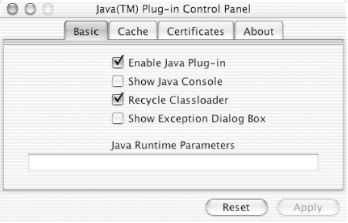
Turning on the option "Show Java Console" is particularly relevant. This console views any text output your applet generates (including the System.out and System.err streams). It can also be used to view thread information interactively and force garbage collection. To enable viewing the console, select "Show Java Console" in the Java Plug-in settings application.


