8.2 Java Web Start
Java Web Start is a new standard for distributing Java applications, based on a blend between applet advantages (delivered and automatically updated via the Web) and standalone applications (without any dependencies on a web browser). The documentation, several demonstrations, and implementations for Windows and Solaris users are available for download from http://java.sun.com/products/javawebstart/. Fortunately for Mac OS X users, an implementation of Java Web Start is included in every distribution of Mac OS X (specifically, Java Network Launching Protocol & API (JNLP) Specification, v1.0.1). There's nothing to configure and nothing to set up?it's just there, waiting for you to take advantage of it!
As shown in Figure 8-7, users will typically first encounter a Web Start application while browsing the Web. Clicking on a link to a Web Start JNLP file causes the browser to launch a helper application, which in turn downloads the resources for the Java application and then launches it. From that point on, users can launch a Web Start application without launching a web browser. In addition, if the application is properly designed and makes sense, Web Start applications can be launched independently of a network connection.
Figure 8-7. Web Start delivery
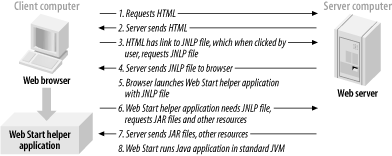
Consider, for example, a Tic-Tac-Toe game in which the user plays against the computer or a remote opponent. A user surfing the Web with a laptop clicks a link to a JNLP file to launch the game. The browser downloads the JNLP file, which is then launched by Web Start. Web Start downloads the game resources, saves them in a cache, and then launches the application. The user can play the game against remote opponents and the computer, quitting the browser if desired. Later, the user disconnects the laptop from the network and gets on a plane. The user can still launch the game by using the Java Web Start utility (located in /Applications/Utilities/Java/), even without a network connection. The user can only play against the computer, however, as no network connection is available.
At the heart of Web Start is the JNLP file (essentially, an XML configuration file that describes the application and application resources). This section will turn the previously developed SimpleEdit application into a Web Start-packaged application.
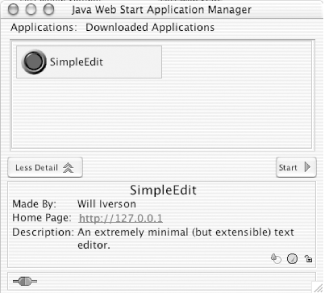
Before starting, it's worth spending some time looking at the Web Start management application stored in /Applications/Utilities/Java (shown in Figure 8-8). This is the only real user interface to Web Start beyond whatever interface you present as part of your application.
Figure 8-8. The WebStart user interface
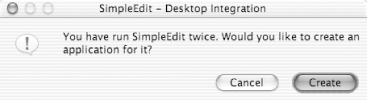
By default, users who launch a Java Web Start application more than twice are prompted to save the application as a standard Mac OS X application, as shown in Figure 8-9. This is a standard Web Start behavior, designed to encourage use of Web Start applications outside the confines of the browser. The application is still a Java Web Start application, but now users can work with the application like other Mac OS X applications (for example, by adding its icon to the Dock).
Figure 8-9. Java Web Start desktop integration
Note that even though users won't have to launch a web browser every time a Web Start application is launched, Web Start checks the network connection and attempts to download any updates. If an update is available, Web Start automatically downloads and installs the latest version of the application before launching.
|

8.2.1 Web Start Runtime Environment
When building JNLP-based applications, consider the restrictions on the environment and the packaging. From Sun's Web Start documentation (at http://java.sun.com/products/javawebstart/1.2/docs/developersguide.html#dev), the following list details the required attributes of JNLP-delivered applications:
An application must be delivered as a set of JAR files.
All application resources, such as files and images, must be stored in JAR files, and they must be referred to by using the getResource( ) mechanism in the Java 2 platform (see Section 8.2.3 below).
An application is allowed to use the System.exit( ) call.
An application that needs unrestricted access to the system must be delivered in a set of signed JAR files. All entries in each JAR file must be signed.
If an application is written to run in a secure sandbox, it must follow these additional restrictions:
No access to local disk is available.
All JAR files must be downloaded from the same host.
Network connections are enabled only to the host from which the JAR files are downloaded.
No security manager can be installed.
No native libraries can be installed or utilized.
Limited access is provided to system properties. The application has read/write access to all system properties defined in the JNLP file, as well as read-only access to the same set of properties that an applet has access to.
8.2.2 Mac OS X Web Start Differences
You need to be aware of only a few differences between the Mac OS X implementation of Java Web Start and that of the Windows and Solaris versions. First, Mac OS X does not support dynamic downloading of additional Java Runtime Environments (JREs). Mac OS X includes J2SE 1.4 (and 1.3.1 is easily available), so if your application specifically requires JRE 1.2 or prior, it will not work. Users who need the latest JVM should use their standard Mac OS X Software Update functionality (available in System Preferences) to download Apple JDK releases. Specifications for version numbers that can expand to include 1.4 will work, though (for example, 1.2+ or 1.3+). It also isn't necessary to set up proxy information explicitly in the Web Start application on Mac OS X?this is automatically configured via the Network control panel proxy settings.
8.2.3 JAR Resources
Java Web Start maintains strict control over the class loading configuration. It transfers JAR files from the web server to the client machine, and chooses where to store the JAR files; an application cannot use disk-relative references to resources such as images and configuration files.
Therefore, application resources should be retrieved from the JAR files specified in the resources section of the JNLP file, or retrieved explicitly by an HTTP request to the web server. It's easiest to store resources directly in the JAR files, since they will be cached on the local machine by Java Web Start (preventing a potentially expensive or even unreachable network connection).
The code example shown in Example 8-3 shows how to retrieve images from a JAR file. The example assumes that the entries images/save.gif and images/cut.gif exist in the application's JAR files.
Example 8-3. Accessing resources in a JAR
// Get current classloader
ClassLoader cl = this.getClass().getClassLoader(  );
// Create icons
Icon saveIcon  = new ImageIcon(cl.getResource("images/save.gif"));
Icon cutIcon   = new ImageIcon(cl.getResource("images/cut.gif"));
Developers sign code for use with Java Web Start much like they do for Java applets: by using the standard jarsigner tool from the Java 2 SDK. The documentation for the jarsigner tool shows how to sign code, create test certificates, and other signing-related issues. For more on jarsigner, visit http://java.sun.com/j2se/1.3/docs/tooldocs/win32/jarsigner.html.
8.2.4 Delivering a Web Start Application
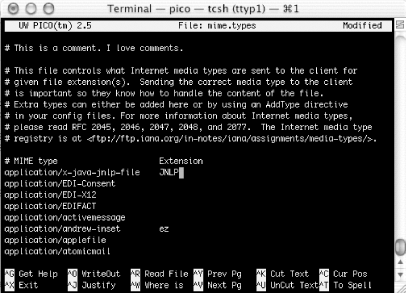
In this case, you'll use the built-in Mac OS X implementation of Apache to serve JNLP files. To do this, you need to add the line shown below to your mime.types file, located in /etc/httpd/.
application/x-java-jnlp-file jnlp
Using this implementation will ensure that Web Start applications are associated with JNLP and the proper programs on your Mac OS X machine. The easiest way to ensure this is to use a one-time execution of a command-line text editor from within Terminal:
cd /etc/httpd/
sudo pico mime.types
You'll need to enter your password, and you'll see the text editor shown in Figure 8-10. Make the needed changes and quit out of Pico.
Figure 8-10. Using Pico to edit mime.types
|
You'll then want to restart Apache in the
"System Preferences  Sharing" control panel (as shown back in Figure 8-2).
8.2.5 Creating a JNLP File
Before building a Web Start-based application, you'll need a JAR file. In this case, use the JAR file built in Chapter 7. You've been getting some mileage out of this application, as it was already deployed earlier in this chapter as an applet.
Then create a JNLP configuration text file, as shown in Example 8-4. Save this file as SimpleEdit.jnlp in your ~/Sites directory.
Example 8-4. JNLP configuration file
<?xml version="1.0" encoding="utf-8"?>
<!-- JNLP File for SimpleEdit -->
<jnlp
  spec="1.0+"
  codebase="http://127.0.0.1/~wiverson/"
  href="SimpleEdit.jnlp">
  <information>
    <title>SimpleEdit</title>
    <vendor>Will Iverson</vendor>
    <homepage href="http://127.0.0.1"/>
    <description>An extremely minimal text editor</description>
    <description kind="short">An extremely minimal (but extensible) text editor.
</description>
    <icon href="images/notset.jpg"/>
    <icon kind="splash" href="images/notset.gif"/>
    <offline-allowed/>
  </information>
  <resources>
    <j2se version="1.3"/>
    <jar href="SimpleEdit.jar"/>
  </resources>
  <application-desc main-class="com.wiverson.macosbook.SimpleEdit"/>
</jnlp>
|
Next, create a simple HTML file to link to this JNLP file (so users have something to click on in their web browser). Save the contents of Example 8-5 as SimpleEditWebStart.html in the ~/Sites directory.
Example 8-5. HTML to launch a JNLP application
<HTML>
<HEAD>
<TITLE>SimpleEdit WebStart</TITLE>
</HEAD>
<BODY>
<A HREF="SimpleEdit.jnlp">Launch SimpleEdit</A>
</BODY>
</HTML>
You should now be able to view the HTML page in your web browser by viewing http://127.0.0.1/~username/SimpleEditWebStart.html. Clicking on the "Launch SimpleEdit" link will, depending on your web browser, prompt the user to save the JNLP file to disk or automatically launch Web Start. If the file is saved to disk, the user can then launch Web Start (and the SimpleEdit application) by double-clicking on the JNLP file.
8.2.6 JNLP in Detail
As you can see from the example, a JNLP file is a standard XML file. Most of the information contained in the file is fairly self-explanatory, but you'll need to modify some items to deploy your application on a "real-world" server. These items are listed here:
- jnlp element, codebase attribute
-
The base URL for all relative HREF URLs in the rest of the JNLP file. If your test system is http://127.0.0.1/~wiverson but your production system is http://www.mycompany.com/games/, you can change just this attribute's value.
- jnlp element, href attribute
-
This attribute's value should be set to the name of the JNLP file.
- jnlp/information/title
-
This element should indicate the application's human-readable name. This becomes the default name for the application, and should be kept short.
- jnlp/information/homepage
-
This URL appears automatically in the Java Web Start management application as a clickable link.
- jnlp/information/icon
-
This graphic is automatically converted to a local system icon if users save an application to their system. The graphic should be square, 64 x 64 pixels (Java Web Start will automatically resize this graphic as needed).
If an icon with the splash attribute is provided, this icon will be used when Java Web Start downloads or updates the application.
- jnlp/information/offline-allowed
-
This tag must be present if the application is to be launched when not connected to the network. There are no configurable options; for more sophisticated control, you will probably want to include this option and then perform network availability checks within your application.
- jnlp/resources/jar
-
You should include one or more of these entries to refer to the various JAR files required by your application.
- jnlp/application-desc
-
This entry is used to specify the main class for your application. Subentries can be provided to pass arguments to the application via argument tags. For example, if you wanted to load a SimpleEdit plug-in, you might pass in an argument as shown below:
<application-desc main-class="com.wiverson.macosbook.SimpleEdit">
    <argument>
        com.wiverson.macosbook.webservices.XmlRpcAsynchClientPlugin
    </argument>
</application-desc>


