Zooming In and Out
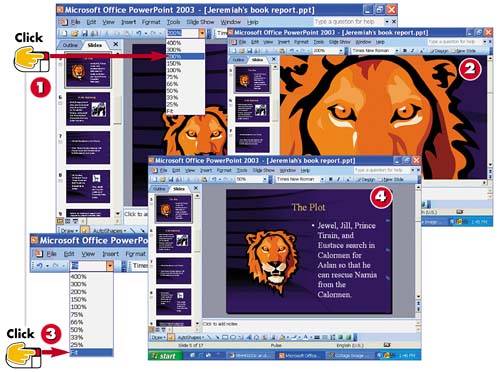

To zoom in, click the Zoom drop-down arrow and select a zoom percentage.

PowerPoint zooms your view of the slide.

To return a slide to its regular size, click the Zoom drop-down arrow and select Fit.

PowerPoint displays the entire slide in the Slide pane.
INTRODUCTIONYou can use the Zoom command to change your view of slide elements. You can zoom in for a closer view, or zoom out to see more of the slide. The Zoom feature is based on percentages; the higher the percentage, the closer the view. |
TIPUsing the Zoom Dialog Box Another way to set a zoom percentage is to use the Zoom dialog box. Select View, Zoom to display the dialog box, and then select a view percentage to use. Click OK to apply the zoom. |
TIPZooming into a Specific Area To zoom into a specific part of your slide, first click over that area, and then execute the Zoom command. |


