Changing the Text Style
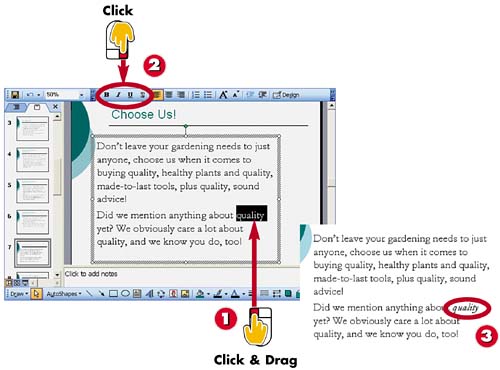

Select the text you want to format.

Click the appropriate style button (Bold to make text bold, Italic to italicize the text, Underline to add underlining to the text, or Shadow to add a shadow to the text).

PowerPoint applies the selected style to the text. In this example, the text is italicized.
INTRODUCTIONA quick way to change the appearance of text on a slide is to make the text bold, italic, or underlined, or to add a shadow to the text characters. You can find shortcut buttons for each embellishment on the Formatting toolbar. The buttons toggle the style effect on or off. |
TIPCopying Formatting You can easily copy any formatting you assign to slide text to another text object in the slide or on another slide. First select the text that uses the formatting you want to copy, and then click the Format Painter button on the Standard toolbar. Drag the mouse over the text you want to copy the formatting to; PowerPoint immediately applies the same formatting to the new text. |


