Inserting Symbols
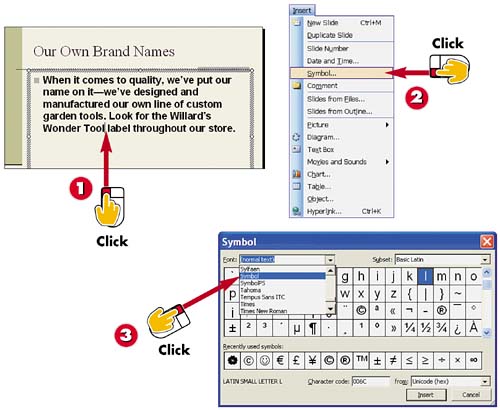

Click in the slide text where you want to insert a symbol.

Open the Insert menu and choose Symbol.

The Symbol dialog box opens. Click the Font drop-down arrow and click the font you want to display.
INTRODUCTION
If your slide text requires special characters or symbols not found on the keyboard, you can use the Symbol dialog box to add them to your slides. Simply choose a particular font library, such as Wingdings or Symbol, peruse the available symbols, and then insert the one you want to use.
TIP
Which Fonts Have Which Symbols?
Use the Symbols font if you are looking for mathematical equation symbols. Use the Wingdings fonts if you are looking for a variety of icons, bullet, and arrow symbols.
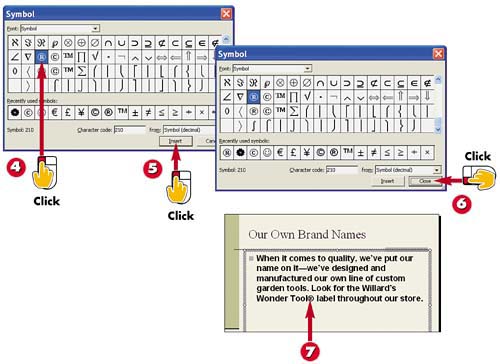

Click the symbol you want to use.

Click Insert. PowerPoint adds the symbol to your slide.

Click Close to exit the dialog box.

The symbol appears in the text.
TIPRemoving Unwanted Symbols By default, PowerPoint attempts to insert certain common symbols based on what you type. For example, if you type (c), PowerPoint inserts a copyright symbol automatically. If you do not want the symbol, open the Edit menu and choose Undo immediately after PowerPoint converts the text; the characters you typed are immediately restored to their original status. |
TIPReusing Symbols The Symbol dialog box keeps track of the symbols most recently used. If you want to reuse a symbol, open the Symbol dialog box and click the symbol in the Recently Used Symbols list at the bottom of the dialog box. |


