2.6 Changing Editors
When
you open a file, Visual Studio .NET chooses which editor to use based
on the file's extension. However, it is sometimes
useful to edit that file with a different editor. For example, when
you open an .asmx file, the default editor will
let you edit only either the design view or the associated codebehind
file. It will never show you the contents of the
.asmx file itself. If you want to edit the
.asmx file directly, you need to open it with
the text editor. You can open any file in a project with the editor
of your choice by selecting it in the Solution Explorer and then
selecting View  Open With.... (You can also select
Open With... from the file's context menu in the
Solution Explorer.) This will display the dialog box shown in Figure 2-11.
Open With.... (You can also select
Open With... from the file's context menu in the
Solution Explorer.) This will display the dialog box shown in Figure 2-11.
Figure 2-11. The Open With dialog box
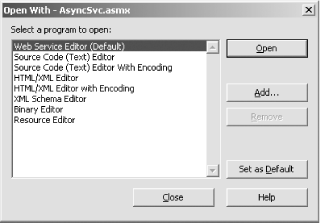
From this dialog you can edit the file with any editor in the listbox. The editor with the (Default) tag after it is the default editor for the chosen document. You can change the default editor by selecting one from the list and clicking on the Set as Default button on the dialog box.
You can also use this dialog to add additional programs to the list of editors. Pressing the Add button displays a dialog box in which you can enter the path and name of an application. When you select that editor, VS.NET will spawn that application and pass the currently selected document to it.
2.6.1 Specifying an Encoding
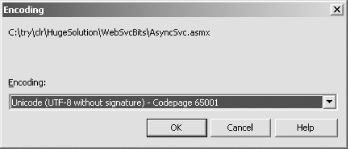
The Visual Studio .NET text editor supports multiple character sets. Visual Studio .NET usually guesses which encoding should be used when opening files, but the Open With dialog box allows you to override its decision. As Figure 2-11 shows, some of the entries in the Open With list have the text "With Encoding" after them. If you select any of these, the Encoding dialog box (see Figure 2-12), which allows you select a specific encoding, will appear.
Figure 2-12. The Encoding selection dialog box
You can also choose an encoding when you save a document. If you
select File Save As, the Save File dialog box will
appear. The Save button has a drop-down list, from which you can
select Save with Encoding..., which will display the Advanced Save
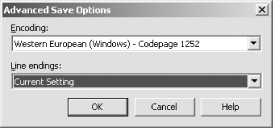
Options dialog box (see Figure 2-13). From this, you
can choose an encoding scheme, and you can also select the way in
which line endings are stored. (You can choose CR, LF, or CRLF.)
Figure 2-13. Advanced Save Options dialog box