5.1 Server Explorer
The Server Explorer is a tool window
that allows you to examine various server resources, including
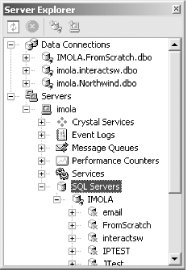
databases. Figure 5-1 shows a typical example. You
can display the Server Explorer with View  Server
Explorer (Ctrl-Alt-S). You can examine databases in two ways with the
Server Explorer. One is to expand the tree's Servers
node and look in the relevant server's SQL Servers
node. (If the server you require is not listed, you can add it to the
list with the Servers node context menu's Add
Server... item.) Figure 5-1 shows several SQL
Server databases running on a machine called
IMOLA.
Server
Explorer (Ctrl-Alt-S). You can examine databases in two ways with the
Server Explorer. One is to expand the tree's Servers
node and look in the relevant server's SQL Servers
node. (If the server you require is not listed, you can add it to the
list with the Servers node context menu's Add
Server... item.) Figure 5-1 shows several SQL
Server databases running on a machine called
IMOLA.
Figure 5-1. Server Explorer
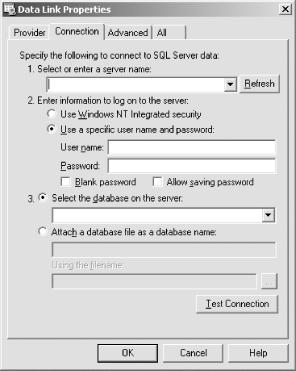
If you will be using the database frequently and want to avoid having to drill so far into a tree view or if the database you require is not a SQL Server database, you can use the second techniqueadd an item to the Data Connections list in the Server Explorer. The Data Connections item's context menu has an Add Connection... entry, which opens the Data Link Properties window shown in Figure 5-2. By default, you will be shown a dialog for setting SQL Server connection details. However, if you select the Provider tab, you will be able to select any OLE DB provider installed on your system. (Remember, the Standard Edition of Visual Studio .NET can use only MSDE and Access, so you will be able to select arbitrary OLE DB providers only if you have the Professional Edition or better.) If you change the provider, a dialog specific to that provider will be shown in the Connection tab.
Figure 5-2. Configuring a connection
The credentials you supply when you create a database connection will have an impact on which of the visual database tools you can use. If you do not have permission to create or edit tables, for example, the table designer will not be able to save your designs to the database.
Note that unless you use integrated security when connecting to a database, Visual Studio .NET will need to know your credentials. You can store these in the data connection by checking the Allow Saving Password checkbox shown in Figure 5-2. But then anyone with access to your files will be able to read these, so be wary of creating a connection with a privileged account. If you leave this unchecked, you will be prompted for the password when you connect. (Although this dialog also provides a Blank Password option for accounts that have no password you are strongly advised to avoid thisusing accounts without passwords is extremely bad practice because of its inherent insecurity.) If you can, you should use integrated securityVisual Studio .NET doesn't then need to store or prompt for the username and password.
|

Once you have configured the connection, it will be added to the Data Connections list in the Server Explorer. Figure 5-1 shows three such connections. You can view various objects in the database by expanding the relevant connection in the Data Connections list. (The same objects will be shown if you expand a database in the SQL Server database list under the Servers section of the Server Explorer instead of creating a connection.) As Figure 5-3 shows, you will be presented with tree nodes for Database Diagrams, Tables, Views, Stored Procedures, and Functions. Each of these can then be expanded to show the individual objects. For example Figure 5-3, shows the Stored Procedures node expanded. And each individual object can be expanded to show further informationhere, the SalesByCategory stored procedure has been expanded to show the parameters and returned columns.
Figure 5-3. Database objects in the Server Explorer
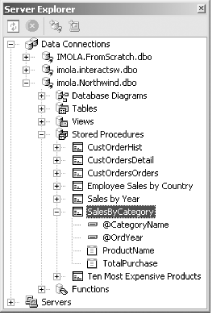
The items that will be visible when you expand an object are different for each type of object. Expanding a database diagram will show a list of the tables present on the diagram, and these can be further expanded to show their columns. For Tables and Views, you will see a list of columns and triggers. For Stored Procedures and Functions, the parameters and return columns are shown.
|

If you double-click on a table or a view, Visual Studio .NET will
display a table showing its contents. This view is the equivalent of
a SQL SELECT * statement with no
WHERE clause, and it can be useful for examining
small tables in development systems. If you need to perform a more
selective ad hoc query, you can display either the SQL pane or the
Grid pane and specify a filter or WHERE clause.
These can be accessed from the View Panes menu or
the Query toolbar, both of which are usually displayed only when the
results of a database query are shown. The SQL and Grid panes are
described later in Section 5.5. (Alternatively, you can create a query in a Database
projectsee the section entitled Section 5.7.4 later in this chapter.)
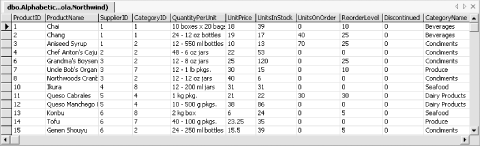
Figure 5-4 shows how the contents of a table or view are typically displayed. The entries are usually editable, although certain types of database view will defeat thisyou cannot edit entries in a view that uses the DISTINCT keyword for example. But for views in which it is practicable for Visual Studio .NET to apply updates to the database, editing will be permitted.
Figure 5-4. Showing a view
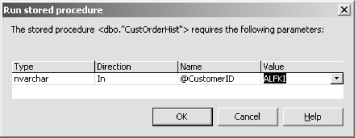
You can also run functions and stored procedures from the Server Explorer, although you must do so by right-clicking and selecting Run from the context menu. (Double-clicking will simply open the definition of the stored procedure or function for editing.) If any parameters are required, Visual Studio .NET will present you with a dialog to supply those parameters, as Figure 5-5 shows. However, the results will not be shown in the grid style used by tables and views. Stored procedure results are displayed in the Output window.
Figure 5-5. Passing parameters to a stored procedure
Double-clicking on any type of node other than a table or view opens a designer windowdouble-clicking on a database diagram brings up the diagram designer, and for stored procedures or functions, you will be presented with a SQL editor. You can design tables and views tootheir context menus have Design Table and Design View entries. These designer windows are all described in the following sections. (Remember, you will be able to save any changes you make with these designers only if your connection to the database has the appropriate permissions.)


