Site Configuration
Apache uses a text file for nearly all aspects of its configuration once installed. The main configuration file is typically called httpd.conf and is either within the Apache installation directory or in the global /etc directory?sometimes within its own /etc/httpd or /etc/apache directory.
Aside from the directory level configuration information, provided by the .htaccess file within each directory, and files imported during startup, the Apache configuration file is the location for everything from default documents and extension/application mappings to the setup of the individual Web sites.
If you are used to this text-based interface for configuration, you are in for your greatest shock with IIS, because the typical administration mode is to use the MMC-based GUI interface. If you use a Web-based interface, such as Webmin, to configure Apache, you can continue to use a Web interface with IIS.
 See Chapter 4 for more information on the various methods for administering IIS. Also see the "Administration" section earlier in this chapter (p.xxx).
 WEB RESOURCE
For a tutorial on how to translate basic Web site configurations from Apache to IIS, including migrating virtual hosts (the VirtualHost directive), go to the Delta Guide series Web site at www.deltaguideseries.com and enter article ID# A020901.
Directory Level Options
The Options directive in Apache Directory directives and .htaccess files is used to enable directory specific options. IIS configures these properties on a Web site or directory basis through the Directory or Home Directory properties for the folder or Web site.
To enable CGI/ISAPI execution in a directory in IIS, equivalent to the ExecCGI option in Apache, follow these steps:
Right-click the directory and select Properties.
Click the Home Directory or Directory tab.
Choose the execute permission for a script by using the pop-up list in Execute Permissions.
To enable the execution of specific extensions with specific applications, click Create to create a new application and click Configuration to edit the file extension/application mappings.
See also the information on enabling/configuring Dynamic Solutions in the section "Dynamic Solutions," p. 155.
To enable users to browse the directory contents in IIS, equivalent to the Indexes option in Apache, follow these steps:
Right-click the directory and select Properties.
Click on the Home Directory or Directory tab.
Click the Directory Browsing box.
URL Redirection
You can redirect URLs within Apache using the Redirect directive to point a folder or location to a different folder on the same Web site or to a different Web site. You can also alias a directory to another location using the Alias directive. Both these facilities can be handled within IIS using the URL Redirection system.
To redirect a directory or file within IIS, follow these steps:
Right-click the Web site or a folder within the Web site, and then select Open.
Right-click the file or directory, and then select Properties.
Switch to the Directory panel if redirecting a directory or the File panel if redirecting a file (see Figure 8.4).
Figure 8.4. Setting redirection.
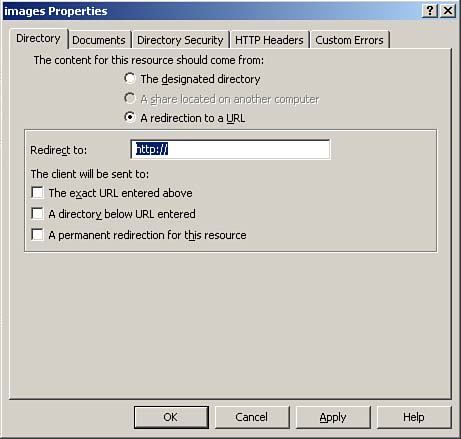
Choose A Redirection to a URL.
To redirect the file or the entire directory to another URL, click The Exact URL Entered Above and type the full URL to the new site in the Redirect To box.
To redirect a directory to another directory below this one?that is, /projects to /sections/departments/projects?click A Directory Below This One and enter the new directory in the Redirect To box.
To mark either redirection type as a permanent redirection, rather than a temporary one, click A Permanent Redirection for This Resource. On some browsers, this will cause bookmarks and other details to be automatically updated.
Click OK to save the changes you made.
URL Rewriting
Apache uses a regular expression system to rewrite or redirect URLs to different folders, files, or directories. The same facility is available within IIS by using a combination of wildcards and replacement variables, summarized in Table 8.1.
Variable | Description | Example |
|---|---|---|
$S | Passes the last matched element from a URL. | If /scripts is redirected to /newscripts and the original request is for /scripts/program.exe, /program.exe is the suffix. The server automatically performs this suffix substitution; you use the $S variable only in combination with other variables. |
$P | Passes the parameters in the original URL. | For example, if the original URL is /scripts/myscript.asp?number=1, the string "number=1" is mapped into the destination URL. |
$Q | As $P, but includes leading question mark. | For example, if the original URL is /scripts/myscript.asp?number=1, the string "?number=1" is mapped into the destination URL. |
$V | Passes the requested URL, without the server name. | For example, if the original URL is //myserver/scripts/myscript.asp, the string "/scripts/myscript.asp" is mapped into the destination URL. |
$0 through $9 | Passes the portion of the requested URL that matches the indicated wildcard. | |
! | Do not redirect. | Use this variable to prevent redirecting a subdirectory or an individual file in a virtual directory that has been redirected. |
You can also use wildcards; those supported by IIS are the * (asterisk) for one or more characters and ? (question mark) for a single character.
You use the redirection facility discussed in redirection to activate the rewriting; the Redirect to box holding the source and the destination URL, separated by a semicolon.
For example, to redirect all the files ending in .html to the file default.html, follow these steps:
Right-click on the folder you want to use as the base for rewriting, and then select Properties.
Switch to the Directory panel.
Choose A Redirection to a URL.
Click The Exact URL Entered Above.
Type *.html;default.html in the Redirect To box.
Click OK to accept the changes.
To redirect the query for a script to an alternative script?that is, myscript.asp?number=1 to the script newscript?number=1?follow these steps:
Right-click on the original script, and then select Properties.
Switch to the File panel.
Choose A Redirection to a URL.
Click The Exact URL Entered Above.
Type newscript.asp$Q in the Redirect To box.
Click OK to accept the changes.
Setting Default Documents
Within Apache, you can control which document is served to a client if a specific document in a directory is not requested. You do this using the DirectoryIndex directive:
DirectoryIndex index.cgi index.shtml index.html
The order of the documents listed is important because it adjusts the priority. In the preceding example, if both the index.cgi and index.shtml documents exist in a directory, index.cgi will be executed and returned to the client.
In IIS, we can achieve the same result by modifying the Documents setting for a directory. Within Apache, you can also set an alternative default document list for a specific directory using the DirectoryIndex directive within a Directory directive in the main configuration file or an .htaccess file.
IIS supports both Web site and directory level configuration. To set the default documents and their priority in IIS for an entire Web site or a specific directory, follow these steps:
Right-click the Web site or directory in the IIS Manager and select Properties.
Click the Documents tab.
Check the Enable Default Documents box to enable default documents.
Click Add to add the name of a file or script to be used as a default document.
Use the Move Up and Move Down buttons to change the priority of the listed files; those at the top will be selected first (if they exist).
Note that the changes you make become available immediately; you do not need to restart IIS to adjust these settings.
As with Apache, if you want the default document list to include a script, you must have created an association between the file's extension and the application or library used to parse and evaluate the document.
Setting Error Documents
Error documents within Apache are configured through the ErrorDocument directive. In IIS, they are configured on a directory or Web site basis through the corresponding properties page and the Custom Errors tab.
You have three options: You can either return a standard, IIS formatted message; you can redirect the error to an HTML document; or you can redirect the user to an alternative URL.
To change the configuration, follow these steps:
Create a file that contains your custom error message and place it in a folder or within your Web site's directory.
In the IIS Manager snap-in, select the Web site, virtual folder, folder, or file in which you want to customize HTTP error messages, and click Properties.
On the Custom Errors property sheet, select the HTTP error message that you want to change and click Edit Properties.
In the Message Type box, select Default for the default message, File to redirect to a fixed file, or URL to redirect to a URL.
If redirecting to a file, type the path and filename that points to your customized error message, or use the Browse button to locate the file on your computer's hard disk. If using a URL, type the URL into the box provided. Click OK.
ERROR REDIRECTION
You can only redirect major errors (that is, 400, 404, and so on) to a URL. IIS specific sub-errors and messages can only be sourced from a file or can only use the default IIS text.
REDIRECTING ERRORS
If you redirect an error to an ASP page, the error number and original URL of the error are supplied to the ASP page as arguments.
FTP Services
Although not an Apache service, FTP is often used in combination with Apache-based installations when files need to be downloaded or where two-way communication with a client is required and WebDAV or multipart HTTP requests are not in use.
One of the common reasons to use FTP for file downloads is that the number of concurrent users can be very tightly controlled. You can achieve this level of control through HTTP services by using the queue length and worker process tuning facilities provided by IIS 6. See Chapter 2, "Architecture and Execution," p. 15, for more information.
FTP sites are created within IIS in much the same way as Web sites?you right-click on the server in the IIS manager and create an FTP site through a wizard.
Previously, IIS 5 and lower provided a simple FTP service. Although it provided FTP services, upload/download facilities, and authenticated logins, all authenticated users were placed in to the same directory once they had connected to the server. This meant that although you could restrict access to those users with passwords, you couldn't then restrict them from accessing or overwriting files placed in the same directory by other authenticated users.
IIS 6 improves on that by providing three different types of user isolation when you are creating the FTP site (description in parentheses are the corresponding options from within the wizard):
No Isolation (Do Not Isolate Users)? This is identical to previous versions of IIS?with all authenticated users being placed within the same directory when they log in.
Isolation (Isolate Users)? This is identical to the Unix style FTP service?authenticated users are placed into a corresponding user directory that is isolated from all other users. The user is able to control all aspects of his directory, provided that you've granted him access, but he won't be able to affect other user's files.
Isolation Through Active Directory (Isolate Users Using Active Directory)? This authenticates users against AD and then transparently maps their FTP root directory into the home directory as configured in AD.


