Task 1 How to Create a Straight-Edge Path
You can use paths to define an image area that you then can select, fill, or outline. Paths are especially valuable for graphic shapes you may want to select repeatedly. You create a path using the Pen tool; you click points that are connected automatically with line segments. This task begins by creating a simple path with straight-line segments; later tasks show you how to create more complex path shapes.
Open the File
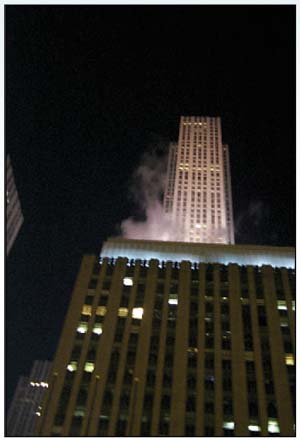
Choose File, Open to launch the desired file.
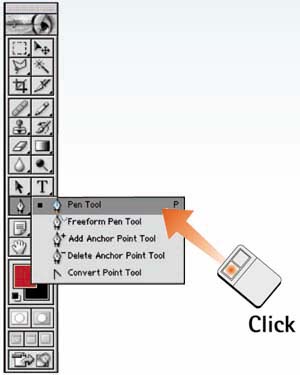
Select the Pen Tool
Select the Pen tool from the toolbox (you may have to select it from the pop-out menu of tools that appears after you click this button in the toolbox).
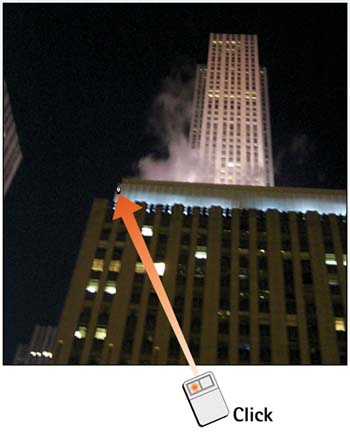
Place the First Point
Position the pen over the image area at the spot where you want to start the path. Click once to place an anchor point.
Place Additional Points
Click additional points as needed to complete the path. Notice that a straight line is drawn between the points you click with the Pen tool.
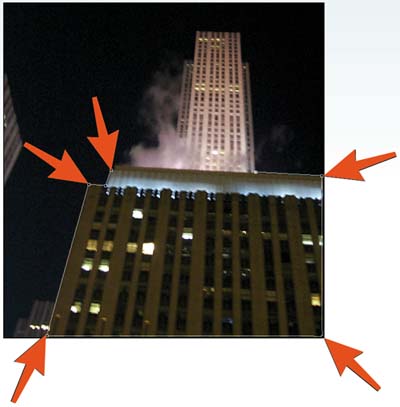
Close the Path
Place the last point over the starting point to close the path. A circle appears next to the Pen tool when the tool is positioned properly.
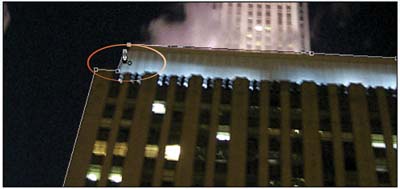
Edit the Path
To edit the path, choose the Path Selection tool or the Direct Selection tool from the toolbox (click and hold the tool in the toolbox to activate the pop-out menu and select between the two tools). Click and drag the anchor points on the image to modify the path.
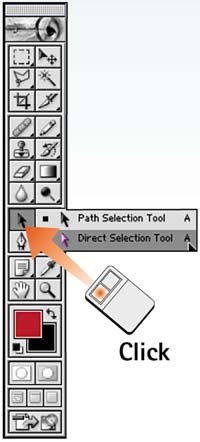
Save the Path
Choose Window, Paths to launch the Paths palette. Double-click the tile for the path you just created (the tile has the title Work Path). The Save Path dialog box opens. Type a name for the path and click OK to save the path.
How-To HintsDeleting and Duplicating Paths Press the Delete key twice to delete the path you are currently drawing. Alternatively, select Delete Path from the Paths palette menu to delete a selected path or segment. After you have saved a path, you can duplicate it: From the Paths palette, select the desired path and choose Duplicate Paths from the Paths palette menu. |


