8.2 The System.Windows.Forms Namespace
In this section, we describe the architecture of Windows Forms and introduce the classes that make up the Windows Forms namespace.
Windows Forms architecture is rather simple. It takes the form of controls and containers. This is similar to Java JFC model, where container types of classes are Panel, Window, JComponent, and so on, and control types of classes are Button, Checkbox, Label, and so on. Most user-interface classes in the Windows.Forms namespace derive from the Control class. In a sense, everything that you see in a Windows Forms application is a control. If a control can contain other controls, it is a container. The application user interface consists of a form object acting as the main container, as well as the controls and other containers that reside on the form.
Similar to the native Windows API common functions, the System.Windows.Forms namespace provides a common set of classes you can use and derive from to build Windows Forms applications. The classes and interfaces in this namespace allow you to construct and render the user-interface elements on a Windows Form.
As we have seen from the last chapter, the System.Web.UI namespace provides the classes for building web applications. Similarly, the System.Windows.Forms namespace provides the classes for building standard applications. The System.Windows.Forms namespace is analogous to the System.Web.UI namespace, as described in the previous chapter.
Similar to the Control and Page classes in the System.Web.UI namespace, Control and Form are the two most important classes in the System.Windows.Forms namespace.
8.2.1 Control Class
Control is the base class of all UI controls in Windows Forms applications. It provides common properties for all controls, as well as common user-interface control behaviors, such as accepting user input through the keyboard or mouse and raising appropriate events.
Table 8-1 is a list of some representative properties, methods, and events that you will most likely encounter. For the complete list, check out the Microsoft .NET SDK.
|
Properties |
Description |
|---|---|
|
Controls, Parent |
These properties allow for constructing hierarchy of controls. The Controls property lists all child controls, while the Parent property points to the parent of the current control. |
|
Enabled, Focused, Visible |
These properties control the visual states of the control. |
|
Left, Right, Top, Bottom, Width, Height, Size, Location |
These properties control the location and size of the control. |
|
Methods |
Description |
|
Show, Hide, Focus, Select |
These methods manipulate the control's visual state. |
|
Refresh, Invalidate, Update |
These methods control when and what portion of the screen needs redrawing. The Refresh method immediately forces the control to redraw itself and all of its children. The Invalidate and Update methods selectively control the portion of the screen that needs to be redrawn. |
|
ProcessCmdKey, WndProc |
If you develop your own controls, override these methods to intercept the Windows messages. This is similar to how Windows developers handled Windows messages when they developed Win32 applications using the native Win32 API. |
|
Events |
Description |
|
Click, MouseDown, MouseUp, MouseMove, MouseWheel |
You have to write event handlers to handle these events for your applications. |
|
KeyDown, KeyUp, KeyPress |
Similar to the mouse events, these keyboard-events can be handled via custom event handlers. |
The Control class also provides behaviors, such as data binding, context menu, drag and drop, anchoring and docking; and properties, such as font, color, background, cursor, and so on.
8.2.2 Form Class
A form in Windows Forms is similar in concept to a page in Web Forms. It is a container type of control that hosts other UI controls. You manipulate the properties of the Form object to control the appearance, size, and color of the displayed form. A Windows Form is basically a representation of any window displayed in your application.
A standard form contains a titlebar, which contains an icon, title text, and control box for the Minimize, Maximize, and Close buttons (see Figure 8-1). Most of the time, a form also contains a menu right under the titlebar. The working area of the form is where child controls are rendered. A border around the whole form shows you the boundary of the form and allows for resizing of the form. Sometimes, the form also contains scrollbars so that it can display more controls or larger controls than the size of the working area of the form.
Figure 8-1. An empty application
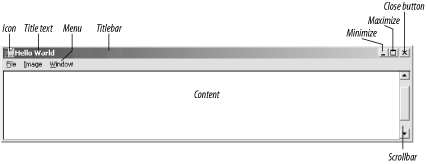
You can manipulate the form's standard visual elements with properties such as Icon, Text, ControlBox, MinimizeBox, MaximizeBox, and FormBorderStyle. For example, if you want the title text of the form to read Hello World, you include the assignment formName.Text = "Hello World";. To have a form without the control box in the top right corner, set the ControlBox property to false. If you want to selectively hide the Maximize or the Minimize button in the control box, set the MaximizeBox or MinimizeBox property to false.
You can assign a menu to your form by setting the Menu property of the form with an instance of the MainMenu class. We will show you how to do this in Section 8.3 later in this chapter.
Similar to Submit and Reset buttons in a web page's form, a form will frequently include OK and Cancel buttons to submit or to reset the form. In Windows Forms, you can assign any button to the AcceptButton property of the form to make it the default button when the user hits the Enter key. Similarly, you can set up the CancelButton property to handle the Escape key.
The Form class supports a number of methods itself, along with the methods it inherits from the base class. Activate, Show, Hide, ShowDialog, and Close are a few of the imperative methods used in any form to control the window-management functionality of a form. As we get into Section 8.3 later in this chapter, you will see these methods in action.
8.2.2.1 Extending existing controls
Because Windows Forms API is object oriented, extending controls is as easy as deriving from the control you want to extend and adding methods, properties, and events, or overriding the default behavior of the control:
class MyCustomTextBox : TextBox
{
  // Customization goes here.
}
8.2.2.2 Creating composite controls
Composite controls are controls that contain other controls. By definition, it ought to be derived from the ContainerControl class; however, the Windows Forms object model provides the UserControl class, which is a better starting point for your custom composite controls (UserControl actually derives from ContainerControl):
class MyCustomComposite : UserControl
{
  // Composite controls go here.
}
While deriving from UserControl class to create your custom composite controls is not a hard task, Microsoft Visual Studio .NET is an excellent tool for making this task even easier. It truly is an effort to raise the bar on RAD tools. Developers' productivity benefits greatly from support tools like these.
8.2.3 Application Class
The Application class provides static methods to start, stop, or filter Windows messages in an application. All Windows Forms applications contain a reference to this Application class. More specifically, all Windows Forms applications start with something like the following:
System.Windows.Forms.Application.Run(new MyForm( ));
While this class provides other methods and properties beside the Run method, this method is really the only essential one. The rest of the methods (listed in the rest of this section) are low-level and not frequently used.
The Run method starts the application thread's message loop. This method has two signatures. The first signature involves no parameters, which are normally used for non-GUI applications:
System.Windows.Forms.Application.Run( );
The second signature takes a form as a parameter, as you can see from the first example. The form MyForm is the entry point to a GUI Windows Forms application.
Table 8-2 summarizes the Application class.
|
Properties |
Description |
|---|---|
|
CommonAppDataRegistry |
This is the common application registry key under which common data is stored and shared among all users. It is application specific. If a path does not exist, one is created in the following format: Base Path\CompanyName\ ProductName\ ProductVersion. |
|
StartupPath |
This property is the path in which the executable started. |
|
UserAppDataRegistry |
This is the registry key where roaming user's data are kept. |
|
Methods |
Description |
|
Run |
This method starts the application whether it is GUI-based or not. |
|
Exit |
This method stops the application by sending the stop message to all message loops in all threads in the application. |
|
ExitThread |
Similarly, this method stops the current message loop in the current thread. |
|
AddMessageFilter |
You can also add a message filter to the application to intercept and filter Windows messages.[2] |
|
RemoveMessageFilter |
You can also remove the message filter. |
|
DoEvents |
This method processes all Windows messages currently in the message queue. |
[2] The only parameter you need to provide to this method is an object that implements the IMessageFilter interface. Currently, the only method in this interface is PreFilterMessage, which you have to override to intercept and filter any message. If your PreFilterMessage method returns true, the Windows message is consumed and not dispatched to its destination. You can let the message pass through by returning false in this method.
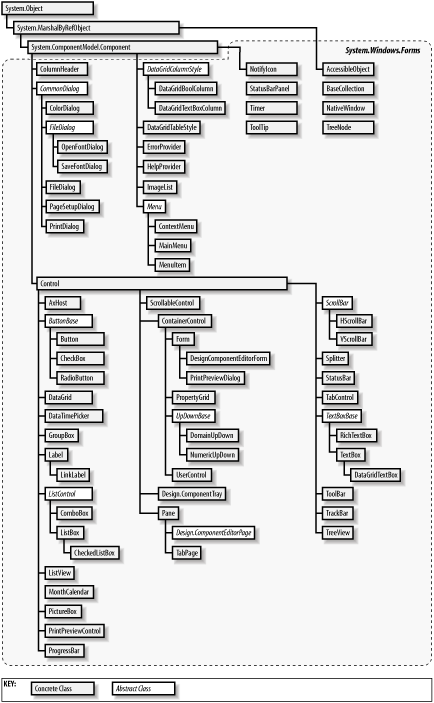
Figure 8-2 illustrates the hierarchy of Windows Controls in the System.Windows.Forms namespace. These controls are placed on the form to create Windows Forms applications and on a UserControl container to create UI Controls (similar to current ActiveX controls). This figure does not include the Application class.
Figure 8-2. System.Windows.Forms Windows Controls class hierarchy