7.1 A Profile Primer
Profiles and group policies are tightly related, but they serve completely different functions. To make things clear, we'll cover the essentials of profiles so that you can understand how to manipulate them using group policies.
Let's consider a Windows XP workstation with a newly created account for a user named Richard Lang with the username RLang. When Richard logs on to the client, the system creates a profile directory for him, corresponding to his username, in the Documents and Settings directory. If Richard were to log on to a Windows NT workstation or to a Windows 2000 workstation that was upgraded from a previous version of Windows NT, the profile would be created under the %systemroot%\Profiles[2] directory. On a fresh Windows 2000 install or Windows XP, the profiles are stored under %systemdrive%\Documentand Settings.
[2] %systemroot% is the system environment variable that refers to the location of the Windows operating system files. If Windows NT were installed on drive C: in the normal way, %systemroot% would be C:\WINNT. The %systemdrive% variable contains the drive letter of the drive the operating system was installed on.
Inside this directory, the system places a file called NTUSER.DAT, along with various other data files. Let's concentrate on the NTUSER.DAT file for a moment. This file contains what is known generally as the user portion of the registry. All Windows-based operating systems have a registry that consists of two parts: the so-called user portion represented by the file NTUSER.DAT (or USER.DAT on Windows 9x systems) and the system or computer portion of the registry, which is stored in %systemroot%\system32\config. The user part of the registry holds information indicating what screensaver should be used for that user; what colors, background, and event sounds are set; where the user's My Documents folder points to; and so on. The system portion of the registry holds hardware device settings, installed software information, and so on. When a user logs on to a client, the combined effects of the settings for the machine held in the system portion of the registry and the settings for the user held in the user portion of the registry take effect.
When you use a tool such as REGEDIT.EXE or REGEDT32.EXE to examine the registry on a machine, both portions of the registry are opened and displayed together for you to look at within one tool.
|

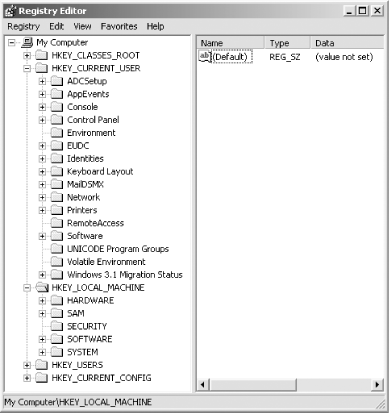
Figure 7-1 shows a view of the registry on a Windows 2000 client when viewed from REGEDIT. The screenshot also shows the five registry hives (as they are known) available to Windows 2000. The two important hives are HKEY_LOCAL_ MACHINE, also known as HKLM, which corresponds to the system part of the registry, and HKEY_CURRENT_USER, also known as HKCU, which corresponds to the user portion of the registry.
Figure 7-1. A REGEDIT view of the registry on a Windows 2000 Professional client
When Richard logs on to the local client for the first time, the file is copied from the Default User profile directory that already exists on the machine under Documents and Settings. During Richard's first logon, the system also creates a series of directories under Richard's profile directory with names like My Documents, Start Menu, Desktop, and so on. If Richard ever places an icon on the desktop or saves a file from NotePad to the My Documents folder, the data is placed inside the relevant folders in Richard's profile. The Start Menu folder holds the Start menu structure that Richard sees when he clicks the Start button.
7.1.1 The Default User and All User Folders
The default contents placed inside all these folders in Richard's profile come directly from the same folders in the Default User profile. When Richard logs on, however, he may see icons or folders inside My Documents, Start Menu, and Desktop that do not appear in his own profile directories. These extra items are displayed as if they were part of Richard's profile, but they are part of the All Users profile that also resides on the computer. In fact, the settings from the AllUsers\NTUSER.DAT file also are available to Richard. The All Users profile is a great way of adding new items to every user's profile on the client without having to add each item manually. During installation, NT-aware software tends to ask whether the installation is just for the user installing the software or for all users of the client. If the software is told that it is for all users, it modifies the All Users profile.
To recap, when Richard logs on for the first time, a profile directory called Documentsand Settings\Rlang is created for him, and everything from the Documentsand Settings\Default User profile is copied into it. Richard's profile now contains an NTUSER.DAT file that contains all of his user settings, as well as a series of folders representing his Desktop, Start Menu, and My Documents folder, among others. In addition to any files or folders copied from the Default User profile, Richard also seamlessly sees all of the items corresponding to the Documentsand Settings\All Users profile, although they will not exist in his own Rlang directory hierarchy. He also may not be able to remove or delete the files and shortcuts if he doesn't have the permission to do so.
7.1.2 Logging On Locally to the Workstation
Windows 2000 and later machines store much more data in Richard's profile than Windows NT or Windows 9x would. In addition, more registry keys have been added to both portions of the registry to enable much more fine-grained control over what happens in a profile. We'll have more to say about that later.
If Richard logs off and then on again, the system will detect that he already has a profile folder on the workstation and will continue to use that rather than create a new one. That is why when Richard creates a desktop file and logs off and on again, the file is still visible on Richard's desktop. If Richard logs off and an administrator logs on and installs software, the software is likely to install itself into the All Users profile, adding folders and files and changing the registry as required. When the administrator logs off and Richard logs back on, the new software in the All Users profile will be available to him as if it were part of his own profile; this includes providing any All Users NTUSER.DAT HKCU registry settings that he may need for the application.
|
7.1.3 Logging On to the Domain
Now let's say that Richard instead logs on to a Windows NT or Active Directory domain. If you set the system up in the standard manner, when Richard logs on to the domain for the first time, he is given a profile directory on the local workstation that he logs on to. In exactly the same manner as a logon to the workstation itself, this new profile is made from the Default User and All User profiles on the workstation. When Richard logs off, his profile stays at the workstation. If he then logs on to the domain from another workstation, he has a new profile created for him on that workstation. If Richard then logs off from this workstation and logs on at another, he gets a third profile created. Finally, if he logs back on to the first workstation, he will get the profile that he used there last. This default scenario is very limiting, and domain-based logins provide three key profile technologies for domain usage. You need to be aware of these technologies to manipulate profiles to work in a better manner for your organization:
Roaming profiles
Cached profile deletion
Relocation of the Default User profile
Having profiles stored on each workstation makes little sense. It would make a lot more sense to store the profiles centrally and have them accessible from anywhere on the network. Roaming profiles make this possible. Under Windows NT, you simply filled in the relevant profile field for a user in the User Manager for Domains tool and pointed the new location at a share for that user. Under Active Directory, you use the Active Directory Users and Computers (ADUC) tool, but the concept is the same. If you did this for Richard, the system would detect at his first logon that he did not currently have a roaming profile, and his profile would be created on the workstation as before. However, when he logged out, his profile would be copied to the network location to become his roaming profile. Then when he logged back on again from anywhere on the network, including Terminal Service connections, his new profile on the network share would be downloaded to the workstation for him to use. This download on logon and upload on logout continues throughout the lifetime of the account, provided the account's profile property is not deleted.
7.1.4 Cached Profile Deletion
One problem can come up with this scenario. First, if Richard logs on at a hundred workstations throughout the life of the account, a hundred copies of his profile at various stages of development will exist, one on each of the hundred workstations. To combat this, administrators can set a registry key on the workstations that forces them to discard the profile after the roaming profile upload on logout. The key is held in the system part of the registry and is the same in Windows NT as in Windows 2000 and Windows XP. Setting it to a DWORDvalue of 1 turns it on:
- HKLM\SOFTWARE\Microsoft\WindowsNT\CurrentVersion\Winlogon\DeleteRoamingCache
This setting needs to be applied to all the computers from which you wish to delete cached profiles. The fastest way to implement such a change in an Active Directory environment is to use a GPO, unless you relish changing the registry manually on every client. You simply make this one change centrally and then have it roll out to all computers that you wish to affect. Under Active Directory, you do not even need to know that this is the key in the registry that is being modified, as this is one of the many default computer options that are available from the GUI, which hides the actual registry keys and values that you are changing.
7.1.5 A Server-Based Default User Profile
If you want to change a setting in the user portion of the registry or add a new icon to the desktop for all new users, you ordinarily need to modify the Default User profile on every client. In large environments, this is really an unacceptable solution. The simpler solution would be to store a centrally located copy of the Default User profile that the users automatically download on first logon. That way, if you need to make a change, you need to make it only on the centrally stored copy and not on every client. This can be achieved by placing the Default User profile in the NETLOGON share. Previously, we said that when the user logs on to the domain for the first time, the system copies the Default User profile from the client workstation. That is, in fact, true only when a Default User profile does not exist in the NETLOGON share; if a central Default User profile does reside in the NETLOGON share, that is used in creating the user's own profile.
|
The basic point is that while Windows 2000 and Windows XP profiles may be stored under different locations, store more data, and be more customizable than Windows NT profiles, they work on the same principles as their direct predecessors.
This is not true when comparing Windows NT system policies and Active Directory group policies. We'll now cover some of the capabilities of group policies, which have not been available previously.


