7.2 Capabilities of GPOs
GPOs can be edited using the Group Policy Object Editor (GPOE), formerly theGroup Policy Editor (GPE), which is an MMC snap-in. The GPOE is limited to managing a single GPO at a time and cannot be used to link a GPO. For this reason, Microsoft developed the Group Policy Management Console (GPMC) MMC snap-in, which was released around the same time as Windows Server 2003, as a web download from http://download.microsoft.com. The GPMC provides a single interface to manage all aspects of GPOs, including editing (through the GPOE), viewing the resultant set of policies (RSOP), and linking to domains, sites, and OUs. We will cover these tools in much more detail in Chapter 10.
Most settings in a GPO have three states: enabled, disabled, and unconfigured. By default, all settings in a GPO are unconfigured. Any unconfigured settings are ignored during application, so the GPO comes into play only when settings have actually been configured. Each setting needs to be configured as enabled or disabled before it can be used, and in some cases the option needs no other parameters. In other cases, a host of information must be entered to configure the option; it all depends on what the option itself does.
|
GPOs can apply a very large number of changes to computers and users that are in Active Directory. These changes are grouped together within the GPOE under the three headings of Software Settings, Windows Settings, and Administrative Templates. There are two sets of these headings, one under Computer Configuration and one under User Configuration. The items under the three headings differ, as the settings that apply to users and to computers are not the same.
Some of the settings under Administrative Templates would look more sensible under the other two sections. However, the Administrative Templates section holds data that is entirely generated from the Administrative Template (ADM) files in the system volume; so it makes more sense to include all the ADM data together. ADM files contain the entire set of options available for each setting, including explanations that are shown on the various property pages in the GPOE.
|

In Windows Server 2003 Active Directory, Microsoft extended the capabilities of GPOs significantly. Over 160 new settings have been added, some of which cover new areas, such as the netlogon process, DNS configuration, networking QOS and wireless, and terminal services. We'll now give an overview of the main categories of settings available with GPOs and provide a brief explanation for some of the main capabilities of each.
7.2.1 Software Installation Settings (Computer and User)
GPOs provide the ability to deploy applications automatically to users or computers. These applications can now be installed, updated, repaired, and removed simply using GPOs and their interaction with a technology called the Microsoft Installer.
To comply with the Windows 2000 or Windows Server 2003 logo program, in which an application gets the ability to sport the "Designed for Windows 2000" logo or equivalent, each application must ship with an installation routine that uses the Microsoft Windows Installer (MSI) technology. During creation of a software application, the author can now create a new MSI file that is the descendant of the original SETUP.EXE files that used to be created. The MSI contains all the data required to fully install the application and then some. It knows about the files that are required by the application, including notes such as sizes and version numbers, and it maintains a host of other information, including language settings, where to install the application, what files are critical to the functional operation of the application, and so on. On any system that has the Microsoft Windows Installer service installed, the MSI file can be run as if it were an executable, and the application will install.
The administratorcan customize the defaults for the MSI file to tailor the exact settings for the application, say installing it on drive Z: rather than C: or installing Spanish and Polish support in addition to English. The process of customizing the MSI file in this manner is known as creating a transform. The transform is used by the installer service to make sure that the MSI file installs the appropriate items in the correctly configured way.
That's not all, though: this technology has a lot more to it. First, it has the capability to self-repair applications. So let's say that a user accidentally deletes one or more of the core files required for the application to work. When the user attempts to run the application, the icon or application that the user tries to run first checks with the MSI and the transform to make sure that no critical data is missing. If it is, the data is copied to the appropriate locations, and the application is started. This effectively brings about fully functional, self-repairing applications.
Applications can also be deployed using GPOs so that users get them as soon as they log on or whenever they browse Active Directory to find the applications. You can even tell the MSI to auto-install on any client PC that attempts to open a file with an extension that an MSI-aware application can read.
While the Microsoft Windows Installer service is very useful, and its configuration will become second nature to administrators as time goes on, the actual technology itself is not really appropriate to this book. If you want to find out more on the Windows Installer service and how you can write your own MSI for both existing and new applications, check out the InstallShield web site http://www.installshield.com for the newer version of the InstallShield tool that compiles MSI files, or search the Microsoft web site http://search.microsoft.com/us/dev/default.asp for the phrase Windows Installer.
Microsoft Windows Installer files are inserted into a GPO from the Software Installation section. Figure 7-2 shows the GPOE with two GPOs snapped into it, one expanded in the scope pane to show the two Software Installation parts.
Figure 7-2. Software Installation settings for a GPO
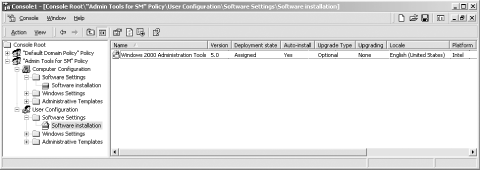
Software Installation is listed under both the computer and user sections of the GPO, and thus you can deploy software installations to both computers and users through the two different parts of the GPO. In Figure 7-2, this GPO is deploying the Version 5.0 Systems Administration tools as an assigned application to all users that receive this GPO. If you remember the example from the start of this chapter, this GPO is used to auto-install the Systems Administration tools onto any client that certain systems administrators log on to. We know that it auto-installs, because that is one of the configured options enabled in the GPOE in Figure 7-2. More information on Microsoft Installer applications can be found in the next section.
7.2.2 Windows Settings (Computer)
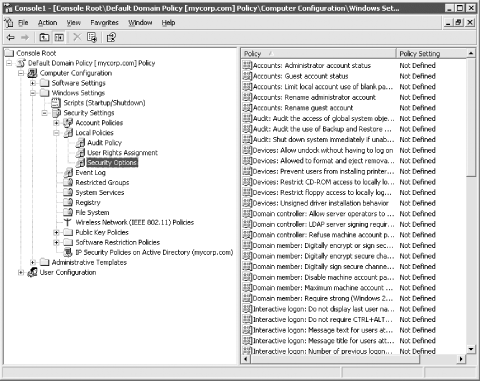
This part of a GPO holds startup and shutdown scripts as well as security settings. In Figure 7-3, the GPO being edited is the Default Domain Policy installed by default on creation of a domain. This GPO applies to all computers in the domain, so any change that we make to this GPO will affect DCs, member servers, and ordinary workstations alike.
Figure 7-3. Computer Security Settings and scripts
Startup and shutdown scripts can be made to execute asynchronously or synchronously. They can use VBScript, JScript, any other ActiveX scripting host language, or even plain old CMD/BAT files that you may already be familiar with. You can even pass parameters to the scripts by configuring the parameters into the GPO.
The Security Settings portion of the GPO is by far the larger of the two sections covered by the Windows Settings heading. The items displayed in Figure 7-3 cover the following areas:
- Account Policies
-
These policies allow you to apply settings that govern how accounts on the system work.

The settings for the following three policies can only be applied domainwide; they cannot have different values for different Organizational Units in a domain. This is why you need to consider multiple domains in the namespace design if you need to apply different settings to different sections of your organization.
- Password Policy
-
These settings allow you to specify policy settings for passwords, such as how many days a password can exist before expiration.
- Account Lockout Policy
-
These settings allow you to specify how many grace logons a user is allowed before she locks out her account due to bad logon attempts. You also specify how long the account should stay locked out.
- Kerberos Policy
-
This setting is domain-wide only, so it exists only in the Default Domain Policy. It allows you to configure the various Kerberos security and ticketing policies that apply to the domain.
- Local Policies
-
These policies directly affect the operation of a local machine, be it a workstation or a DC.
- Audit Policy
-
These policies list items that, when turned on, will write audit entries for success and/or failure to the security event log of any machine that is affected. In other words, if you turn on Audit Logon Events (Failure) in the Default Domain Policy, any failed logon attempts on any machine within that domain are logged to the security event log on that same machine.
- User Rights Assignment
-
While permissions are used to allow or deny access to an object in Active Directory or a part of a filesystem, user rights give special abilities to an account or the operating system, such as whether the machine can be accessed only locally or only across the network, whether an account can add workstations to a domain, and whether an account can act as part of the operating system and manipulate devices at a low level. These items used to be available from a menu in Windows NT's User Manager, but a few more items have been added to accommodate the changes to Windows 2000 and Windows Server 2003.
- Security Options
-
These settings, which are displayed in the results pane of Figure 7-3, allow configuration of security on one or more computers throughout your organization.
- Event Log
-
These settings allow you to set various properties of the three main event logs (security, application, and system)such as the maximum size, how long to retain the logs, and so onon any computer that receives this policy. Under Windows 2000 and later, these settings were contained in a subheading called "Settings for Event Logs."
- Restricted Groups
-
This allows you to indicate specific groups on any computer that receives this policy and force them to be members of other groups or to have members themselves.
- System Services
-
This setting allows you to manipulate services that may be running on any machine that receives this policy and set the permissions for access to those services. The permissions include who can start, stop, and change properties, as well as the default state (i.e., Automatic, Manual, or Disabled).
- Registry
-
This setting allows you to add a registry key on any computer that receives this policy and automatically set its permissions and auditing properties. If you want to audit successful and unsuccessful accesses to the HKEY_USERS key for computers in one specific Organizational Unit only, you do so by adding an entry to a GPO that affects that Organizational Unit.
- File System
-
This setting allows you to add a file or directory on any computer that receives this policy and automatically set its permissions and auditing properties. If you want to set read, write, and change access permissions to the C:\WINNT or C:\WINNT\SYSTEM32 directory for every computer in one specific Organizational Unit only, you do so by adding an entry to a GPO that affects that Organizational Unit.
- IP Security Policies on Active Directory
-
This allows you to configure whether a server requires use of Internet standards on IP security (IPSec) when clients attempt to communicate with the server or whether it just requests IPSec if the client is capable. From the client side this setting allows you to dictate whether a client will always use IPSec of a certain form or whether it will use IPSec only when a server requests it. All aspects of IPSec can be configured from here.
- Public Key Policies
-
This location allows you to set all manner of Public Key Infrastructure (PKI) settings that are now natively supported in Active Directory. Administrators can specify that the system has a trusted certificate list that it considers reputable, that it will automatically pass certificates of a certain type out to users or computers without their intervention, and that key users (with the administrator as default) can be made Recovery Agents and thus gain the permission to use another user's public keys and certificates to decrypt that user's encrypted data. As these settings are specific to a GPO, and a GPO can be specific to a location in Active Directory, this allows you to set out a number of different policy settings that apply to different areas of the tree as required.
- Software Restriction Policies (new in Windows Server 2003 Active Directory)
-
With these settings you can restrict which applications can run on client machines. You can restrict files from being executed by file type or even by user. Another interesting aspect of the software restriction policies is that if you have a virus outbreak, you can prevent clients from opening the file that is known to have a virus.
- Wireless Network (new in Windows Server 2003 Active Directory)
-
This allows you to manage the wireless clients on your network by configuring the SSID, WEP, encryption, and numerous other 802.1x settings.
7.2.3 Administrative Templates (Computer)
The computer settings include:
7.2.3.1 Windows components
- NetMeeting (new in Windows Server 2003 Active Directory)
-
This contains one setting, which is to disable remote desktop sharing via NetMeeting.
- Internet Explorer
-
Several settings here allow an administrator to dictate whether IE can autodetect missing components and new versions as well as what its security zone settings are.
- Task Scheduler
-
Ordinary logged-on domain users normally can manipulate the task scheduler on a machine. As an administrator you may not want this, or you may want to set certain tasks and not allow users to delete them. These options allow you to disable creation and deletion of tasks, prevent the running or stopping of tasks on an ad hoc basis, prevent scheduling of any applications that do not appear anywhere other than the user's Start menu, and so on.
- Terminal Services (new in Windows Server 2003 Active Directory)
-
This section contains a bunch of setting that allow controlling and configuring of Terminal Services on clients.
- Windows Installer
-
These settings allow an administrator to configure a number of Microsoft Installer options that will apply to all applications installed on this computer. These include options such as whether to disable the use of MSI files on the client, whether to install all MSI files with elevated privileges (i.e., whether to install using the local SYSTEM account which has full rights to the files and folders on the machine's disks, which the user may have no rights to), how much logging is to be done, and so on.
- Windows Messenger (new in Windows Server 2003 Active Directory)
-
With this section you can enable Windows Messenger to run on system startup or disable it from running altogether.
- Windows Update (new in Windows Server 2003 Active Directory)
-
The two settings contained in this section allow you enable or disable the Windows Update service and to specify an internal server to use for updates instead of from Microsoft.
- System
-
The settings contained directly under this heading allow configuration of various system components that are not captured by the other headings.
- User Profiles (new in Windows Server 2003 Active Directory)
-
This section contains settings related to local and roaming user profiles. It includes configuring deletion of roaming profiles, slow network detection, and whether roaming policies are allowed on systems.
- Scripts (new in Windows Server 2003 Active Directory)
-
You can define various properties about login script execution. This includes settings to control whether to make scripts visible and whether to run scripts synchronously or asynchronously.
- Logon
-
This section includes a number of items related to controlling the system during a user logon. You can set specific applications to run, disable the Run Once registry key, and disable the Getting Started screen.
- Disk Quotas
-
This section contains settings that allow you to turn on disk quotas at any machines that receive this GPO, as well as manipulate a variety of settings.
- NetLogon (new in Windows Server 2003 Active Directory)
-
These new settings give you a lot of control over how the netlogon process works. You can control which site a client thinks it is a member of and various DC discovery settings.
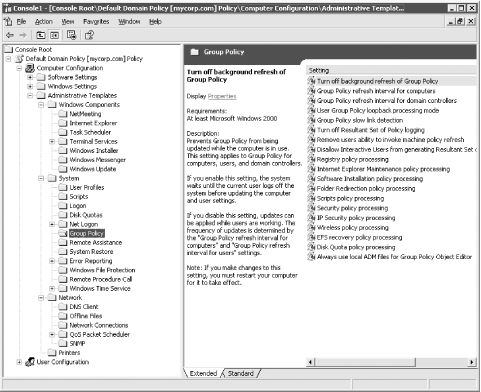
- Group Policy
-
This is one of the most significant areas, as it contains settings that govern how computers this policy applies to are going to implement group policy. The contents are shown in Figure 7-4.
Figure 7-4. Computer administrative templates
- Remote Assistant (new in Windows Server 2003 Active Directory)
-
This setting allows you to configure whether technical support can take control of client machines for troubleshooting.
- System Restore (new in Windows Server 2003 Active Directory)
-
System Restore is a new feature of Windows XP that lets clients restore their system to a known good previous state. This section contains settings for disabling system restore and its configuration.
- Error Reporting (new in Windows Server 2003 Active Directory)
-
These settings control whether error reports about system or application failures are sent to Microsoft.
- Windows File Protection (new in Windows Server 2003 Active Directory)
-
Controls the behavior of the Windows File Protection process that protects system files from being overwritten or corrupted.
- Remote Procedure Call (new in Windows Server 2003 Active Directory)
-
These settings configure various properties of the Remote Procedure Call service.
- Windows Time Service (new in Windows Server 2003 Active Directory)
-
This section allows you to configure the NTP client, including time server, polling intervals, and verbosity of event logging.
- Network
-
These settings control various network-related properties, such as DNS client settings, QOS settings, and SNMP configuration, to mention a few.
- DNS Client (new in Windows Server 2003 Active Directory)
-
A much-needed addition to group policy, the DNS Client settings allow you to configure the primary DNS suffix, the DNS suffix search order, and dynamic DNS update settings.
- Offline Files
-
This section contains a large set of values that govern exactly how files and folders are to be made available on the local machine when it is offline. You can turn offline folders on and off, set the cache size to be used for such items, define how synchronization is to occur, and so on.
- Network Connections
-
This location has one key that determines whether users can enable, disable, and configure the shared access feature of a network connection from any Windows-based computer that this policy applies to. Shared access lets users configure their system as an Internet gateway for a small network of machines, providing network services such as name resolution to that network.
- QOS Packet Scheduler (new in Windows Server 2003 Active Directory)
-
Windows XP and Windows Server 2003 contain the ability to set QOS for network traffic. This section allows you to configure various QOS parameters.
- SNMP (new in Windows Server 2003 Active Directory)
-
This contains SNMP configuration settings, including community strings, who can query SNMP on the client, and trap destinations.
- Printers
-
This location has a series of keys that provide a number of new options for printers, dictating whether printers can be shared at all from a computer, whether they can be auto-published into Active Directory, and so on.
Printer objects in Active Directory have a large number of attributes that can and will be regularly searched. Take for example the attribute called Location: users can search for printers based on location from a simple pop-up box that appears when you choose Search . . . For Printers from the Start menu on a Windows client. Users also can search for "printers near me," making use of a location-tracking feature. Location tracking lets you design a location scheme for your enterprise, based on room number, floor number, building name, city, country, and so on, and assign computers and printers to locations in your scheme. Location tracking overrides the standard method of locating and associating users and printers, which uses the IP address and subnet mask of a computer to estimate its physical location and proximity to other computers. GPO settings allow you to force a workstation to search as if it were in a specific location (i.e., forcing your own value for location whenever that client searches for printers nearby), as well as turning on location tracking and its associated options.
7.2.3.2 Windows settings (user)
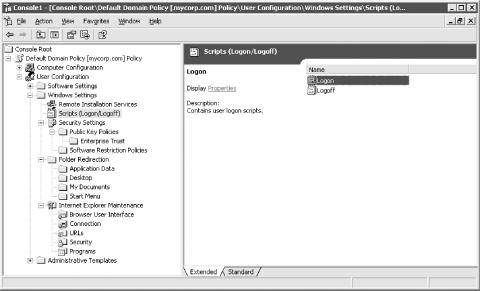
While this section contains only a few settings, the contents are likely to become very familiar to you. This area holds logon and logoff scripts, allows you to redirect core system folders to network areas from the normal hard disk locations, and allows you to specify IP security policies. Figure 7-5 shows a snapshot of the contents.
Figure 7-5. Windows Settings (user)
- Folder Redirection
-
This is a very useful setting that is easy to understand and manage. It allows an administrator to redirect the My Documents, My Pictures, Application Data, Desktop, and Start Menu locations from their defaults. For example, roaming profiles were used at Leicester University, but they didn't want the My Documents folder to roam with the user because of the large number of folders and files it can contain. In other words, downloading and uploading My Documents would slow down logon/logoff considerably. So instead we redirect the user's My Documents folder (and the My Pictures folder within it) to the network paths when he logs on. That way, whenever an application such as Microsoft's Office 2000 attempts to save a document to the My Documents folder, the folder that the user sees is the My Documents folder located in his home folder.
This part of the GPO is different from the others in that it doesn't contain settings as such. Instead, the folders listed should be right-clicked and the Properties item selected from the drop-down menu that appears. This brings up the main redirection settings window for that folder. This window allows you to redirect all users who receive this GPO to one folder or allow a finer-grained control so that users who are members of a certain group get Folder A, users who are members of another group get Folder B, and so on. You can then specify other settings, such as whether the existing folder is to be moved when this GPO takes effect and whether the folder is moved back when the policy stops being in effect.
The main problem with these settings stems from the fact that you can't use environmental variables in the strings because the GPO will take effect before environmental variables are set. So if you have a set of users who are to have their My Documents redirected to folders that correspond to their usernames, there is no way of getting the usernames into the folder path using the %USERNAME% variable as there is for profiles.
If you do want to redirect but don't want the hassle of doing it this way, edit the relevant keys in the following two user registry locations to point the folders elsewhere. Note that both must be edited for the process to take effect:
- HKCU\Software\Microsoft\Windows\CurrentVersion\Explorer\Shell Folders
- HKCU\Software\Microsoft\Windows\CurrentVersion\Explorer\UserShell Folders
- Scripts (Logon/Logoff)
-
This is where you can specify the user logon and logoff scripts. Whether these are executed synchronously or asynchronously is specified in the User Configuration Administrative Templates section of the GPO.
- Security Settings
 Public Key Policies
 -
These settings correspond to those held under Windows Settings in the computer portion of the GPO.
7.2.3.3 Administrative templates (user)
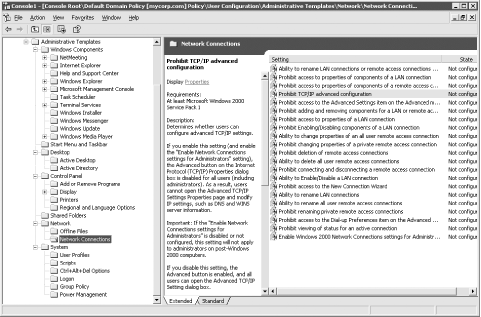
This is the core of the settings that will govern how the administrator controls a system's look and feel for users. The settings are all geared to various lockdowns that you may wish to make to a user's account; if you do not wish to lock down a user's account, most of these settings will not be of much use. If roaming profiles are turned on, these settings roam with a user's profile on each client. Figure 7-6 shows the full branch expanded.
Figure 7-6. Administrative Templates (user)
- Start Menu & Taskbar
-
This location is used when the administrator wishes to customize how the Start menu and the taskbar appear to the users this policy applies to. Here you can disable various options on the Start menu, such as the control panel, printers, logoff, or the shutdown button, and can also remove various items, such as Run, Search, or Favorites, entirely if so desired.
- Desktop
-
Like the last item, this section is used to lock down the desktop. Here you can remove the various icons, such as My Network Places, as well as configure whether the desktop settings themselves can be changed and whether they are even saved on logout. Active Desktop is configured (or disabled) from here.
- Control Panel
-
- Add/Remove Programs
-
This allows you to set how the control panel is customized for an individual user. You can disable the option entirely, hide some of the options, or even force the system to bypass the addition of other software but still add official components to the system by going straight to the Components menu.
- Display
-
This can be used to disable individual tabs on the Display control panel, so that users cannot change wallpaper, the screensaver, or the settings for their display (such as display drivers), which, as administrators well know, can cause immense problems.
- Printers
-
Here you can disable the adding or deleting of printers, as well as decide whether to hide various property pages on the Add Printer wizard.
- Regional and Language Options (new to Windows Server 2003)
-
This allows you to restrict users to a certain language.
- Shared Folders (new in Windows Server 2003 Active Directory)
-
This heading contains two settings that determine whether users can publish shared folders and DFS roots in Active Directory.
- Network
-
- Offline Files
-
These settings allow the administrator to govern how cached files for offline access actually operate. For example, the settings control whether the files are automatically synchronized at logoff, how much event logging is done, how much space can be used up by the offline cache, and so on.
- Network Connections
-
This section allows the administrator to configure how RAS and LAN connections will work for the user. Figure 7-6 shows the full list of options.
- System
-
A few extra settings live directly under this heading, as they don't fit under any other category. They include how programs interpret two-digit years, whether to disable the Windows registry editorsREGEDT32.EXE and REGEDIT.EXE, and whether to allow only a specified list of programs to run for a user.
- User Profiles (new in Windows Server 2003 Active Directory)
-
With these settings you can limit a user's profile size and exclude directories in a roaming profile.
- Scripts (new in Windows Server 2003 Active Directory)
-
You can define various properties about login script execution. This includes settings to control whether scripts are visible and whether to run scripts synchronously or asynchronously.
- Ctrl+Alt+Del Options (new in Windows Server 2003 Active Directory)
-
With these settings you can disable one or more buttons that are available when a user enters Ctrl+Alt+Del.
- Logon
-
These settings allow an administrator to specify whether logon/logoff scripts run visibly and whether they run synchronously.[3] Administrators can also disable the Lock Workstation, Task Manager, Change Password, and Logoff buttons on the Windows Security screen that you get when you press Ctrl+Alt+Del while logged on.
[3] You can't run a logon script synchronously if it needs to interact with the user's environment. Synchronous logon scripts will always finish prior to environment variables being set and prior to the user's profile being loaded. For example, it isn't possible to query the number of new mail messages a user has in a synchronous logon script by reading the user's name from the environment variables or profile, as the user is not yet fully logged on when the script runs. The solution is to run the script asynchronously.
- Group Policy
-
As it was in the Computer section of Administrative Templates, this is one of the most significant areas. It contains configuration data that governs how group policies apply to users. For example, it allows you to configure when and how a slow link is detected, how often the user section of this GPO is refreshed, and whether GPOs are downloaded only from the PDC Emulator FSMO role owner (described in Chapter 2) or from any DC.
- Power Management (new in Windows Server 2003 Active Directory)
-
This contains one setting that allows you to configure whether a user is prompted for their password when resuming from hibernate or suspend/standby.
7.2.4 Windows Components
- NetMeeting
-
These settings can control virtually every aspect of NetMeeting to include what can be shared, whether audio or video can be used, whether the whiteboard can be used, whether directory services can be used, whether files can be sent and received, and many more.
- Internet Explorer
-
Numerous settings are available to customize Internet Explorer, including look and feel, security zones, etc.
- Help and Support Center (new to Windows Server 2003 Active Directory)
-
A single setting that controls if the "Did You Know" content will be shown by the Help and Support Center service.
- Windows Explorer
-
These settings relate to how the shell and desktop look and feel. You can customize whether specific icons (such as drives in My Computer or Entire Network in My Network Places) are displayed, decide whether certain normal modes of operation (such as whether to disable workgroup contents in My Network Places or remove the Folder Options menu from the Tools menu) are blocked, or change the default settings (such as changing the maximum number of recent documents from 15 to a lower or higher value).
- Windows Explorer Common Open File Dialog
-
This setting allows administrators to tailor the dialog box that is displayed automatically by programs whenever users need to browse to and open a file. For example, you can specify whether the Back button or the Common Places barwhich contains icons representing History, Desktop, Favorites, My Documents, and My Network Placesare displayed.
- Microsoft Management Console
-
While you may use the MMC to create your own consoles, you may wish users to be able to use only existing consoles and not create new ones. Alternatively, you may want to allow users to create consoles but limit them to only a few snap-ins. These settings allow you to do either.
- Management Console Restricted/Permitted Snap-ins
-
This section contains the entire set of snap-ins that are available standard. Administrators use this policy to prevent users from gaining access to individual snap-ins or explicitly permit them to use each one. As with all settings, by default these snap-ins are unconfigured, which means all users get all snap-ins.
- Management Console Restricted/Permitted Extension snap-ins
-
Some snap-ins can come with what are termed extensions, extra sets of configurable options that you can add to give more functionality to the snap-in. This section contains a list of all permitted extensions and allows you to enable or disable them as you wish.
- Management Console Restricted/Permitted Group Policy
-
These items correspond to the headings that we've been going through here. You can decide, for example, to allow a certain set of users access only to the Administrative Templates (User) section that we're discussing here. Another set of users may have access to manipulate GPOs, but the MMC allows them to see only the Software Installation (User) and Software Installation (Computer) parts. This effectively blocks their ability to manage parts of policies that you as the administrator don't give them rights to.
- Task Scheduler
-
This contains settings to allow the administrator to configure the ability of users to use the task scheduler on clients. Administrators can disable the ability to create new tasks, prohibit viewing existing tasks, or limit certain functionality.
- Terminal Services (new in Windows Server 2003 Active Directory)
-
These settings control user Terminal Services sessions, including time limits for active, idle, and disconnected sessions.
- Windows Installer
-
This area contains configuration settings for users relating to the software packages in MSI form that have been deployed to the user. For example, the administrator can configure whether applications are always deployed with elevated privileges, in what order locations are searched for MSI packages (used when a user requests a list of packages or a user attempts to open a file with an unknown extension), and whether the ability to roll back a failed installation is enabled or disabled.
- Windows Messenger (new in Windows Server 2003 Active Directory)
-
With this section you can enable Windows Messenger to run at login or disable it from running altogether.
- Windows Update (new in Windows Server 2003 Active Directory)
-
This heading contains one setting that allows you to disable Windows Update from running.
- Windows Media Player User Interface (new in Windows Server 2003 Active Directory)
-
These two settings allow you to force a particular Windows Media Player skin to be used and hide the anchor window when the player is in skin mode.
- Windows Media Player Playback (new in Windows Server 2003 Active Directory)
-
This section contains a single setting that allows you to prevent downloading of new codecs.
- Windows Media Player Networking (new in Windows Server 2003 Active Directory)
-
These settings allow you to configure the networking options, including HTTP Proxy, MMS Proxy, and Network Buffering.


