10.2 Managing Group Policies
The Microsoft tools available to manage GPOs under Windows 2000 were pretty limited, consisting of the Group Policy Object Editor (formerly Group Policy Editor) and built-in support in the Active Directory Users and Computers and Active Directory Sites and Services snap-ins. While these tools could get the job done, they did not provide any support for viewing the Resultant Set of Policy (RSoP), viewing how GPOs had been applied throughout a domain, or backing up or restoring GPOs. Luckily these tools weren't the only option: third-party vendor Full Armor produced Fazam 2000, which has comprehensive group policy management functionality.
Directly after the release of Windows Server 2003, Microsoft released the Group Policy Management Console (GPMC) as a separate web download. The GPMC is a much-needed addition to Microsoft's GPO management tools and provides nearly every GPO management function that an organization might need, including scripting support.
The other new feature available in the Windows Server 2003 Active Directory administrative tools and in GPMC is support for viewing the RSoP for a given domain, site or Organizational Unit based on certain criteria. RSoP allows administrators to determine what settings will be applied to a user and can aid in troubleshooting GPO problems. RSoP will be described in more detail in the section on debugging group policies.
10.2.1 Using the Group Policy Object Editor
When you add a GPOE snap-in to a console, you can only focus on a particular GPO/LGPO. Each GPO/LGPO that you wish to change has to be loaded in as a separate GPOE snap-in to the MMC; unfortunately, you can't tell the GPOE to show you all policies in the tree, but you can use the GPMC for that.
Managing LGPOs is done using the same GPOE tool that you would use to manage GPOs. If you use the GPOE from a workstation or server in a domain, you can focus the snap-in to look at an LGPO on a local client. If you use the GPOE on a standalone server or a workstation, the GPOE will automatically focus on the LGPO for that machine. No matter how the focus is shifted to look at an LGPO, the GPOE will load only the extensions that are appropriate to the templates in use locally on that client. Domain-specific extensions are not loaded for LGPOs.
GPOs and the PDC FSMO Role OwnerWhen you are editing GPOs, the GPOE connects to and uses the FSMO PDC role owner. This ensures that multiple copies of the GPOE on different machines are all focused on the same DC. This behavior may be overridden in two cases. If the PDC is unavailable for whatever reason, an error dialog will be displayed, and the administrator may select an alternate DC to use. Microsoft is also currently considering a GPOE View menu option and/or a policy to allow the GPOE to inherit from the DC that the Active Directory Users and Computers MMC is focused on. This is likely to be most useful when there is a slow link to the PDC. If GPOs are edited on multiple DCs, this could lead to inconsistencies because the last person to write to the GPO wins. For this reason, you should use caution when multiple administrators regularly administer policies. |
Starting an MMC and adding the GPOE snap-in is not the normal method of accessing GPOs. In fact, there is a whole extended interface available from the Active Directory Sites and Services snap-in, Active Directory Users and Computers (ADUC) tool, or the group Policy Management Console. If you open up the Sites and Services snap-in, you can right-click any site and from the drop-down list select Properties, finally clicking the Group Policy tab on the resulting property page. If you open the ADUC, right-click any domain or Organizational Unit container and follow the same steps. Ultimately, the Group Policy property page from any of these tools produces a window like Figure 10-9 with a number of options. Figure 10-9 shows the policies linked to the root of the mycorp.com domain. The following buttons are found on the Mycorp.com Properties menu:
Figure 10-9. Looking at the domain policies
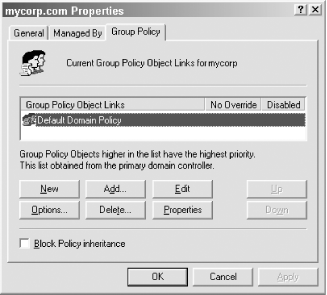
- New
-
This button allows you to create new GPOs and automatically link them to the container for this property page. Since Figure 10-9 is the property page for the domain, any policies that are created and linked in here would be applied to the entire domain.
- Add
-
This button allows you to link an existing GPO to the container for this property page.
- Edit
-
This button allows you to manipulate the selected policy in the display pane.
- Delete
-
This button allows you to remove a policy. If you do this, a dialog box will appear and ask if you wish to remove just the GPO's link to the container for this property page or to permanently delete the GPO.
- Properties
-
This button allows you to bring up the properties of the GPO itself, i.e., the General, Links, Security, and WMI Filter tabs in Figure 10-4, Figure 10-2, Figure 10-5, and Figure 10-8, respectively.
- Options
-
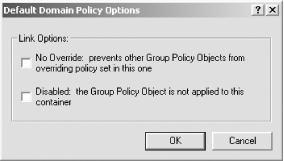
This button allows you to set two specific options relating to the application of this GPO by bringing up a dialog box similar to that shown in Figure 10-10.
- No Override
-
This option allows you to force the settings of this GPO to apply no matter what other GPOs later attempt to block inheritance.
- Disabled
-
This option allows you to completely disable the GPO's application to the current container. If you choose this option, any ACLs that you have set on this GPO to explicitly allow or deny application of this policy to individual users, computers, or groups will be ignored. This policy will not be applied under any circumstances.
|

Figure 10-10. Domain policy options
- Block policy inheritance
-
This checkbox is used to indicate that policies from further up the 4LSDOU inheritance chain are not to be inherited by objects at this point and below. This is used when you want a particular level in the tree to define its own policies without inheriting previously defined ones above it. For example, a block at the site level blocks Windows NT system policies and LGPOs (i.e., 4L) from applying; a block at the domain level blocks 4LS; a block at an Organizational Unit level blocks 4LSD in addition to any other Organizational Unit parents above this level in the tree.
- Up/down arrows
-
These buttons allow you to prioritize multiple GPOs in the display pane. In Figure 10-9 only one GPO is displayed, so these buttons are displayed
GPOE GUI ShortcutsSome useful shortcuts supported by Explorer have been copied over to the GPOE . For example, you can highlight a branch in the GPOE and press * on the numeric keypad to automatically expand the entire tree at that point. You can press + and - on the numeric keypad to expand and collapse individual highlighted branches. You can also use the cursor keys to navigate up and down the list. The Tab key switches back and forth between the scope pane and the results pane. One last point that is very useful: if you open up the GPOE and double-click on any item, it brings up a floating property page window. There is nothing to stop you from going back to the GPOE and highlighting any other location in the tree, navigating using the cursor keys, and using the keys in the previous paragraph. Each item that you select, however, correspondingly modifies the floating property page. You can see each item's description and options in the floating property page while navigating through the GPOE as before. |
If you've installed the GPMC, the Group Policy tab in those snap-ins is not available and you need to use GPMC, which provides a lot more functionality.
10.2.2 Using the Group Policy Management Console (GPMC)
The GPMC is a one-stop shop for all your GPO management needs. You can browse a forest and see where GPOs are applied; you can create and link GPOs; you can import and export, backup and restore, delegate control, and view RSoP reports, all from the GPMC. Not only does the GPMC have a bunch of new functionality not available in any of the previous standard tools, it also integrates the existing toolssuch as the GPOE for editing GPOsso that you do not need to go outside of the GPMC to perform those tasks.
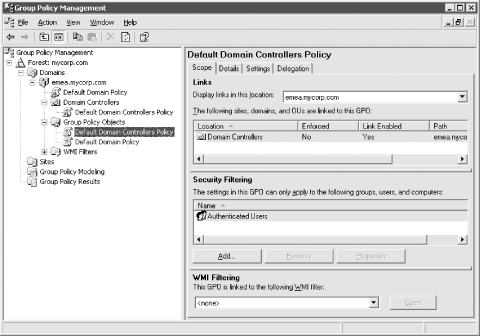
Figure 10-11 shows what the GPMC looks like when viewing a GPO. As you can see in the left pane, you can browse through the domains in a forest down to specific Organizational Units. If you right-click on a domain, you'll get the following options:
Create and Link a GPO
Link an Existing GPO
Block Inheritance
Search for GPOs
Create a New Organizational Unit
Figure 10-11. GPO properties in the GPMC
If you right-click on an Organizational Unit, you'll get many of the same options, except for Search.
In Figure 10-11, the Domain Controllers Organizational Unit has been expanded to show that the Default Domain Controllers Policy has been linked to it (i.e., icon with a shortcut/arrow symbol). A virtual Group Policy Objects container is expanded, which shows all of the GPOs that have been created in the domain (currently just the two default GPOs exist). There is also a virtual WMI Filters container that holds any WMI filter objects that have been created. Note that the Group Policy Objects and WMI Filters container are virtual. This was done so that instead of requiring drilling down into the System container to locate GPOs, they would be readily available directly under a domain.
|
If we take a look at Figure 10-11 again, we can see that the Default Domain Controllers Policy was selected in the left pane, and several options and settings are displayed in the right pane. The following list is a summary of each tab:
- Scope
-
Under the Scope tab you can view the domains, sites, or Organizational Units that have been linked to the GPO and delete them if necessary. You can also view what security groups the GPO applies to, and add and remove groups from the list. Finally, you can set the WMI filter that should be associated with the GPO.
- Details
-
The Details tab contains information about who created the GPO, the date it was created and last modified, and the current user version and computer version. The only thing that can be set on this page is beside GPO Status, which defines whether the user and/or computer settings are enabled.
- Settings
-
The Settings tab provides a nice shortcut to view which settings have been configured in a GPO. Unlike the GPOE, in which you have to drill down through each folder to determine which settings have been configured, you can view the Settings tab for a GPO in the GPMC to see only the options that have been set.
- Delegation
-
The Delegation tab is similar to the Delegation of Control wizard, but it's specifically for GPOs. We'll cover this screen in more detail later in the chapter.
One last feature that is worth mentioning is the Group Policy Modeling and Group Policy Results. Group Policy Modeling is very similar to the RSoP option that is available in the ADUC, which is described at the end of the chapter. Group Policy Results is very similar to the Group Policy Modeling/RSoP, except that it is not a simulation. The results are returned from the client, not simulated on a domain controller. Group Policy Results will only work on a computer running Windows XP or Windows Server 2003.
10.2.3 Scripting Group Policies
Another hurdle to efficiently managing GPOs with the initial release of Active Directory was the lack of scripting support. Not having the ability to automate the creation or maintenance of GPOs meant that administrators had to spend a lot of time manually managing GPOs. Fortunately, the GPMC also provides scripting capabilities. Whenever you install the GPMC, it registers several COM-based objects that can be used to automate most of the tasks you'd need to do with GPOs. The word "most" is used because the GPMC COM objects do not allow you configure any GPO settings; you still have to do that manually. On the other hand, you can copy or import a GPO and its settings, so if you have a template GPO or a GPO you want to create in multiple domains, you can conceivably create it once, then use the COM objects to copy it to other domains.
The following is a list of some of the tasks you can perform via scripts with the GPMC objects. For more information on the objects and interfaces, check out the GPMC.chm help file available with the GPMC installation in the Scripts sub-directory.
Create a GPO with the default settings.
Copy a GPO.
Import GPO settings.
Set GPO permissions.
Delete a GPO.
Search for GPOs.
List GPOs.
Retrieve GPO information.
Back up GPOs.
Restore GPOs.
Generate a RSoP report for GPOs.


