10.4 Debugging Group Policies
If at any point you need to debug group policies, there are couple of options you can use. The first is new to Windows Server 2003 and is called the Resultant Set of Policy, which some people may be familiar with if you've used tools like Full Armor's Fazam 2000. The Resultant Set of Policy (RSoP) allows you to specify certain user, computer, group, and GPO criteria to determine what will be applied. Another option is to enable some extra logging that can help point out GPO processing problems.
10.4.1 Using the RSoP
The RSoP is a very powerful tool to help identify what GPO settings will be applied to a user or computer. Before RSoP, administrators were left to do their own estimates as to what GPOs took precedence and what settings were actually applied to users and computers. RSoP removes much of the guesswork with an easy-to-use wizard interface.
To start the RSoP wizard, open Active Directory Users and Computers
and browse to the domain or Organizational Unit that contains the
users you want to simulate. Right click on the container and select
All Tasks  Resultant Set Of Policy (Planning).
Figure 10-17 shows the initial screen.
Resultant Set Of Policy (Planning).
Figure 10-17 shows the initial screen.
Figure 10-17. User and Computer Selection Options
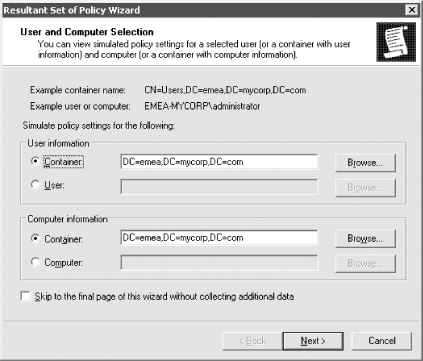
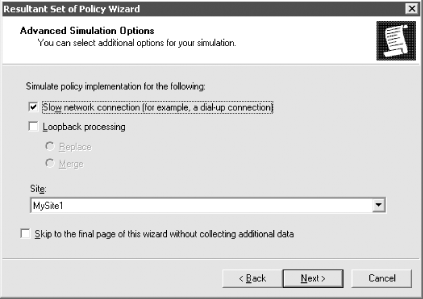
You must first select a specific object DN of a user or computer, an Organizational Unit that contains users or computers, or a domain. After clicking Next, you will come to the Advanced Simulation Options screen where you can select whether to pretend you are over a slow network, whether to use loopback mode, and whether a specific site should be used. Figure 10-18 shows what this screen looks like with the MySite1 site selected.
Figure 10-18. Advanced Simulation Options
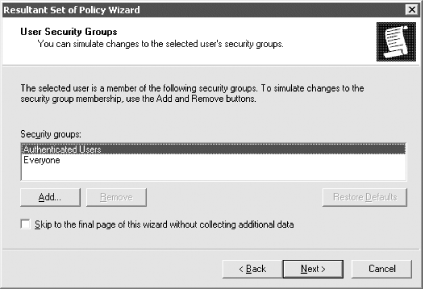
The next screen, as shown in Figure 10-19, allows you to configure any additional security groups that should be considered while processing GPOs. You will actually see two screens like the one seen in Figure 10-18; the first will allow you to select user security groups and the second will allow you to select any computer security groups.
Figure 10-19. Security group simulation
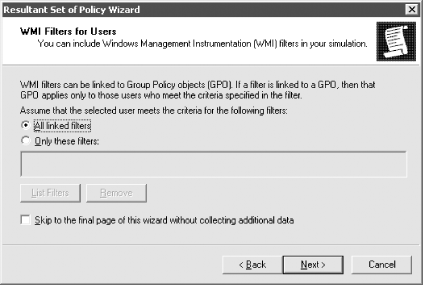
In the next screen, you will be able to select one or more WMI filters or use the ones that have been linked to existing GPOs. Just as with the security groups, you can select WMI filters for users and computers independently. The WMI filter screen for users is shown in Figure 10-20.
Figure 10-20. WMI filters simulation
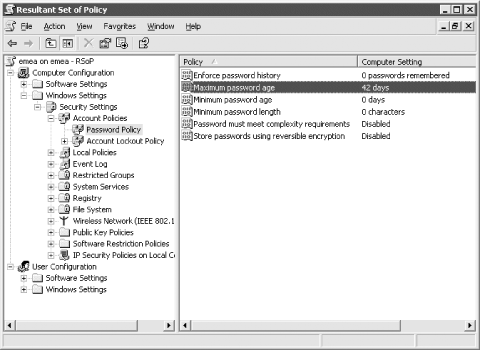
After you finish the wizard, a console that looks very similar to the GPOE will be opened that contains the settings that would apply to the user and computer. Figure 10-21 shows that the password policy will be applied based on the simulation criteria we entered.
Figure 10-21. RSoP results
One of the nice features of the RSoP console is that you can save it and refer to it later. You can also change or refresh the query by right-clicking the title and selecting Change Query or Refresh Query.
10.4.2 Enabling Extra Logging
You can turn on verbose logging in the event log for group policy-related events simply by setting a registry key. Once the key exists with the correct value, logging is done automatically. The value, a REG_DWORD, is called RunDiagnosticLoggingGroupPolicy and needs to be created with a value of 1 in the HKLM\Software\Microsoft\WindowsNT\CurrentVersion\Diagnostics key.
The value of 1 sets the logging to verbose mode; setting the value to is the same as having the key absent and is known as normal logging. In other words, the key makes a difference only when set to a value of 1. It's really as simple as that.
|

If the verbose logging in the event log is not providing enough information, another option is to enable debug logging for policy and profile processing. To do so, create a value called UserEnvDebugLevel as a REG_DWORD in the HKLM\Software\Microsoft\WindowsNT\CurrentVersion\Winlogon key. Assign UserEnvDebugLevel the value 10002 in hexadecimal format. Restart the computer, and from then on, extensive logging information will be recorded on the machine in the file %SystemRoot%\Debug\UserMode\Userenv.log. For more information, check out Microsoft Knowledge Base article 221833, which can be found at http://support.microsoft.com/default.aspx?scid=kb;en-us;221833.


