Hack 10 Pace Your Reading or Present a Slideshow in Acrobat or Reader


You can make Acrobat or Reader advance a document at a preset interval, making it easy to maintain a given reading pace or to present slides.
If you are sitting down for a long, on-screen read, consider adding this "cruise control" feature to Acrobat/Reader. It turns PDF pages at an adjustable pace. Acrobat and Reader already have a similar "slideshow" feature, but it works only when viewing PDFs in Full Screen mode.
|

1.11.1 Acrobat/Reader Full-Screen Slideshow
If you have a
PDF
photo album [Hack #48] or
slideshow presentation, you can configure Acrobat/Reader to
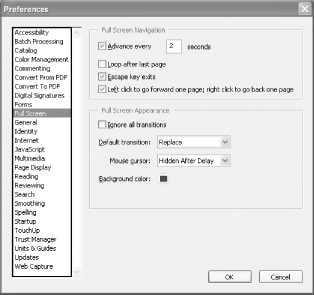
automatically advance through the pages at a timed pace. Select Edit
 Preferences . . . General . . . Full
Screen (Acrobat/Reader 6 Windows) or Edit Preferences . .
. Full Screen (Acrobat/Reader 5 Windows) or Acrobat
Preferences . . . Full Screen (Acrobat/Reader 6
Macintosh). Set the page advance, looping, and navigation options as
shown in Figure 1-11, and click OK. Open your PDF,
select Window Full Screen View (Acrobat/Reader 6 for
Windows or Macintosh) or View Full Screen (Acrobat/Reader
5), and the slideshow begins. To exit Full Screen mode, press Ctrl-L
(Windows) or Command-L (Mac).
Preferences . . . General . . . Full
Screen (Acrobat/Reader 6 Windows) or Edit Preferences . .
. Full Screen (Acrobat/Reader 5 Windows) or Acrobat
Preferences . . . Full Screen (Acrobat/Reader 6
Macintosh). Set the page advance, looping, and navigation options as
shown in Figure 1-11, and click OK. Open your PDF,
select Window Full Screen View (Acrobat/Reader 6 for
Windows or Macintosh) or View Full Screen (Acrobat/Reader
5), and the slideshow begins. To exit Full Screen mode, press Ctrl-L
(Windows) or Command-L (Mac).
Figure 1-11. Configuring Acrobat/Reader's Full Screen mode to show slides
You can also use this slideshow feature as a "cruise control" for on-screen reading. However, the Full Screen mode hides document bookmarks and application menus, and adjusting its timing is a multistep burden.
1.11.2 JavaScript Page Turner
The following JavaScript for Acrobat and Reader provides a more flexible page turner. You can run it outside of Full Screen mode, and its timing is easier to adjust.
Visit http://www.pdfhacks.com/page_turner/ to download the JavaScript in Example 1-3. Unzip it, and then copy it into your Acrobat or Reader JavaScripts directory. [Hack #96] explains where to find this directory on your platform. Restart Acrobat/Reader, and page_turner.js will add new items to your View menu.
Example 1-3. JavaScript for turning pages
// page_turner.js, version 1.0

// visit: http://www.pdfhacks.com/page_turner/


var pt_wait= 3000; // three seconds; set to taste

var pt_step= 1000; // adjust speed in steps of one second

var pt_timeout= 0;

var pt_our_doc= 0;

var pt_our_path= 0;


function PT_Stop( ) {

  if( pt_timeout!= 0 ) {

    // stop turning pages

    app.clearInterval( pt_timeout );


    pt_timeout= 0;

    pt_our_doc= 0;

    pt_our_path= 0;

  }

}


function PT_TurnPage( ) {

  if( this!= pt_our_doc ||

      this.path!= pt_our_path )

  { // Acrobat's state has changed; stop turning pages

    PT_Stop( );

  }

  else if( 0< this.pageNum &&

           this.pageNum== this.numPages- 1 )

  {

    app.execMenuItem("FirstPage"); // return to the beginning

  }

  else {

    // this works better than this.pageNum++ when

    // using 'continuous facing pages' viewing mode

    app.execMenuItem("NextPage");

  }

}


function PT_Start( wait ) {

  if( pt_timeout== 0 ) {

    // start turning pages

    pt_our_path= this.path;

    pt_our_doc= this;

    pt_timeout= app.setInterval( 'PT_TurnPage( )', wait );

  }

}


////

// add menu items to the Acrobat/Reader View menu


app.addMenuItem( {

cName: "-",              // menu divider

cParent: "View",         // append to the View menu

cExec: "void(0);"

} );


app.addMenuItem( {

cName: "Start Page Turner &4",

cParent: "View",

cExec: "PT_Start( pt_wait );",

//

// "event" is an object passed to us upon execution;

// in this context, event.target is the currently active document;

// event.rc is the return code: success <==> show menu item

cEnable: "event.rc= ( event.target!= null && pt_timeout== 0 );"

} );


app.addMenuItem( {

cName: "Slower",

cParent: "View",

cExec: "PT_Stop( ); pt_wait+= pt_step; PT_Start( pt_wait );",

cEnable: "event.rc= ( event.target!= null && pt_timeout!= 0 );"

} );


app.addMenuItem( {

cName: "Faster",

cParent: "View",

cExec: "if(pt_step< pt_wait) { PT_Stop( ); pt_wait-= pt_step; PT_Start(pt_wait);

 }",

cEnable: "event.rc= (event.target != null && pt_timeout!= 0 && pt_step< pt_wait);"

} );


app.addMenuItem( {

cName: "Stop Page Turner",

cParent: "View",

cExec: "PT_Stop( );",

cEnable: "event.rc= ( event.target != null && pt_timeout!= 0 );"

} );
1.11.3 Running the Hack
After you restart Acrobat, open a PDF document. Select View
Start Page Turner and it will begin to advance the PDF
pages at the pace set in the script's
pt_wait variable. Adjust this pace by selecting
View Faster or View Slower. As the script runs,
use the Page Down and Page Up keys to fast-forward or rewind the PDF.
Stop the script by selecting View Stop Page Turner.
After starting the page turner and setting its speed, activate
Acrobat/Reader's Full Screen mode for maximum page
visibility. Select Window Full Screen View (Acrobat/Reader
6) or View Full Screen (Acrobat/Reader 5). The Page Down
and Page Up keys still work as expected. Press Ctrl-L (Windows) or
Command-L (Mac) to exit Full Screen mode.


