Hack 2 Read PDFs with Mac OS X's Preview


If you have a Macintosh running OS X, the operating system includes a Preview application that enables you to look at PDFs without downloading Acrobat Reader.
Apple's latest operating system, Mac OS X, uses PDF all over. Icons and other pieces of applications are PDFs, the rendering system is tied closely to the data model used by PDFs, and any application that can print can also produce PDFs. Given this fondness for PDF, it makes sense that the Preview application Apple provides for examining the contents many different file types also supports PDF.
The Preview
application is installed on Macs at Macintosh
HD:Applications:Preview. It reads a variety of
graphics formats, including
JPEG,
TIFF, and
GIF, as well as
(of course) PDF. You can open PDFs in Preview by selecting File  Open . . . , by dragging their icons to the Preview application, or
(if Acrobat isn't installed) by double-clicking. An
open PDF in Preview looks like Figure 1-3.
Open . . . , by dragging their icons to the Preview application, or
(if Acrobat isn't installed) by double-clicking. An
open PDF in Preview looks like Figure 1-3.
Figure 1-3. Viewing a PDF document through Mac OS X's Preview application
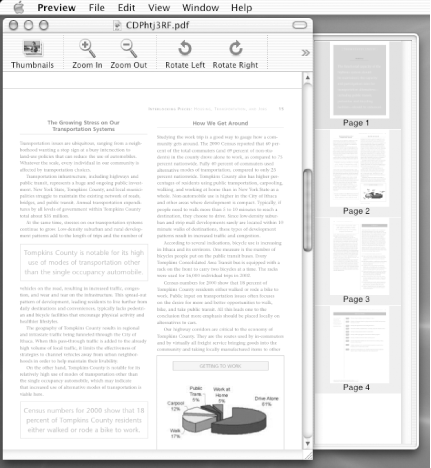
Preview's overall interface is much simpler than the Acrobat Reader's interface, though the options are friendly and clear. Preview also creates thumbnail images of pages, which is convenient for quick navigation. Preview also supports the PDF-creation functionality built into Mac OS X [Hack #40] .
Also, Preview's File
Export . . . command enables you to
save the PDFs or graphics you're examining in any of
a variety of PDF formats. If you need to convert a JPEG to a PDF
file, or a PDF to a TIFF file, it's a convenient
option. (It's also worth noting that screenshots
taken using Mac OS X's Command-Shift-3 or
Command-Shift-4 options are saved to the desktop as PDFs. Those PDFs
contain bitmaps, much as if they were created as TIFFs and exported
to PDF through Preview.)


