Hack 32 Create Interactive PDF with Your Word Processor


Interactive PDFs take advantage of the information in word processing documents to create navigation features such as bookmarks and hyperlinks.
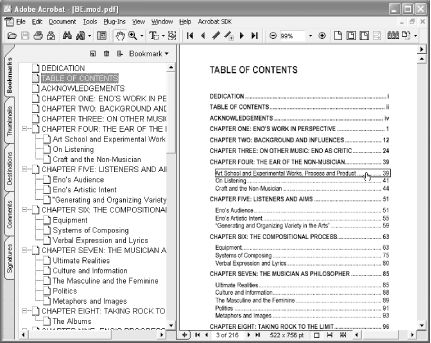
Printing a document to create its PDF edition is common practice. It works beautifully, but it also leaves much behind. Document headings could have been turned into an outline of PDF bookmarks, and document links could have become live PDF links. Adding these features, shown in Figure 4-1, will help ensure that your readers have the best possible reading experience.
Figure 4-1. Automatically adding PDF navigation features from your document's styles
The trick to creating an interactive PDF from your source document is to use PDF tools that understand your document's styles [Hack #24] . Such tools typically integrate with your word processor.
|

4.2.1 Microsoft Word and Adobe Acrobat's PDFMaker
During setup,
Adobe Acrobat gives you
the option to install its PDFMaker macro for
Word. PDFMaker adds a menu to Word called Adobe
PDF (Acrobat 6) or Acrobat (Acrobat 5). It also adds a toolbar with
buttons that activate items from this menu. Select Adobe PDF
 Convert to Adobe PDF or click the toolbar button (
 ) to create your PDF. On the Macintosh, Acrobat installs only the toolbar, with no extra menus, providing very little control over its operation.
On Windows, configure PDFMaker by selecting
Adobe PDF Change Conversion Settings . . . from inside
Word. The Conversion Settings drop-down box enables you to select a
Distiller profile [Hack #38], just
as you would if you were printing a PDF. The remaining tabs enable
you to add encryption, links, metadata, bookmarks, and other nifty
features to your PDF. One feature I specifically
disable is Enable Accessibility and Reflow with
Tagged PDF (Acrobat 6) or Embed Tags in PDF (Acrobat 5). This feature
allows PDF to behave somewhat like HTML, but it can double (or more!)
your PDF's file size. If you require HTML-like
features, I recommend distributing an HTML edition [Hack #35] alongside your PDF edition.
|
4.2.2 Microsoft Word and GhostWord on Windows
GhostWord is a Ghostscript interface that integrates with Word. It adds a toolbar button to Word that launches the GhostWord GUI, shown in Figure 4-2. Use the GUI to convert the currently active Word document to full-featured PDF. You can also run the GUI outside of Word. GhostWord even has a command-line interface.
Figure 4-2. Managing PDF feature settings and Ghostscript PDF creation settings from the GhostWord GUI
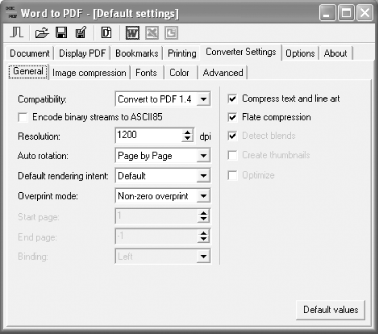
GhostWord can add bookmarks, links, metadata, and display settings to
your PDF. It also manages your Ghostscript settings. Select a
hardcoded Ghostscript profile from the Document Optimize
PDF for: drop-down box, or tweak Ghostscript settings individually
under the Converter Settings tab. Save these settings to a
configuration file for later retrieval.
GhostWord is distributed free of charge from http://www.et.dtu.dk/software/ghostword/.
|

4.2.3 Microsoft Word and Gs4Word on Windows
Gs4Word is a Word
macro that interfaces
with Ghostscript. It adds a menu to Word called PDF and a shortcut
button to Word's Standard toolbar. It can add
bookmarks, metadata, and display setting to your PDF. Its
configuration dialog enables you to manage a set of Ghostscript
profiles. Set your desired profile with the PDF Configure
. . . PDF File Output Medium drop-down box.
The Gs4Word home page (http://www.schmitz-huebsch.net/gs4word/) is in German, but you can configure the program's interface to use English.
4.2.4 Sun StarOffice, OpenOffice, and extendedPDF
Newer versions of
OpenOffice can create
PDFs directly from your document with the File Export as
PDF feature. However, the resulting PDF lacks interactive features.To
create a PDF with bookmarks, metadata, and hyperlinks, you must use
the extendedPDF macro in combination with
Ghostscript or Distiller. Visit http://www.jdisoftware.co.uk/pages/epdf-home.php
to learn more about extendedPDF.
4.2.5 Corel WordPerfect and PDF Tweaker
Newer versions of Corel
WordPerfect have a File
Publish To PDF feature that gives you options
for adding PDF features. Or, you can use the PDF
Tweaker macro for WordPerfect,
which also adds links and bookmarks to your PDF. In addition to
PDF Tweaker, you must also have Acrobat
Distiller or Ghostscript. PDF Tweaker does not
actually create the PDF; it just adds pdfmarks to the print job.
Visit http://www.wpuniverse.com/vb/showthread.php?threadid=6136 to learn more about PDF Tweaker.


