Section 9.2. Sharing Unix Printers
Unix uses NFS to share files; it uses two different tools, the Line Printer Daemon (lpd) and the Line Printer (lp) printer service, to provide printer services for local and remote users. lpd is used on BSD systems and most Linux systems. lp is used on System V systems, including Solaris 8. In the following sections we discuss both tools.
9.2.1 Line Printer Daemon
lpd manages the printer spool area and the print queues. lpd is started at boot time from a startup script. It is generally included in the startup of Linux and BSD systems by default, so you might not need to add it to your startup script. For example, it is started by the /etc/init.d/lpd script on a Red Hat Linux system.
9.2.1.1 The printcap file
When lpd starts, it reads the /etc/printcap file to find out about the printers available for its use. The printcap file defines the printers and their characteristics. Configuring a printcap file is the scariest part of setting up a Unix print server. (Don't worry. As we'll see later with the Solaris admintool, most systems provide a GUI tool for configuring printers.) The printcap file scares system administrators because the parser that reads the file is very finicky, and the syntax of the parameters in the file is terse and arcane. Most parser problems can be avoided by following these rules:
Start each entry with a printer name that begins in the first column. No white-space should precede the first printer name. Multiple printer names can be used if they are separated by pipe characters (|). One entry must have the printer name lp. If you have more than one printer on the server, assign lp to the "default" printer.
Continue printer entries across multiple lines by escaping the newline character at the end of the line with a backslash (\) and beginning the following line with a tab. Take care that no blank space comes after the backslash. The character after the backslash must be the newline character.
Every field, other than the printer name, begins and ends with a colon (:). The character before the backslash on a continued line is a colon and the first character after the tab on the continuation line is a colon.
Begin comments with a sharp sign (#).
The configuration parameters used in a printcap file describe the characteristics of the printer. These characteristics are called "capabilities" in the printcap documentation, but really they are the printer characteristics that lpd needs to know in order to communicate with the printer. Parameters are identified by names that are two characters long and are usually assigned a value. The syntax of the parameters varies slightly depending on the type of value they are assigned. Parameters come in three different flavors:
- Boolean
-
All printcap Boolean values default to "false." Specifying a Boolean enables its function. Booleans are specified simply by entering the two-character parameter name in the file. For example, :rs: enables security for remote users.
- Numeric
-
Some parameters are assigned numeric values. For example, :br#9600: sets the baud rate for a serial printer.
- String
-
Some parameters use string values. For example, :rp=laser: defines the name of a remote printer.
A glance at the manpage shows that there are many printcap parameters. Thankfully, you'll never need to use most of them. Most printer definitions are fairly simple, and most printcap files are small.
Print servers usually have only one or two directly attached printers; any other printers defined in printcap are probably remote printers. Most, if not all, of the printers defined in a client's printcap are remote printers.
#

# Remote LaserWriter

#

lw:\

    :lf=/var/adm/lpd-errs:\

    :lp=:rm=horseshoe:rp=lw:\

    :sd=/var/spool/lpd-lw:
The lw printer in this sample printcap file is a remote printer. The lf parameter points to the log file used to log status and error messages. The remote machine to which the printer is attached is defined by the :rm=horseshoe: parameter, and the name of the remote printer on that machine is defined by the :rp=lw: parameter. Multiple printers can use the same log file. The final parameter, sd, defines the spool directory. Each printer has its own unique spool directory. Defining the remote printer in the client's printcap file is all that is needed to configure an LPD client.
Writing a printcap from scratch is unnecessary. At most, you will need to tweak the printcap configuration for your own special needs. All modern Unix systems have printer configuration tools that will build the basic printcap for you. The Red Hat printconf-gui tool is an example.
Launch the printer configuration tool on a Red Hat 7.2 system running the Gnome desktop by selecting Printer Configuration from the System menu. When the printconf-gui window opens, click the New button to add a printer to the printcap file. The New button launches a printer configuration wizard. Use the first page of the wizard to define the printer name and the queue type. Enter the printer name, for example lw, in the Queue Name box. Then select the Queue Type. Red Hat 7.2 offers five choices:
- Local Printer
-
Use this type to define a directly attached printer. When Local Printer is selected, the wizard asks you to select the printer port to which the printer is attached. The default is /dev/lp0.
- Unix Printer
-
Use this type to define a printer located on a remote server that is accessed via the LPD protocol. When Unix Printer is selected, the wizard asks for the name of the remote server and the name of the printer on the remote server.
- Windows Printer
-
Use this type to define a remote printer that is accessed via the SMB protocol. When Windows Printer is selected, the wizard asks for the IP address of the remote server, the SMB workgroup, and the name of the remote printer, which it calls a share name. The wizard also allows a username and password to be input in case they are required for access to the printer. Printer sharing through SMB is is covered in detail later in this chapter.
- Novell Printer
-
Use this type to define a remote printer accessed via the NetWare protocols. When Novell Printer is selected, the wizard asks for the name of the server and the printer on that server. A username and password can also be entered if they are required for printer access. To communicate with a Novell printer you must have the NetWare protocols installed on your system.
- JetDirect Printer
-
Use this type to define a network-attached printer that uses the JetDirect protocol. Primarily, this protocol is used on HP printers that contain a built-in Ethernet interface and that connect directly to the Ethernet cable without going through a server. When JetDirect is selected, the wizard asks for the IP address of the printer and gives you a chance to enter a port number in case the printer is not configured to use the standard JetDirect port.
Finally, the wizard presents you with a selection of hundreds of printer drivers. Most Unix systems use standard PostScript printers. Linux systems, however, are built on commodity PC hardware. PCs use a hodgepodge of different printers. The wizard lets you select the correct driver for your printer by selecting the printer make and then the printer model. Once you select the drive, the configuration is finished and the new printer is installed.
The Red Hat tool is just an example. Future versions of Red Hat will have a newer tool, and other Unix systems have their own tools. The point is not the details of the tool, but the fact that the printcap file is not usually written by hand. It is created by a configuration tool.
9.2.1.2 Using LPD
Once the printer is configured, print jobs are sent to the line printer daemon using the Line Printer Remote (lpr) program. The lpr program creates a control file and sends it and the print file to lpd. There are many possible lpr command-line arguments, but in general the command simply identifies the printer and the file to be printed, as in:
% lpr -Plj ch09
This command sends a file called ch09 to a printer called lj. The printer can be local or remote. It doesn't matter as long as the printer is defined in the printcap file and therefore known to lpd.
The client software provides commands to allow the user to check the status of the print job. Table 9-2 lists these commands, their syntax, and their meaning.
|
Command |
Function |
|---|---|
|
lpc start [printer] |
Starts a new printer daemon. |
|
lpc status [printer] |
Displays printer and queue status. |
|
lpq -Pprinter [user] [job] |
Lists the jobs in the printer's queue. |
|
lprm -Pprinter job |
Removes a print job from the queue. |
In this syntax, printer is the name of the printer as defined in the /etc/printcap file, user is the username of the owner of a print job, and job is the job number associated with the print job while it is waiting in the queue. The keyword all can be used in place of a printer name in any lpc command to refer to all printers.
While lpc is primarily for the system administrator, the status and start commands can be used by anyone. All the commands shown in Table 9-2 are available to users.
The lpq command displays a list of jobs queued for a printer. Command-line arguments permit the user to select which printer queue is displayed and to limit the display from that queue to a specific user's jobs or even to a specific job. Here's an example of displaying the queue for the printer lp:
$ lpq -Plp

Printer: lp@crab 'Canon'

 Queue: 4 printable jobs

 Server: pid 1459 active

 Unspooler: pid 1460 active

 Status: waiting for subserver to exit at 14:17:47.120

 Rank   Owner/ID             Class Job Files                 Size Time

active alana@crab+458          A   458 /usr/share/printconf 18043 14:16:53

2      micheal@crab+477        A   477 /usr/share/printconf/t 193 14:17:38

3      james@crab+479          A   479 /usr/share/printconf 18259 14:17:43

4      daniel@crab+481         A   481 /usr/share/printconf 18043 14:17:46
A queued print job can be removed by the owner of the job with the lprm command. Assume that daniel wants to remove print job number 481. He enters the following command:
$ lprm -Plp 481

Printer lp@crab:

  checking perms 'daniel@crab+481'

  dequeued 'daniel@crab+481'
lpd and lpr were among the first commands created for Unix to exploit the power of TCP/IP networking. Managing printers is primarily a system administration task. Only those aspects of lpd related to remote printing are covered here.
9.2.2 Line Printer Service
The Line Printer (LP) print service is used by most System V Unix systems. LP offers the same type of service as LPD.
Traditionally on System V Unix systems, the LP configuration files are located in the /etc/lp directory. These files perform the same basic function that the /etc/printcap file does for LPD. However, the /etc/lp files are not directly edited by the system administrator. The files are created and modified using the System V lpadmin and lpsystem commands.
The lpadmin command adds local printers to the /etc/lp/printers directory, which makes the printers available to LP. The basic syntax of adding a new printer is simple. The -p switch defines the local name of the printer. The -p switch is used with either the -v switch that defines the interface for a local printer or the -s switch that defines the server and printer name for a remote printer. For example, the following command adds a local printer named lp connected to the parallel printer port /dev/lp1:
# lpadmin -plp -v /dev/lp1
This command adds a printer locally known as laser that is the lj printer on the remote server crab:
# lpadmin -llaser -s crab!lj
The specific characteristics of a printer added by lpadmin are controlled by the terminfo file. terminfo is a file that is almost identical to the printcap file. Like printcap, it has a great many possible parameters. For more information on terminfo, see the manpage.
The lpsystem command manages printer access on System V systems. By default, most System V systems share all local printers. Remote printer access settings are defined in the /etc/lp/Systems file, which comes preconfigured with the following entry:
+:x:-:s5:-:n:10:-:-:Allow all connections
As the comment at its end makes clear, this entry grants all remote systems access to the local printers. The first field defines the name of the host being granted access. When a plus sign (+) is used in this field, it means all hosts.
The fields in an /etc/lp/Systems entry are separated by colons (:). The field containing an x and all of the fields containing a dash (-) can be ignored. These fields are unused.
The fourth field identifies the type of operating system used on the remote client. It contains either s5 for System V computers that use LP to print jobs, or bsd for BSD systems that use LPD.
The n in the sixth field indicates that this "connection" should never be timed out and removed from the system. A timeout period in minutes could be entered in this field, but this is not usually done. Keep the connection available as long as the local server is up. The 10 is a related value. It indicates that if a connection to a remote system fails, it should be retried after 10 minutes. This is a good value: it is long enough to give the remote system a chance to restart after a crash. Both n and 10 are the defaults and don't usually need to be changed.
Don't directly edit the /etc/lp/Systems file. Modify it with the lpsystem command. To remove a system from the Systems file, use lpsystem with the -r hostname command-line argument, where hostname is the value in the first field of the entry you wish to delete. For example, to remove the plus sign (+) entry from the default /etc/lp/Systems file, type:
# lpsystem -r +
To add an entry to the Systems file, use the lpsystem command without the -r option. For example, to add a BSD system named clock, enter:
# lpsystem -t bsd -y "Linux PC in room 820" clock
The command adds the following entry to the Systems file:
clock:x:-:bsd:-:n:10:-:-:Linux PC in room 820
The -t command-line option defines the operating system type. The -y option defines the comment; clock is, of course, the hostname. We accepted the default values for the timeout and the retry intervals. These could have been modified from the command line using the -T timeout and the -R retry options. See the manpage for lpsystem for more information.
The lpadmin and lpsystem commands are found on most System V systems, including Solaris. Solaris 8, however, does not rely solely on these commands and the /etc/lp directory to configure LP. On a Solaris system, printers are configured through the /etc/printers.conf file. The lpadmin command will add new printers to the /etc/printers.conf file, but printers are usually configured through the Printer Manager window of the admintool. Figure 9-1 shows the Printer Manager window.
Figure 9-1. Printer Manager
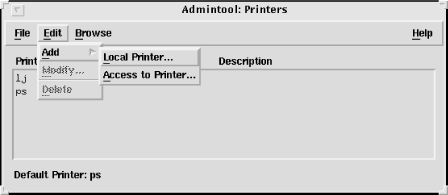
Clients select Add, then Access to Printer from the Edit menu, and enter the name of the remote printer and its server in the window that appears. Servers share printers simply by selecting Add, then LocalPrinter in the same menu and configuring a local printer.
All Unix systems provide some technique for sharing printers. The network administrator's task is to ensure that the printers are accessible via the network and that they are properly secured.


