Completing the Batch Capture Process
When you enter a filename in the dialog box and click OK, it opens the Batch Capture window. As you move through your tape and select and name additional clips, Premiere adds each scene to that Batch Capture window.
You can log several tapes in this fashion, remembering to give each tape a unique, descriptive name. When you complete logging all your tapes, name and save the Batch Capture list:
Select the Batch Capture window by clicking somewhere in this window.
Click File, Save.
Type in a descriptive name (Soccer Champ-1, for instance) and click Save.
Task: Batch-Capture Your Clips
Now it's time to start the batch capture or automated transfer process:
Begin by clicking the little arrow on the upper-right corner of the Batch Capture window to open a fly-out menu and select Handles. Figure 3.15 shows you the simple Capture Handles dialog box.
Figure 3.15. The Capture Handles dialog box lets you specify the number of frames that should precede and follow each transferred clip.
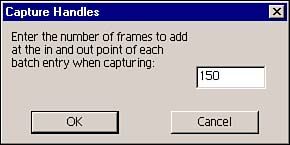
When you did a manual "movie capture," you manually added a header and trailer to your clip. The automated batch capture process does that for you. Type in 90 (90 frames equals three seconds; Premiere will not let you type in more than 100) and click OK.
You return to the Batch Capture window. Just as in Figure 3.16, you'll note that all your clips have little diamonds in front of them. Premiere automatically selects all of them for automated transfer. To transfer only some clips, click the check mark in the upper-left corner to deselect all the clips; then click separately on each clip you want to transfer.
Figure 3.16. The Batch Capture window. Premiere will automatically transfer all clips with diamonds in front of them.
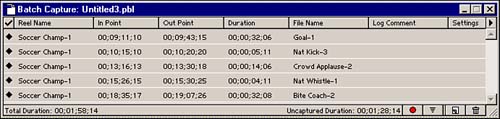
Click the red record button to start the automated transfer process. You can sit back and admire this slick technology in action or grab the leash and go.
When you return, Premiere will have stored the clips in your selected file folder and in the project window in your editing workspace.


