Tackling Manual Analog Movie Capture
If you are using an analog video capture card, the video transfer/capture process is slightly less user friendly.
You'll need to use your card's documentation to set up the capture criteria. Typically you do that when you first open Premiere and refine that later when you open the Project Settings, Capture dialog box.
The drop-down menus will display options with your card's manufacturer listed.
You'll then go through the movie-capture process in a much more hands-on fashion. For starters, the only way you can batch-capture is if your camcorder records industry-standard timecode on the tape and has device control. Most consumer analog camcorders do not do that. If you do have such a camcorder?it's probably a broadcast-quality Beta SP device?then follow the batch-capture process used for DV. If not, you'll manually transfer each clip, one by one.
Make sure your camcorder is turned on and set to VCR/VTR. Press play. If your video card installation and setup went smoothly (see the following sidebar for my setup woes), you should see the video in the Movie Capture window.
Using the controls on your camcorder, search for a scene you like, back the tape up a few seconds, press play, and then click the record button on the Movie Capture window. Your capture card converts that analog video signal into a digital format, compresses it, and sends it to the designated file folder on your hard drive. Some capture cards will split the signal into a video-only file and an audio-only file (you easily can sync them up during editing).
When you reach the end of that particular scene, press Esc or click the record button to stop the recording. Premiere will ask you to name the clip, just as it did during DV movie capture. Click OK to return to the Movie Capture window and continue selecting and transferring clips, one at a time.
When you're done, it's time to start editing.
Video Capture Cards OverviewFull-featured video capture cards serve two primary functions: analog video capture and real-time video effects. The three main contenders on the PC side are Canopus, Matrox, and Pinnacle. Mac users have very few options. Matrox makes the RT Mac, and the only Adobe-approved Mac video capture card listed on the Adobe Web site (http://www.adobe.com/products/premiere/6cards.html) is the Aurora Video Systems Igniter (http://www.auroravideosys.com/). You can spend several thousand dollars for a high-end, broadcast-quality card from these companies. But the more likely scenario is to buy a mid-priced but still very powerful and feature-rich card for $750 to $1,300. Keep in mind that most of these cards come bundled with full versions of Premiere, which has a street price of $550. I won't attempt to dissect all the strengths and weaknesses of these cards. They all offer amazing functionality for the price. Here are three PC cards that offer a similar range of features (with estimated street prices):
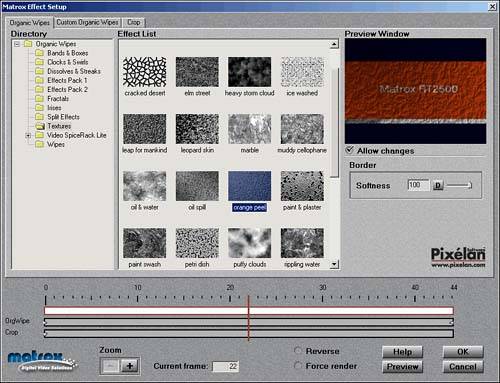
Of these three market-leading, mid-priced video cards, the Matrox RT 2500 has received the most kudos from users and reviewers. Besides offering standard capture features such as IEEE 1394 as well as composite and S-Video inputs, it is fully integrated with Premiere, ships with its own set of snazzy special effects and transitions (see Figure 3.17), and does real-time rendering and MPEG-2 compression. Figure 3.17. The Matrox suite of transitions is seemingly bottomless, and the cleverly laid-out transition interface offers tons of options.
One unique strength is its ability to transfer multiple clips from a DV tape without stopping. Most cards stop at clip in-points, rewind to set up for a preroll, and then transfer the clip. The Matrox software grabs clips on-the-fly. But the oft-repeated mantra for the Matrox RT 2500 is that it's a bear to install and configure. At the very least it requires several reboots simply to get up and running. Matrox graciously loaned me a card to test and use while preparing this book. I wanted to report that my experience with it belied those user-unfriendly configuration stories, but I too experienced the installation blues. After three days of frustration and several technical support calls I finally gave up. Apparently, the RT 2500 needs so much "bandwidth" it precluded other peripherals from working smoothly on my 1.8 GHz P4. Even after removing all but two hardware cards, it still slowed my system to a crawl. Using Windows Me and a relatively new Intel motherboard apparently exacerbated the problems. Matrox followed up on these problems by having one of their integrators send me a loaner system with the RT 2500 already installed. The $2,295 Mina XS comes with a 1.7 GHz P4, XP Pro, two hard drives (100GB total) as well as the RT 2500 and a slew of software. It worked smoothly right out of the box. It was a pleasure seeing the RT 2500 in action. Its uncountable transitions and effects options far surpass the standard Premiere set. Also, the slick and powerful editing interfaces worked smoothly and logically. Several gee-whiz tools stood out: Particle effects explode, shatter, and blast apart images; real-time 3D distortions create animated shimmers, waves, bevels, and shower-door effects, and organic wipes use grayscale gradients to transition from one clip to another. The RT 2500 is a powerful tool with an impressive array of editing effects. One other caveat, though: Besides the tedious installation, it takes a dedicated editor willing to spend a lot of time to fully exploit the RT 2500's potential. |