Organizing Your Clips
If you want to place your clips in separate folders, now's the time. The purpose here is to avoid clutter and let you find clips faster. Typically creating three or four bins should be enough to accomplish that.
First, change the current default Bin 1 name to something more descriptive, such as Soccer. Right-click Bin 1 and select Rename Bin or click the bin name twice, slowly, and type in a new name.
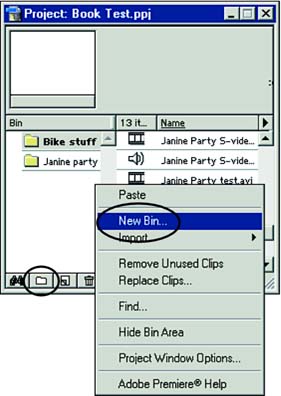
Figure 4.9 shows you how to create a new bin?to store all your nat-sound clip names for instance. Right-click in the white area in the Project window and select New Bin (or click the little folder icon at the bottom of the Project window). Type in a name and click OK.
Figure 4.9. To create a new bin, use the Project window's right-click menu or the New Bin icon.
Now, click the Name heading at the top of the file column to alphabetize your clips. Select the clip names you want to place in the new folder. Ctrl-click (Windows) or Shift-click (Mac OS) one icon at a time to create a group of scattered filenames. Drag and drop the clip(s) to your new folder. Create as many new bins and relocate as many clip names as suits your project planning.


