2.5 Setting Up Your Mac to Use Wi-Fi
Once you have your Wi-Fi client hardware installed, you need to set up your Mac to use it. You can do this in two ways. The easiest way is to use the AirPort Setup Assistant, which is a program that configures your Wi-Fi hardware and AirPort software with almost no input needed from you. The other way is to use the Internet Connect application and Network Preferences to set the AirPort preferences that you need.
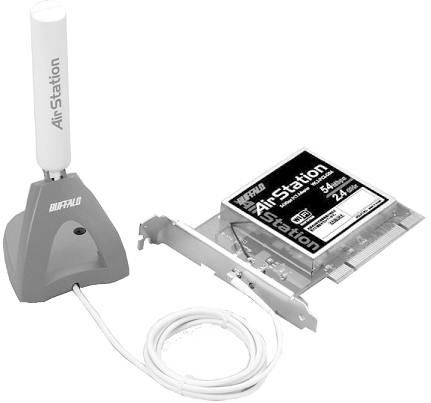
Figure 2-8. The Buffalo Airstation WLI-PCI-G54 PCI adapter; photo courtesy of Buffalo
2.5.1 Using the AirPort Setup Assistant
You'll find the AirPort Setup Assistant in /Applications/Utilities/. Follow these steps to set up your AirPort hardware:
Launch the AirPort Setup Assistant. The Introduction screen will appear, as shown in Figure 2-9.
Figure 2-9. The AirPort Setup Assistant's Introduction screen
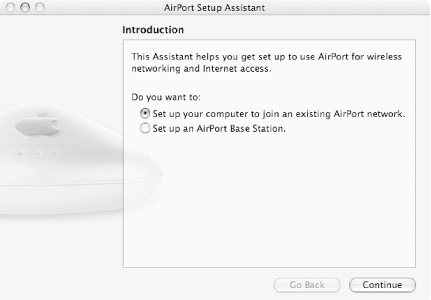
Choose "Set up your computer to join an existing AirPort network."
Click Continue.
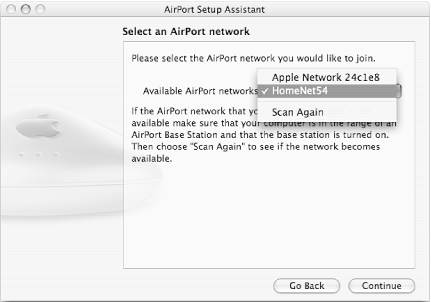
If there is more than one AirPort network available, as in Figure 2-10, choose which network you wish to join from the "Available AirPort networks" pop-up menu. If there is only one AirPort netowrk available, this pop-up menu will not appear.
Figure 2-10. Choosing the AirPort network you want to join
Click Continue.
If the network you selected requires a password, the Enter Network Password screen will appear, as shown in Figure 2-11.
Figure 2-11. Entering the network password
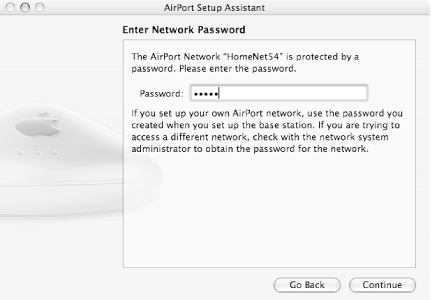
Type the network password, then click Continue.
The Conclusion screen will appear, letting you know that the AirPort Setup Assistant is ready to configure your computer. Click Continue.
The AirPort Setup Assistant reports that it was able to make the connection to your selected network. Click Done.
2.5.2 Connecting to a Wireless Network Manually
To connect to a wireless network manually, use the Internet Connect application found in your Applications folder. You can also use the AirPort pane of Network Preferences for some settings.
Follow these steps to use Internet Connect:
Launch Internet Connect.
Click the AirPort button in the Internet Connect window's toolbar.
If AirPort is turned off, click the Turn AirPort On button.
From the Network pop-up menu, choose the network that you want to join, as shown in Figure 2-12.
Figure 2-12. Use the Network pop-up menu to select the wireless network you want
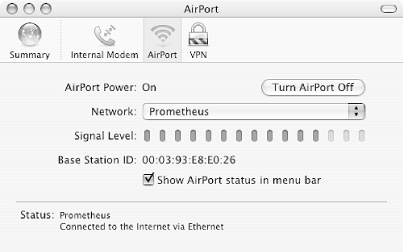
As you can see in the figure, the Internet Connect window has a signal-level meter that indicates the quality of the Wi-Fi signal you are receiving.
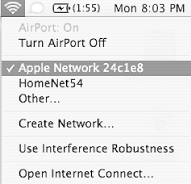
It's a good idea to click the "Show AirPort status in menu bar" checkbox; doing so makes the AirPort menu appear. This menu shows available wireless networks and allows you to switch between them, as shown in Figure 2-13.
Choose File
 Quit to leave the Internet Connect application.
Figure 2-13. The AirPort menu: curved lines denote the wireless network's signal strength
|

Follow these steps to use the AirPort pane of Network Preferences:
From the Apple menu, choose System Preferences. The System Preferences application will launch.
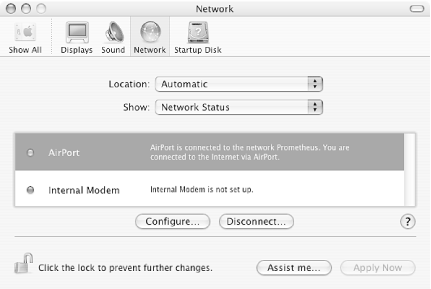
In the Internet & Network section, click Network. When the Network pane appears, set it to display Network Status, as shown in Figure 2-14.
Figure 2-14. The Network Status screen of System Preferences
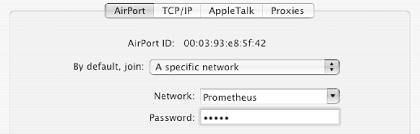
From the Show menu, choose AirPort (if it isn't already showing). The AirPort tab lets you choose to join a specific network by default, or any network, as shown in Figure 2-15.
Figure 2-15. Setting a default AirPort network
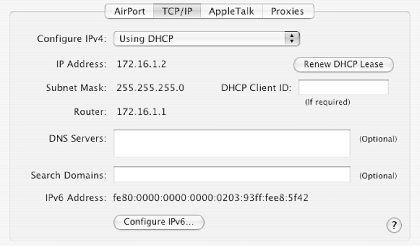
Click TCP/IP. This tab, shown in Figure 2-16, shows the computer's IP address, subnet mask, and the router IP address that the computer has obtained from the wireless base station.
Figure 2-16. You can see the IP address information in the TCP/IP tab
Click AppleTalk. The AppleTalk tab appears (Figure 2-17).
Figure 2-17. The AppleTalk tab of Network Preferences
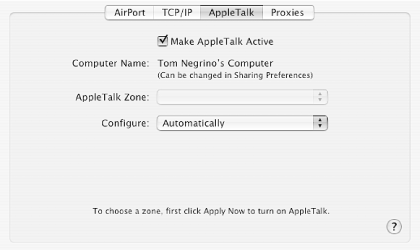
If you want to run AppleTalk over AirPort (used for some printers and some file sharing with older versions of Mac OS), click Make AppleTalk Active.
2.5.3 Switching Between Wireless Networks
After you have set AirPort up, you will rarely need to make changes, if at all. Most often, you'll only need to switch between different wireless networks. For that task, you can use either the Internet Connect application or the AirPort menu. It's usually easier to use the menu. Simply choose the wireless network you want and, if necessary, enter the password for the network.


