5.5 Wi-Fi Security
Now that we've covered some ways to secure your wireless connection, we'll get into the details of Wi-Fi security. A secure network should (ideally) have the following:
- Authentication
-
This is the process of verifying the identity of a user and making sure that she is who she claims. When you log in to your Mac OS X computer, you are being authenticated via the username and password. In a Wi-Fi network, authentication comes into play when the access point has to determine whether a machine can connect to it.
- Authorization
-
This is the process of allowing or denying access to a specific resource. You may be authenticated as a user, but you may not be authorized to use certain feature. For example, suppose you are at a wireless hotspot and have used up your allotted connection time: the network knows who you are, but won't authorize you to access the Internet until you pay for more minutes.
- Confidentiality
-
This ensures the privacy of information that is being transmitted. Only an authorized party (such as the recipient of an email message) can see the information being transmitted. In a Wi-Fi network, confidentiality is supported by protocols such as WEP and 802.1X, which encrypt the data that moves through the air.
- Integrity
-
This ensures that the information you have transmitted has not been tampered with en route to its destination.
Authentication, authorization, confidentiality, and integrity are also addressed by other systems on your network, just as they are on a wired network:
Passwords can be used to authenticate users when they log into a file server.
User permissions control which files a given user has access to.
Web and email communications can be secured with SSL.
Network traffic can be tunneled through a VPN.
Wi-Fi has two main authentication schemes (see Figure 5-7): cryptographic and non-cryptographic.
Figure 5-7. Authentication schemes
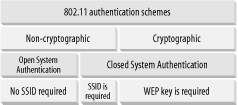
Under the non-cryptographic scheme, you can authenticate in one of two ways: with or without an SSID. If a wireless network allows clients to connect to it without specifying an SSID, it is known as Open System Authentication.
|

For Closed System Authentication, two methods are possible: one using an SSID and one using a cryptographic key.
In an Open System Authentication scheme, there is no encryption performed on the packets transmitted between the client and the access point. The client does not need any SSID to join a network. This is the simplest mode, as the configuration is straightforward and does not require any administration.
In the Closed System Authentication scheme, a client needs to specify an SSID that is identical to that specified by the access point in order to join the network. In addition, a shared key may also be used to encrypt the data packets transmitted between the client and the access point. In 802.11, the encryption method is known as Wired Equivalent Privacy (WEP), which we discuss in the next section.
To connect to a network in a closed system, a client must fulfill one or several of the following criteria:
The SSID of the client must match that of the access point. If a wireless access point has SSID broadcast turned on, your Macintosh should be able to detect its presence and allow you to connect to it. If the SSID broadcast is turned off, then the client must manually enter the SSID in order to associate with the access point. Getting associated with the access point is the first step in joining a network. Using an SSID to prevent people from accessing your network is not effective, since the SSID is often guessable and can be "sniffed" by network tools such as KisMAC (more on this later).
|
Some access points use MAC address filtering to prevent clients from associating with them. You can enter a list of MAC addresses in order to allow (or deny) association with the access point, usually through a web-based configuration interface on the access point. Apple AirPort or AirPort Extreme Base Stations use the AirPort Admin Utility to set up MAC address association. Even if a client has the correct SSID, if its MAC address is not listed in the allow-list of the access point, it cannot be associated with the access point. Again, using MAC address filtering to prevent unauthorized access to the network is not foolproof?an unauthorized user can easily change his network card's MAC address to that of an authorized client. And often someone sniffing your wireless network knows the MAC addresses of Wi-Fi cards that appear to be authorized, so this will clearly only keep the casual and unskilled out of your network.
If WEP encryption is used on a wireless network, the client must specify the same WEP key as the one entered in the access point. Using a WEP key protects the data that is exchanged between the client and the access point. It also has the side effect of preventing unauthorized access to the network, since a client needs the WEP key to encrypt and decrypt the exchanged packets. However, it has been proven that WEP is not secure and the WEP key can easily be recovered by an attacker using freely available tools.
5.5.1 Wired Equivalent Privacy (WEP)
The main goal of WEP is to provide confidentiality of data packets, with a secondary function of granting authorization to a wireless network. This is, however, not the originally intended design goal of WEP (see Section 5.5.3 later in this chapter). Although WEP was initially designed to safeguard the confidentiality of the data in a wireless network, it has been proven to be insecure. Here are some of the more important security concerns regarding WEP:
The use of a shared static key is a major concern, since everyone uses the same static key to secure their communications. As soon as the key is made known, the network is no longer secure. Some access points use a passphrase to generate keys, which makes it easier to guess the key, since people tend to use familiar terms for passphrases.
A significant component of the WEP system is its initialization vector, which is used to increase the unpredictability of the encryption scheme. This vector is relatively small and, as a result, the same vector comes up from time to time?especially on a busy access point where a lot of data is being transferred. When WEP uses the same vector more than once, it creates the opportunity for an attacker to discover the WEP key and bypass the security.
If an eavesdropper obtains the key, he may be able to forge the identity of a legitimate user and intercept and reroute the transmitted data.
Due to the export regulations of the United States, the 802.11 standard called only for 40-bit WEP. Most vendors introduced longer key lengths for their products, making them proprietary and often not interoperable. Apple's base stations can use either a 40-bit or 128-bit WEP key. Even so, since WEP is not a well-designed cryptographic system, having extra key length does not make your communications more secure.
Still, using WEP is better than no encryption at all, especially if you are protecting a small office or home network where there's not a lot of network traffic. Frequently changing your WEP keys is a very good idea. If you only want to use WEP to protect your network, you must change your WEP key as often as feasible to provide as little exposure as possible. Harvesting weak packets to attack WEP can be a lengthy process on networks with little traffic.
5.5.1.1 Enabling WEP on an AirPort base station
To enable WEP for your wireless network, open the AirPort Admin Utility and do the following:
Click on the Name and Password button.
Under the Wireless Network Name checkbox, check the Enable encryption (using WEP) checkbox.
Click on the Change password... button.
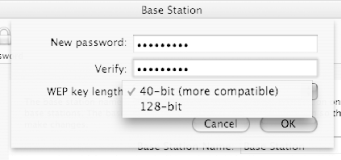
Select the length of the WEP key (40-bit or 128-bit) and enter a password (see Figure 5-8). Click OK.
Figure 5-8. Entering a password to generate the WEP key
Click on the Update button to save the changes to the AirPort base station.
|
5.5.1.2 Connecting Non-Macintosh Computers to a WEP-enabled AirPort Base Station
Since the AirPort Base Station uses a password to generate the WEP key, non-Macintosh computers connecting via the AirPort Base Station need to know that WEP key.
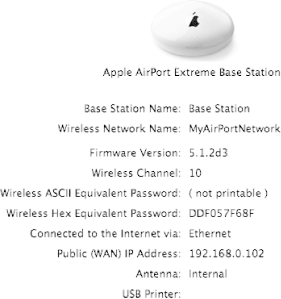
To get the WEP key generated by the AirPort Base Station, use the AirPort Admin Utility, select Base Station from the menu, then choose the "Equivalent Network Password..." item. Alternatively, the main screen of the AirPort Admin Utility should also display the WEP key if WEP is enabled (see Figure 5-9).
Figure 5-9. Getting the WEP password
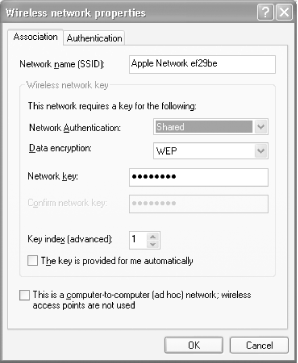
For Windows users, note that you need to change the Network Authentication type from Open to Shared. If you don't change this setting, you may have trouble connecting to the AirPort base station (see Figure 5-10).
Figure 5-10. Changing the Network Authentication type on a Windows computer
5.5.1.3 Connecting your Mac to a Non-AirPort Base Station
If you are connecting to a non-AirPort base station and have WEP
enabled, be careful when you specify your WEP password in the System
Preferences  Network window (see Figure 5-11).
Figure 5-11. Specifying the wireless network password in System Preferences
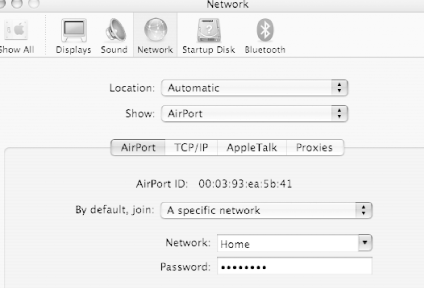
You should prefix your WEP keys with a "$" sign. For example, if the WEP key is "1234567890," then you should enter "$1234567890." The "$" sign tells AirPort that you are sending the WEP keys directly, and that it doesn't need to translate the password into its WEP equivalent.
5.5.1.4 Connecting to a WEP-enabled AirPort base station
To connect to a WEP-enabled AirPort base station, click the AirPort icon on the menu bar and select the wireless network to join. You will be prompted to enter the password (see Figure 5-12).
Figure 5-12. Entering a password to join a WEP-protected wireless network
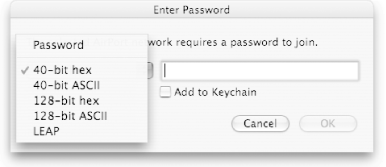
There are a number of options for entering the passwords:
- Password
-
Use this option to enter the password that you have specified in your AirPort base station.
- 40-bit hex
-
Use this option to enter the WEP key that is generated by your AirPort base station. The size of this key is 10 hexadecimal digits.
- 40-bit ASCII
-
Use this option if the password in your base station is 5 characters long.
- 128-bit hex
-
Use this option to enter the WEP key generated by your AirPort base station. The size of this key is 32 hexadecimal digits.
- 128-bit ASCII
-
Use this option if the password in your base station is 16 characters long.
- LEAP
-
Use this option if you are connecting to an access point that uses the Cisco authentication protocol known as LEAP.
|
5.5.2 802.11i
A long-term solution to resolve WEP's inadequacies lies in the hands of the IEEE workgroup TGi (http://grouper.ieee.org/groups/802/11/Reports/tgi_ update.htm), who expect to complete the 802.11i specifications at the end of 2003.
The 802.11i specifications will address:
- Use of 802.1X for authentication
-
The 802.1X specification is a framework for mutual authentication between a client and the access point. It may also use a RADIUS-based authentication server and one of the Extensible Authentication Protocol (EAP) variations. 802.1X uses a new key for each session; hence it replaces WEP's static key.
- Use of the Temporal Key Integrity Protocol (TKIP)
-
TKIP will be used as a short-term solution to WEP's flaws. It uses 128-bit dynamic keys that are utilized by different clients. Because of the changing keys, intruders would not have time to collect enough packets to compromise the security scheme.
- Use of the Advanced Encryption Standard (AES)
-
The full implementation of 802.11i will utilize the AES encryption system for enhanced encryption in access points. However, use of AES requires changes in the chipsets used in wireless devices. Thus, at the time of this writing, no wireless devices support AES.
The 802.11i specification is tentatively called WPA2. See the next section for more details.
5.5.2.1 Wi-Fi Protected Access (WPA)
While the industry is waiting for the 802.11i specification to be ratified, the Wi-Fi Alliance has addressed the present need for secure wireless communication by introducing Wi-Fi Protected Access (WPA). WPA is also known as WPA1, while 802.11i is known as WPA2. WPA is a subset of the 802.11i standard and will be forward compatible with it. The key components of WPA are:
- 802.1X
-
See the next section for a detailed discussion of 802.1X.
- TKIP technologies
-
TKIP addresses WEP's limitations by using dynamic keys and a much longer initialization vector (meaning that the chances of reusing the same vector within a short period of time are reduced).
As this book was going to press, Apple released the AirPort 3.2 Update, which features their first implementation of WPA. This version enabled WPA encryption for AirPort Extreme Base Stations and AirPort Extreme cards only. It is expected that a later update will extend WPA protection to the original AirPort cards, but there may not be a WPA upgrade for AirPort Base Stations.
Apple's WPA implementation embraces two flavors of WPA. WPA Personal allows you to enter a password of between 8 and 63 text characters, or 64 hexadecimal characters. WPA Enterprise lets the user have their name and password verified by an external RADIUS authentication server. If you want to enable WPA encryption on your network?and it is markedly more secure than WEP?you should know that Apple's 3.2 AirPort software allows only all-WEP or all-WPA networks; you can't mix and match clients using different forms of encryption. If you're on an all-AirPort Extreme network, it's a good idea to upgrade to WPA. If you have a mixed AirPort and AirPort Extreme network, we recommend that you check to see if later versions of the AirPort software have been released that support WPA for the AirPort clients before you enable WPA.
Table 5-1 shows the differences between WPA and WEP.
|
WPA |
WEP | |
|---|---|---|
|
Key length |
128-bit |
40-bit to 232-bit |
|
Key type |
Dynamic key; per-user, per-session, per-packet keys |
Static shared key; used by everyone in the network |
|
Key distribution |
Automatic key distribution |
Each user must type in the key |
|
Authentication |
Uses 802.1X and EAP |
Uses WEP key for authentication; flawed |
5.5.3 802.1X Authentication
The 802.1X specification is a port-based network access control mechanism: when a client is authenticated, the port (a connection between a client machine and an access point) is granted access; if not, access to the port is denied. Although 802.1X was originally designed for Ethernet networks, it can be applied to wireless networks as well.
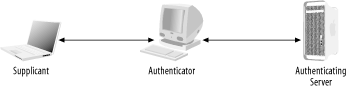
This is how 802.1X works (see Figure 5-13):
The supplicant (the client that wants to access a network resource) connects to the authenticator (whose resource is needed).
The authenticator asks for credentials from the supplicant and passes the credentials to the authenticating server.
The authenticating server authenticates the supplicant on behalf of the authenticator.
If the supplicant is authenticated, access is granted.
Figure 5-13. Authenticating a supplicant in 802.1X
In a wireless network, a wireless client needs to connect to an access point; in this case, the wireless access point is the authenticator. The authenticator can maintain a database of users and their respective passwords. However, this is a huge administrative task, especially in a large network. So an access point can be connected to a RADIUS (Remote Authentication Dial-In User Service) server, which will maintain the database of users and perform authentication on behalf of the access point. This is as shown in Figure 5-14.
Figure 5-14. Using 802.1X authentication in a wireless network
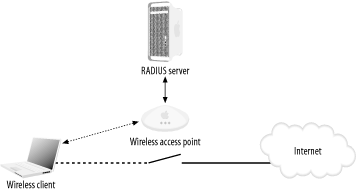
Using a RADIUS server only takes care of the authentication aspect of security. What about confidentiality? Packets traveling between the wireless clients and the access point must be encrypted to ensure confidentiality.
When a client is validated at the RADIUS server, an authentication key is transmitted to the access point. (This key is encrypted; only the access point can decrypt it.) The access point then decrypts the key and uses it to create a new key specific to that wireless client. That key is sent to the wireless client, where it's used to encrypt the master global authentication key to the wireless client. To address WEP's shortcoming of a fixed key, the access point will generate a new master authentication key at regular intervals.
5.5.3.1 Using 802.1X in Mac OS X
Connect to an access point secured using 802.1X:
Double-click the Internet Connect application located in the /Applications folder.
Select File
New 802.1X Connection. The 802.1X panel
appears (Figure 5-15). From this point on, you can
configure 802.1X by clicking the 802.1X icon.
Figure 5-15. Configuring 802.1X in Internet Connect
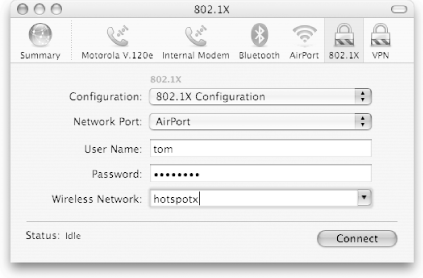
Be sure that AirPort is selected as the Network Port, and then fill in the User Name, Password, and Wireless Network fields. You can choose the wireless network name from the drop-down menu or type one in.
Click Connect. If you have the correct user ID and password and are authorized, you will be connected to the network. If not, contact the administrator of the wireless network.
When you close Internet Connect, you'll be prompted to supply a new 802.1X configuration name. Your username and password, as well as the wireless network name, will be saved.
You can reconnect in the future by simply selecting the wireless network from the AirPort menu; a keychain dialog will appear asking for permission to access the saved 802.1X configuration. You can also reconnect by opening Internet Connect, clicking the 802.1X icon, selecting the configuration, and clicking Connect.
5.5.3.2 802.1X and RADIUS
To use 802.1X on your own network, you will need a RADIUS server to perform user and password authentication, and an access point that supports 802.1X. Although AirPort base stations (with the exception of the Graphite base station) support RADIUS authentication with the latest version of the AirPort software, they do not (at the time of this writing) support 802.1X. The RADIUS authentication included with AirPort performs simple MAC address-based authentication of computers on your network and, as noted earlier, MAC addresses are easily spoofed.
There are inexpensive access points on the market that support 802.1X. We tested 802.1X with a D-Link 900AP+ ($79) and FreeRadius (an open source RADIUS implementation available from http://www.freeradius.org/) running on a Linux backend server. FreeRadius can also be compiled for Mac OS X or Mac OS X Server.
5.5.3.3 RADIUS and the AirPort Base Station
This section explains how to configure your AirPort base station to authenticate the MAC addresses of client machines against a RADIUS server.
Using the AirPort Admin Utility, click on the Show All Settings button and then the Authentication button (see Figure 5-16).
Figure 5-16. Specifying RADIUS server information
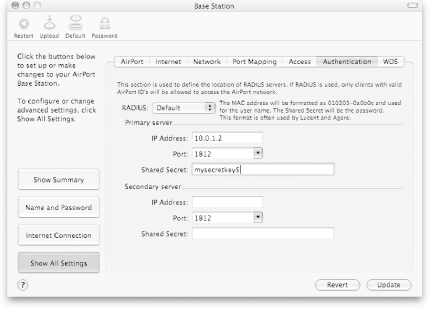
Select Default from the RADIUS drop-down list.
|
Enter the IP address and port number of the RADIUS server. You'll also need to enter a shared secret that is entered at the RADIUS server as well.
You can also configure a secondary RADIUS server in case the first one fails.


