3.3 AirPort Base Stations
Apple's original solution for turning a high-speed Internet connection (or any wired Ethernet network) into a wireless network was the AirPort Base Station. It (and its successors) serves as a router and a wireless access point for the wireless network. The AirPort cards in Macintoshes connect wirelessly to the AirPort Base Station, which is connected via Ethernet to the DSL or cable modem, or a wired network. As of October 2003, four models of the AirPort Base Station have been released:
The AirPort Base Station (Graphite) was the original model, introduced in July 1999. It supported 802.11b, and included a 56K modem and a 10-Base-T Ethernet port to connect to the WAN. The modem allowed the AirPort Base Station to use a dialup phone line connection to the Internet. The "Graphite" designation refers to the color of the Base Station's case.
The AirPort Base Station (Snow) was introduced in November 2001, replacing the Graphite model. Also an 802.11b unit, it added the following capabilities to the Graphite Base Station:
Support for 128-bit WEP security
The ability to use America Online as an ISP
A second, 10/100-Base-T Ethernet port for connection to a local area network (it still had the 10-Base-T Ethernet port for connecting to the WAN)
A built-in firewall to protect the LAN from unauthorized access from the Internet
RADIUS support (RADIUS is a scheme that allows central management of user access via an authorization server)
The AirPort 2.0 software was released along with the Snow Base Station, allowing the Graphite units to add America Online and 128-bit WEP support.
The AirPort Extreme Base Station was introduced in January 2003, and replaced the Snow units. This was Apple's first foray into the newer 802.11g standard (which it calls AirPort Extreme), and was released before that standard was finalized, necessitating a firmware upgrade in July 2003 for true 802.11g support.
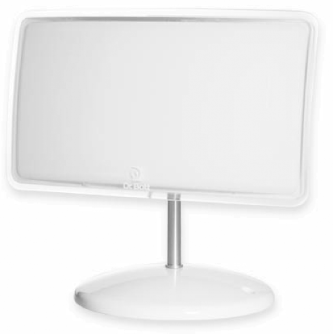
Using External AntennasThe AirPort Extreme Base Station (with modem and antenna port) lets you use third-party external antennas to extend the range of the base station. Dr. Bott (http://www.drbott.com) sells two antennas that we tested and found to work well:
Apple uses the same antenna connector on the AirPort Extreme Base Station and the Power Macintosh G5, which require an external AirPort antenna due to their aluminum cases. As a result, both antennas also work with the G5s. Those computers come with a stub external AirPort antenna, but a larger external antenna improves reception. Another company, QuickerTek (http://www.quickertek.com), makes the $129 AntennaKit, which is an external 5 dBi omnidirectional antenna that can be installed on either model of the AirPort Extreme Base Station or on the AirPort Base Station (Snow). This antenna requires opening the Base Station's case to attach the antenna and a bracket, and drilling a small hole in the case for an antenna wire. |
Figure 3-5. The ExtendAIR Omni external antenna
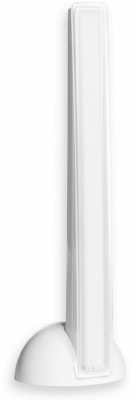
Figure 3-6. The ExtendAIR Direct external antenna
There are two models of the AirPort Extreme Base Station:
The $199 AirPort Extreme Base Station does not include a 56K modem, and does not have a connector for an external antenna. It's a good choice for the remote unit when you're setting up wireless bridging.
The $249 AirPort Extreme Base Station (with modem and antenna port) has, as you might have already guessed, a 56K modem and an antenna connector. Because of the external antenna connector, it works well as the main base station when you are doing wireless bridging.
3.3.1 Setting up an AirPort Extreme or AirPort Base Station
Getting your wireless network on the air is a two-step process. First, there's the physical setup of the hardware. Then you'll need to configure the AirPort Base Station using the AirPort Setup Assistant or the AirPort Admin Utility.
3.3.1.1 Connecting the hardware
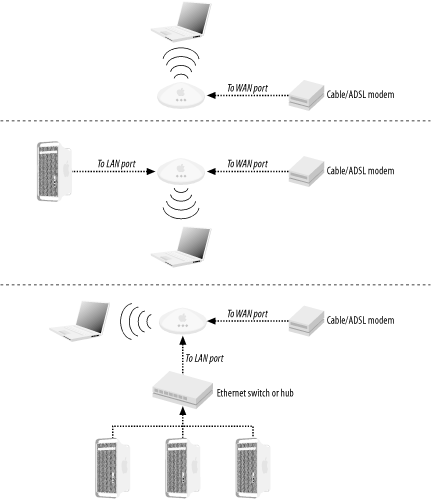
There are three basic connection scenarios for the AirPort Base Station hardware, described next and illustrated in Figure 3-7:
If all of the clients using an Apple Base Station will be wireless and you have high-speed Internet access, hookup is pretty simple: just run an Ethernet cable from the output of the DSL or cable modem to the WAN port of the Base Station.
If you have just one computer that needs to connect with a wire, with the rest wireless, make the hookup as described in the previous bullet, and then connect the wired computer to the LAN port on the Base Station.
If you are using an AirPort Base Station and you want to have multiple computers that don't have wireless cards access the Internet through the base station, you will also have to purchase an Ethernet switch or hub, plug the wired computers into it, then connect the switch or hub into the base station's LAN port. The DSL or cable modem is then connected to the base station's WAN port.
Figure 3-7. Three connection scenarios for the AirPort Base Station: with just wireless clients (top); with one wired client and one or more wireless clients (middle); or with a network of wired clients and wireless clients (bottom)
3.3.1.2 Base station setup
The easiest way to set up an AirPort Extreme or AirPort Base Station is to use the AirPort Setup Assistant, which walks you through the basic steps in just a few minutes. You can also use the AirPort Admin Utility, which is a tool that lets you configure virtually every aspect of the base stations. Look for more information on the latter utility in Section 3.4 later in this chapter.
To set up an AirPort Extreme Base Station using the AirPort Setup Assistant, follow these steps (setting up prior models is similar, but may not be exactly the same):
Launch the AirPort Setup Assistant, which you'll find in /Applications/Utilities/.
On the Introduction screen, click "Set up an AirPort Base Station," then click Continue.
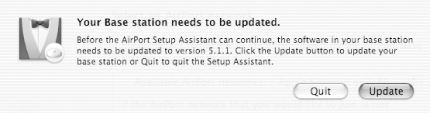
If your base station is not running the latest firmware for its particular model, the AirPort Setup Assistant will offer to update the firmware, as shown in Figure 3-8. Your choices are Update or Quit, so click Update.
The Setup Assistant will download the firmware, and then the Base Station will reset itself and the "Select an AirPort network" screen will appear.
Figure 3-8. Firmware alert from the AirPort Setup Assistant
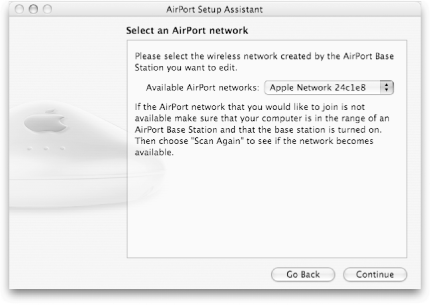
If more than one AirPort network is available, as in Figure 3-9, you should choose which network you wish to join from the Available AirPort networks pop-up menu. If only one AirPort network is available, this pop-up menu will not appear.
Figure 3-9. Choosing a base station
|

Click Continue.
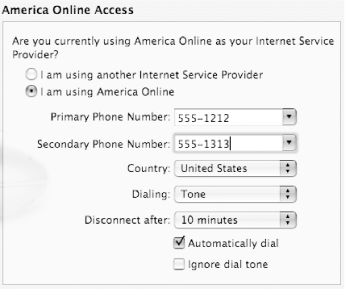
On the next screen, you'll be asked if you are using America Online as your Internet Service Provider. The Assistant is really asking if you will be connecting to America Online using the Base Station's modem and a phone line. If that's the case, click "I am using America Online," then enter dial-up phone numbers and phone settings in the fields that will appear (Figure 3-10). Then click Continue and skip to Step 8.
Figure 3-10. America Online phone settings
|

If you are not using America Online dial-up access, the Internet Access screen will appear, as shown in Figure 3-11. Choose from one of the displayed choices.
Figure 3-11. Internet Access screen
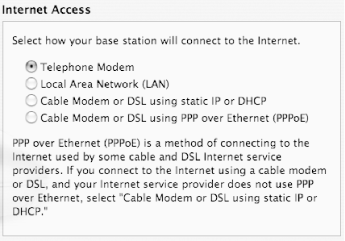
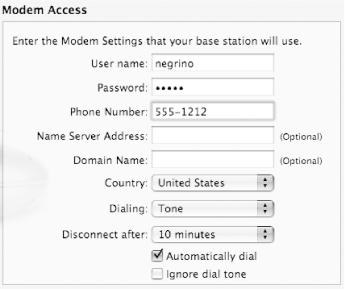
Choose Phone Access if you will be using the AirPort's 56K modem to dial in to an ISP. Clicking Continue will then take you to the Modem Access screen, shown in Figure 3-12.
In the Modem Access screen, you will need to enter your ISP's phone number and your account information. When you're done, click Continue.
Figure 3-12. Modem Access screen
Choose Local Area Network (LAN) if your base station is connected to an Ethernet network. Clicking Continue will then take you to the Ethernet Access screen, shown in Figure 3-13. Most of the time, you will be able to leave the default choice in the Configure Base Station pop-up menu, "Using DHCP." If your network administrator instructs otherwise, choose "Manually," then fill in the IP Address, Subnet Mask and Router Address fields. When you're done, click Continue.
Figure 3-13. Ethernet Access screen
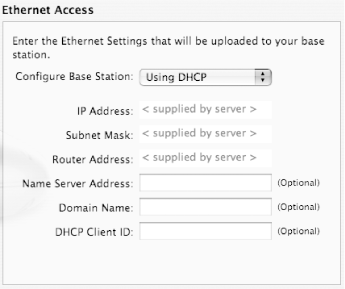
Choose Cable Modem or DSL using static IP or DHCP if your base station is connected to a high-speed connection. Clicking Continue will then take you to the Ethernet Access screen; follow the instructions in 7b.When you're done, click Continue.
Choose Cable Modem or DSL using PPP over Ethernet (PPPoE) if your base station is connected to a high-speed connection and your ISP has specified this sort of connection. PPPoE is an alternative method of connecting a cable or DSL modem that requires you to enter some additional information. Clicking Continue will take you to the PPPoE Access screen, as shown in Figure 3-14. Enter the information given to you by your ISP, then click Continue.
Figure 3-14. PPPoE Access screen
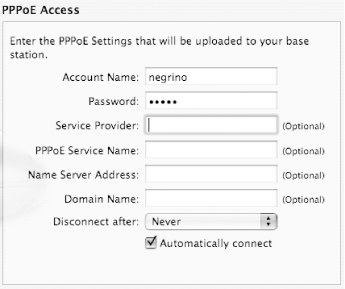
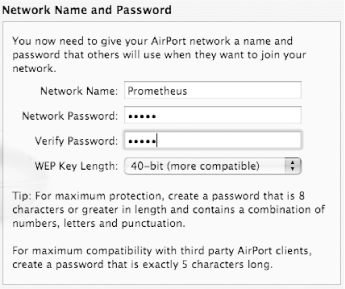
The Network Name and Password screen (Figure 3-15) allows you to enter information about the wireless network. Enter the Network Name; this is the name that people will see in the AirPort menu when they connect to your network.
Enter the Network Password twice; this password will need to be entered by clients to connect to the network. From the WEP Key Length pop-up menu, choose either 40-bit or 128-bit. Then click Continue.
Figure 3-15. Network Name and Password screen
|
|
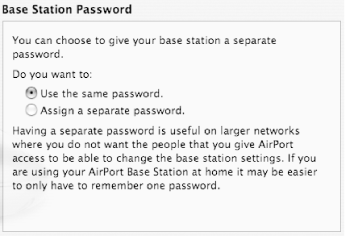
The Base Station Password, shown in Figure 3-16, lets you choose whether or not you want the password that will be used by the AirPort Admin Utility to be the same as the network password. As it says on the screen, if you're setting up a home network, it's often easier to use the same password, though it is obviously less secure. Make your choice, then click Continue.
Figure 3-16. Base Station Password screen
The Conclusion screen tells you that the AirPort Setup Assistant is ready to configure the base station. Click Continue.
The base station is updated, then automatically resets. Click Done to leave the AirPort Setup Assistant. You're ready to use your new wireless network!
3.3.2 Setting Up USB Printer Sharing
Both models of the AirPort Extreme Base Station include a USB port that allows the wireless clients to share a printer connected to the base station with a USB cable. A large number of (mostly) inkjet and PostScript printers will work with wireless printer sharing. Here's how to set up the printer for wireless access.
|
Before you work with the base station, make sure that your computer can print to the USB printer. Connect your computer directly to the printer with a USB cable, then print a test page from any application.
Connect the USB cable from your printer to the AirPort Extreme Base Station.
Make sure that the network name for the AirPort Extreme Base Station is selected in the AirPort menu.
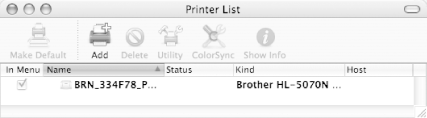
Open the Printer Setup Utility, found in /Applications/Utilities/. The application's main window appears, as shown in Figure 3-17.
Figure 3-17. Printer Setup Utility
|
Click the Add button. The Add sheet appears.
|
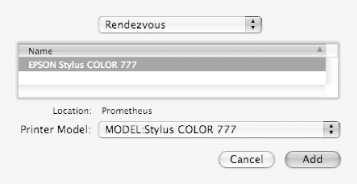
From the upper menu, choose Rendezvous. The sheet changes to show the name of the printer connected to the AirPort Extreme Base Station.
Click to select the printer in the sheet. The name of the AirPort Extreme Base Station appears next to Location at the bottom of the sheet, as shown in Figure 3-18.
Figure 3-18. Selecting the shared printer
If necessary, choose your printer from the Printer Model pop-up menu.
Click Add. The new printer will appear in the Printer List.
Quit the Printer Setup Utility, then print a test page.
|
|


