2.6 Extending the Titanium PowerBook's Range
The Titanium PowerBook G4, aka TiBook, is a terrific laptop computer, but it has one major drawback: because of the titanium case, it has poor Wi-Fi reception. Poor reception translates mainly into limited range; when Dori first got her TiBook, Tom had an old blueberry clamshell iBook that could run rings around the TiBook in terms of Wi-Fi reception. The iBook could stay connected to the living room's base station out on the front porch, back in the master bedroom, and even in the kitchen; in short, anywhere in or around the house. By contrast, the TiBook's range was about half the distance from the base station as the iBook's. There are a variety of techniques you can use to improve the reception of your TiBook, and we'll go through them from easiest to most difficult.
By the way, later-model TiBooks are an improvement over the original models, but the difference is not very large. Part of the problem with all models of the TiBook is the location of its built-in antennas: you can see them on either side of the computer as small plastic oblongs. The plastic is much more transparent to Wi-Fi signals than the metal titanium case, but because of their small size, reception isn't that great. The reception problems are greatly improved with the Aluminum PowerBooks, because the antennas in these machines are on the sides of the screen, where they are raised when the computer is in use. Apple also increased the size of the antennas in their later machines.
2.6.1 Orienting your laptop
When you're having problems with Wi-Fi reception on your TiBook, the easiest solution is to move closer to the base station. If that isn't feasible, you can try turning the laptop so that the antennas do a better job of receiving the Wi-Fi signal. Just turn the laptop 90 degrees in either direction and see if the signal strength improves. In really dodgy reception situations, we've found that turning our TiBook can mean the difference between staying connected?and not.
2.6.2 Checking the AirPort Card
Before trying more drastic measures, make sure that your AirPort card is seated correctly in its slot, and that the antenna wire is seated fully into the connector on the end of the AirPort card. It's possible that the person who installed the AirPort card didn't seat the connector properly, and a loose antenna wire can easily be fixed. Chances are good that if the AirPort card isn't properly inserted into its slot, AirPort won't be working at all, but it's easy to check while you're looking at the antenna connection.
Remove the battery, then remove the bottom case of your PowerBook G4 using the instructions for your model of PowerBook found at Apple's Customer-Installable Parts page, at http://www.info.apple.com/usen/cip/. You'll need a Torx T8 screwdriver, which you can find at most hardware stores.
Make sure that the AirPort card is seated all the way in its slot.
The antenna cable connector plugs into the port on the AirPort card. Make sure the connector is straight and inserted all the way into the port.
Reassemble the computer.
2.6.3 Squeezing the Battery Bay
We haven't had success with this technique ourselves, but after reading several reports that swear by it, we decided to include this tip. It may help your reception if you remove the battery, then press on the inside of the battery bay, which is near one of the antennas. This method apparently works because the antenna cable runs in a channel that secures it in front of the plastic antenna window on the sides of the computer. If the cable has shifted for some reason, it misses the window. Pressing on the inside of the battery bay pushes the antenna cable back into its channel and presumably back in front of the plastic window.
You're trying this procedure at your own risk: we are not responsible in any way if you break your laptop. We suggest using MacStumbler to get a numerical reading of your signal strength before and after the procedure, to make sure that any perceived improvement isn't just the placebo effect in action. Follow these steps:
Shut down the TiBook.
Turn the laptop over and remove the battery.
Locate the AirPort antenna on that side of the computer (it's the plastic strip on the side of the case outside the battery bay).
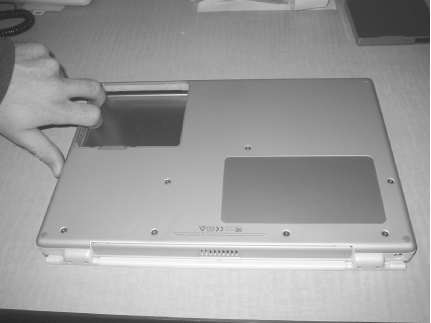
With your fingers, press on the inside of the battery compartment behind the antenna. Press gently but firmly: you're not trying to deform the case or anything. Press in several places in the general area, for about 10 seconds, as shown in Figure 2-18.
Figure 2-18. Pressing on the inside of the battery bay
Replace the battery, boot your Mac, and check your Wi-Fi reception.
2.6.4 Using a PC Card Wi-Fi Adapter
Perhaps the best solution to getting better Wi-Fi reception from a TiBook is to add a PC card wireless adapter. This route also allows you to add an 802.11g adapter to get better wireless speeds than an internal AirPort card (though because of the PC card's slot's throughput limitations, you will most likely get slower throughput than a PowerBook with an AirPort Extreme card). The main benefit to a PC card adapter, however, is the antenna that projects beyond the beautiful (but maddeningly radio-opaque) titanium case. Using this external antenna makes all the difference in receptivity, and the increased range is equal to that of iBooks and even a bit better than Aluminum PowerBooks.
You can find a wide range of PC card wireless adapters; no-name 802.11b cards sell from as little as $18. Branded cards cost about $40, and 802.11g cards go for between $30 and $80.
Many PC card adapters will work, as long as you are running Mac OS X 10.2.6 or later and AirPort software 3.1 or later. These versions of the system and AirPort software enabled support for third-party Wi-Fi adapters that are based on the Broadcom and Intersil chip sets.
2.6.5 Installing External Antennas
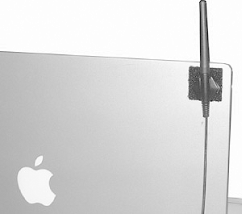
As mentioned in the last section, the largest improvement in Wi-Fi reception doesn't come from the PC card's radio receiver, but from the antenna that protrudes outside of the PowerBook's case. So why not dispense with a card and just add an external antenna? A few companies offer external antennas for PowerBooks, but we'll just talk about one, QuickerTek (http://www.quickertek.com/). This company makes two antennas for the PowerBook G3 (Pismo) and PowerBook G4 (Titanium). The $50 Stub wireless antenna (shown in Figure 2-19) looks like a PC card antenna and snaps into the PC card slot. The company claims that you can get double the range of the standard internal antennas with the Stub. The $90 Whip wireless antenna (shown in Figure 2-20) has a claimed reception improvement of up to 10 times, and is an external antenna that mounts to the case of your PowerBook with Velcro.
Figure 2-19. The QuickerTek Stub external antenna
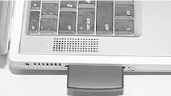
Figure 2-20. The QuickerTek Whip external antenna
These antennas require you to open the PowerBook case, remove the cable connection to the internal antennas, then connect the new antenna's cable connection to the AirPort card. That cable is then threaded through the PC card slot and connected to the Stub or Whip antennas. While the QuickerTek antenna is installed, you'll lose the use of the PC card slot. And naturally, installing them voids your Apple warranty (if you still have one in effect). Both antennas require that you already have an AirPort card.
Of these two antennas, the Stub should perform similarly to a PC card Wi-Fi adapter, which costs approximately the same as the Stub. If you don't already have an AirPort card, it's a no-brainer to skip the Stub and just get a PC card Wi-Fi adapter. The Whip is a bit more of a judgment call: if you need to use exceptionally weak Wi-Fi signals, the reception improvement of the Whip may be worth the price.
2.6.6 Hitching a Ride
Finally, there is one approach to wireless connectivity that isn't entirely wireless. If you are using two laptops in a place with weak wireless access, and only one of them can receive a usable signal, you can turn on Internet Sharing and connect an Ethernet cable between the two laptops. That way, both computers can share the wireless connection. We've used this approach in cases where Tom's PowerBook G4 (12-inch) was able to get reception, while Dori's TiBook could not.
|

This technique is, in effect, the opposite of using AirPort Internet Sharing, which allows you to share a direct Ethernet connection over wireless. You'll find more about setting up AirPort Internet Sharing in Chapter 3.
Follow these steps to share a wireless connection via Ethernet:
Connect the two computers with an Ethernet cable. Most later-model Macintoshes, including all PowerBook G4 models and iBook (Dual USB and later), don't require an Ethernet crossover cable; to check if yours does, see http://docs.info.apple.com/article.html?artnum=42717.
On the computer that has the wireless connection, open System Preferences.
In the Internet & Sharing section of the System Preferences window, click Sharing.
Click the Internet tab, as shown in Figure 2-21.
Figure 2-21. The Internet Sharing pane of System Preferences
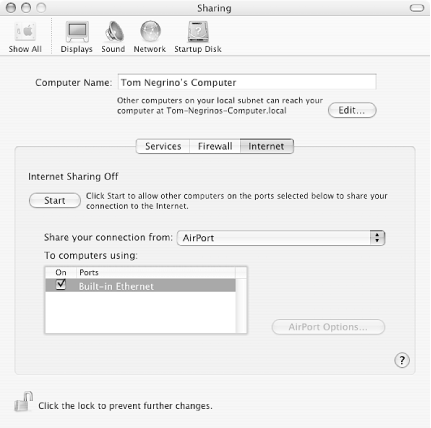
In the "Share your connection from" pop-up menu, choose AirPort.
In the "To computers using" section, select the checkbox next to "Built-in Ethernet." The Start button will become active.
Click Start. An alert sheet will appear, asking if you're sure you want to turn on Internet sharing.
Click Start in the alert sheet. The window will show that Internet sharing is on and that you are sharing your AirPort connection.
On the computer that is connected via Ethernet, open System Preferences.
In the Internet & Sharing section of the System Preferences window, click Network.
Click the TCP/IP tab and choose "Using DHCP" from the "Configure IPv4" pop-up menu. You should now be able to use the other computer's wireless connection.


