Using the Actions Panel/ActionScript Editor
Obviously, the premise of this book requires you to concentrate on writing scripts. It's a good idea to get familiar with the tools you'll use in Flash to do so. In this, your first exercise, you'll learn some of the basics of creating scripts with the ActionScript editor.
NOTE
The purpose of this book is to teach ActionScript, not so much how to use the Flash interface. This discussion will be concise, providing enough information to help you progress through the book. For a more extensive look at the many features of the Actions panel, pick up the Macromedia Flash Visual QuickStart Guide.
With Flash open, choose File > New and choose Flash Document from the list of choices. Press OK.
This step creates a new Flash document. It's usually a good idea to give your document a name and save it, so we'll do that next.From the File menu, choose Save As. In the dialog box that appears, navigate to any folder on your hard drive where you would like to save this file (it's not important where, really), name it myFirstFile.fla, and press the Save button.
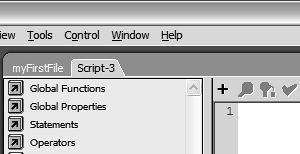
After you press Save, the tab at the top of the document window will reflect the name of your new file.Open the Actions panel by choosing Window > Development Panels > Actions.
Let's look at the various sections of the Actions panel.
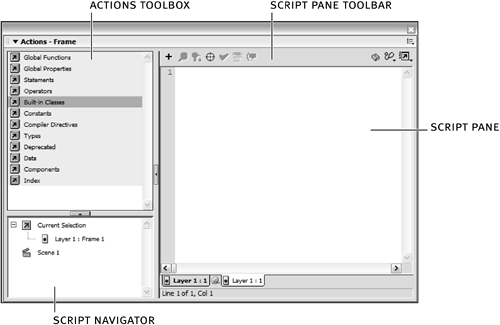
The Script pane is where you add ActionScript. You type into this window just as you would a word processor. The script that appears in this window changes, depending on the currently selected element in the Flash authoring environment. For example, selecting a keyframe on Frame 10 allows you to place a script on that frame if one doesn't already exist; if that frame already contains a script, it will be displayed for editing.
The Actions toolbox contains a categorical list of ActionScript elements. Double-clicking an icon (a book with an arrow) opens or closes a category in the list. The toolbox is designed to provide a quick way of adding script elements to your scripts for further configuration. You can add script elements to the Script pane by double-clicking the element's name in the toolbox window, or by clicking and dragging it to the Script pane.
The Script Navigator displays a hierarchical list of elements (frames, buttons, movie clip instances) in your projects that contain scripts. Clicking an element will display the script attached to it in the Script pane, allowing you to navigate quickly through the scripts in your project for editing purposes. Only elements with scripts attached to them appear in the Script Navigator.
The Script pane toolbar appears above the Script pane and provides a series of buttons and commands, enabling you to add to or edit the current script in the Script pane in various ways.
In the next steps, we'll explore the capabilities and functionalities of the ActionScript editor. Let's look first at code hinting.In the Script pane, type:
myMovieClip_mc.
NOTE
Let's assume this is the name of a movie clip instance we've placed in our movie.
Immediately after you type the dot (.), a drop-down menu provides a list of actions applicable to movie clip instances.
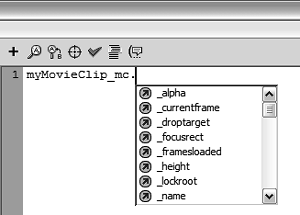
Why did the editor provide a list of commands for movie clip instances? It's because of the name we chose for our movie clip instance. Notice that we added _mc to the movie clip instance's name. This suffix enables the editor to automatically identify myMovieClip_mc as a movie clip instance and provide a drop-down list of appropriate commands when you type that name in the Script pane.
Common suffixes for visual movie elements include _btn for buttons and _txt for text fields. We will be using these suffixes for visual elements throughout this book.
Other, nonvisual elements, such as Sound and Date objects, have suffixes as well, but instead of using suffixes for nonvisual elements, we'll instead be utilizing a new functionality in Flash MX 2004, which we'll demonstrate next.
NOTE
For a complete list of suffixes, consult the ActionScript Dictionary.
Select the current script and delete it. In its place, type:
var mySound:Sound = new Sound();
This line of script creates a new Sound object named mySound. Creating a Sound object using this syntax identifies mySound as a Sound object to the ActionScript editor. As a result, referencing this object by its name later in the script will cause a drop-down menu of appropriate Sound objectrelated commands to appear automatically. Let's test it.Press Enter/Return to go to the next line in the Script pane, and type:
mySound.
Once again, immediately after typing the dot, you see a drop-down menu with a list of actions applicable to Sound objects.
You can create a new Sound object using this syntax:
mySound = new Sound();
but this syntax will not activate the functionality of code hinting when you script that object, as the syntax in Step 5 does.
To help you grasp this concept, let's look at a couple more examples.
This code activates Color objectrelated code hinting for the myColor Color object:
var myColor:Color = new Color();
This code does not:
myColor = new Color();
This code activates Date objectrelated code hinting for the myDate Date object:
var myDate:Date = new Date();
This code does not:
myDate = new Date();
Let's look next at another type of code hint available in the ActionScript editor.NOTE
To clarify, in this book we will be using suffixes only when naming visual elements such as movie clip instances, text fields, and buttons. This is because visual elements are not created in the same manner as the description in this step. Using suffixes in their names is the only way to activate code hinting when referencing them in the ActionScript editor.
Select the current script and delete it. Type in its place:
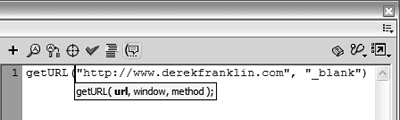
getURL(
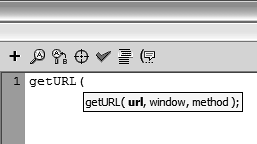
Once you type the opening parenthesis, a code hint ToolTip will appear. This functionality becomes active when you type the code for an action that has definable parameters, such as the getURL() action. The currently definable parameter will appear in bold text within the ToolTip. As you enter various parameter data (separated by commas), the ToolTip will be updated to display the currently definable parameter in bold text. The ToolTip will disappear once you type the closing parenthesis for the action.
You can manually display code hints at any time by placing the insertion point (cursor) at a location where code hints normally appear automatically (such as just after the opening parenthesis of an action), then pressing the Code Hint button on the Script pane toolbar.
Other buttons on the toolbar allow you to find words in your scripts, replace words in your scripts (a great feature if you change the name of something), insert target paths, check scripts (without having to spend extra time to actually export the entire movie), and autoformat your scripts (allowing the editor to handle the job of formatting your scripts in an easy-to-read manner).
The last aspect of the ActionScript editor that we'll discuss here is its ability to create .as files.From the File menu, choose New and select ActionScript File from the list of choices. Press OK.
This step creates a new ActionScript file, ready for editing in the ActionScript editor.
The ActionScript editor looks very similar to how it looked in the previous steps. The most noticeable difference is the fact that while the interface elements of the editor are active, the rest of Flash's interface is dimmed out. Flash enters this "limited" mode when you edit .as files. The reason is that in this mode its sole purpose is to enable you to create and edit .as files. Drawing tools and other panel functionalities have no meaning in this context.
TIP
You can rid the interface completely of dimmed-out interface elements by pressing F4. Pressing F4 again brings them back.
Another noticeable change is the disappearance of the Script Navigator. Once again, because this mode is meant for editing .as files, the concept of navigating various scripts in a project has no meaning, and the Script Navigator is nonexistent in this mode. Other than these differences, the ActionScript editor works in the same manner as previously discussed in this exercise.
When you create .as files (as you'll be doing later in the book), you save them by choosing File > Save and providing a name.
NOTE
In most cases in this book, unless otherwise stated, .as files (once we begin creating them) should be saved in the same directory as your main .fla files.
One last thing to note about the Flash authoring environment is that two tabs now appear at the top of the document window. One tab represents the Flash document we created in Step 1, and the other represents the open ActionScript file we just created. Clicking on these tabs allows you to switch easily between authoring the Flash document and the ActionScript file. Flash automatically switches editing modes when you do.
This completes the exercise. Next, you start creating your first application.