Targeting Movie Clip Instances on Levels
Targeting a movie clip instance that exists within an SWF loaded into a level is a straightforward process: input the level number of the SWF that holds the movie clip, followed by the instance name itself. An instance called cuteDog_mc within an SWF loaded on Level 42, for example, would have this target path (relative to movies on other levels):
_level42.cuteDog_mc
If cuteDog_mc itself contained a movie clip instance named tail_mc, that instance's target path would be:
_level42.cuteDog_mc.tail_mc
Although we've used absolute paths in these examples (because we're targeting timelines on different levels), remember that you can use relative target paths to target timelines on the same level.
In this exercise, we'll build on our operating system project by targeting movie clip instances in SWFs loaded into levels, and we'll show you how to use simple data from one level in another.
Open levelTarget3.fla in the Lesson03/Assets folder.
This is like the file to which we added scripts in the last exercise, with one addition: the timeline now includes a layer called Colors Clip.
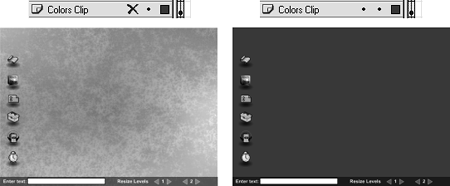
Press the Show Layer button (with the big red X) on the Colors Clip layer to reveal the content of this layer.
You should now see a purple box that covers the entire stage. This box is a movie clip instance named colors_mc. This movie clip instance will act as a color layer above the multicolored textured background you see when this instance is not visible. Changing the color and transparency of this instance will make it seem as if the textured background on the desktop is changing. Soon we'll script the movie that's loaded into Level 1 (backgroundControl.swf) to change colors and control transparency of this instance.Double-click the colors_mc movie clip instance to edit it in place.
The timeline of the colors_mc movie clip instance is composed of a single layer that contains several frame labels. At each of these frame labels, the colored box on stage is filled with the color associated with that frame label's name. We will control this clip's color by sending it to different labels on its timeline. Initially the clip will be purple because this is the color at Frame 1, and that frame includes a stop() action to prevent the timeline from moving until we instruct it to do so.

Return to the main timeline. With the Property Inspector open, select the text field in the lower-left portion of the stage, next to where "Enter Text:" is displayed.
Looking at the Property Inspector, you'll notice that this is an input text field named inputText_txt. Here the user can enter any text he or she wants, and that text will be displayed in a text field in the movie loaded into Level 2 (textBox.swf). Next, we'll set up the script that creates this functionality.With the Actions panel open, select the button on the desktop that resembles a scroll of paper, and add this script just below _level2._visible = true;:
_level2.inputText_txt.text = _level0.inputText_txt.text;
A text field named inputText_txt in the movie that gets loaded into Level 2 has the same name as the text field in this movie, as we discussed in the preceding step. When this button is pressed, this action will set the value of the text field on Level 2 to the same value as the text field in this movie. This is a simple example of how data can be transferred between timelines.With the Actions panel open, select Frame 1 of the main timeline and add this script just below loadMovieNum ("textBox.swf", 2);:
_level0.colors_mc._alpha = 50;
This action will make the colors_mc movie clip instance (which resides on the Colors Clip layer) 50 percent transparent when the movie begins to play. We used a target path of _level0 for this actioneven though it's not requiredto reinforce your understanding that the first movie to load (this movie) is automatically loaded into Level 0.Export this file as levelTarget.swf in the Lesson03/Assets folder.
We'll play this file at the end of this exercise.Save this file as levelTarget4.fla.
We're finished scripting this file.Open backgroundControl2.fla in the Lesson03/Assets folder.
This is the same file we used in the last exercisethe one that gets loaded into Level 1 of our project. In the previous exercise, we scripted it to become invisible on loading, to close when the Exit button is pressed, and to become draggable when the invisible button at the top of the box is pressed. Here, we'll enhance its functionality by enabling it to control the colors_mc movie clip instance that resides on Level 0. We'll attach scripts to the many square buttons that you see.
Before we begin scripting, you need to familiarize yourself with several of the elements on the stage. On the left, just below the word "Transparency," you'll see a dynamic text field named alphaAmount_txt. You will use it in two ways: to display the current transparency of the colors_mc movie clip instance on Level 0, and to display the amount of transparency that will be applied to that instance when any of the five Transparency buttons are rolled over. To the left of this text field of the five Transparency buttons are rolled over. To the left of this text field are five square buttons that will be scripted to change the transparency of the colors_mc movie clip instance.
Below these buttons are nine additional buttons that resemble color swatches. These buttons will be set up to send the colors_mc movie clip (Level 0) to the various frame labels on its own timeline. Below these buttons is a movie clip instance named currentColor_mc, which is essentially a smaller version of the colors_mc movie clip instance. Its timeline has similar color boxes and frame labels to those of the colors_mc movie clip instance. This movie clip instance will display the current color applied over the textured background on the desktop (Level 0). Below this movie clip instance is another text field, colorName_txt, which displays the name of the color as the mouse rolls over the color swatches above it.
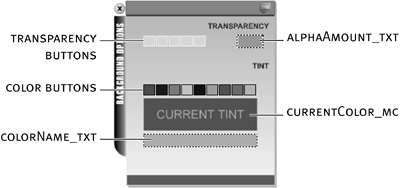
With the Actions panel open, select the square transparency button on the far left of the alphaAmount_txt text field and add the script:
on (rollOver) {

  alphaAmount_txt.text = 0;

}


on (release) {

  _level0.colors_mc._alpha = 0;

}


on (release, rollOut) {

  alphaAmount_txt.text = _level0.colors_mc._alpha;

}
This button will be used to set to 0 the transparency of the colors_mc movie clip instance on Level 0.
The first action will display 0 in the alphaAmount_txt text field when the button is rolled over. This is simply to provide the user with feedback about the amount of transparency this button will apply. With the next action, when the button is released, the alpha property of the colors_mc movie clip instance is set to 0, which makes it transparent. (Note the simplicity of this target path: level number followed by instance name.) The next action will set the value displayed in the alphaAmount_txt text field to the current transparency of the colors_mc movie clip instance when the button is released or the mouse is rolled away from it.
You can attach the same script to the buttons to the right of this one and replace the 0 values with 25, 50, 75, and 100, respectively.With the Actions panel open, select the purple Color Swatch button (the first one on the left) and add the script:
on (rollOver) {

  colorName_txt.text = "Purple";

}


on (release) {

  currentColor_mc.gotoAndStop ("Purple");

  _level0.colors_mc.gotoAndStop ("Purple");

}


on (release, rollOut) {

  colorName_txt.text = "Please choose a color";

}
This button will set the color of the colors_mc movie clip instance on Level 0 by moving that timeline to the appropriate frame label.
The first action will display Purple in the colorName_txt text field when the button is rolled over to tell the user what color tint this button will apply. When the button is released, two actions are executed: the first sends the currentColor_mc movie clip instance to the frame labeled Purple. This will change the box below the Color Swatch buttons to purple, indicating that this is the current tint. The next action sends the colors_mc movie clip instance on Level 0 to the frame labeled Purple, causing the textured background on Level 0 to take on a purple tint (depending on its current transparency). The last action will reset the text in the colorName_txt text field to read Please choose a color.
You can attach this same script to the buttons on the left of this one, simply replacing the three areas that have Purple values with Maroon, Lavender, SkyBlue, DeepBlue, Orange, GrassGreen, SeaGreen, and Pink, respectively.
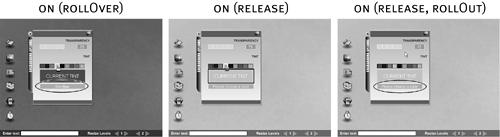
Export this movie as backgroundControl.swf in the Lesson03/Assets folder.
This creates an SWF from our project, which will be loaded into Level 1, overwriting a previously saved version from the last exercise.Save your work as backgroundControl3.fla.
We're finished with this file.Locate the levelTarget.swf file you created and double-click it to open and play it.
As soon as this file begins to play, backgroundControl.swf is loaded into Level 1 and textBox.swf is loaded into Level 2both of which are made invisible on loading. The colors_mc movie clip instance that overlays the textured background is currently tinted purple and has a transparency of 50 percent.
Enter some text in the text field at the bottom of the screen and press the button on the screen that resembles a scroll of text. This button was set up to make Level 2 visible, as well as to feed this text to a text field on that level.
Press the button resembling a computer monitor to make the movie on Level 1 visible. This movie controls the color and transparency of the colors_mc movie clip instance on Level 0. Press the Transparency and Color buttons in this movie to see how they affect that movie clip instance.
TIP
As discussed at the beginning of this lesson, timelines can contain their own data, functions, and objects. While we haven't addressed these topics yet, it's prudent to briefly discuss a few points about how target paths relate to these dynamic elements, because most projects are set up so that a dynamic element on one timeline can be used by another.
For example, a variable may be named myVariable. Suppose that variable exists in a movie clip instance named myMovieClip_mc, which itself is inside a movie loaded into Level 74. To use this variable in any of your scripts on any timeline, you would place the appropriate target path in front of the variable name, like this:
_level27.displayText_txt.text =_level74.myMovieClip_mc.myVariable;
The same principle applies to function calls:
_root.anotherMovieClip_mc.myFunction();
or any type of object:
_parent.myObject
The importance of this mechanism will become more evident as you progress through the lessons in this book.


