Packages and Importing Classes
You have learned that a classpath points to one or more directories. Each of these directories can contain class (.as) files. In addition to containing class files, a classpath directory can contain subdirectories. A subdirectory in a classpath directory is known as a package, and can contain class files and more directories, called subpackages.
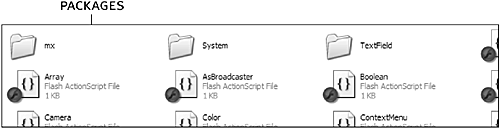
Keeping classes in packages is a good way to keep them organized. You might have hundreds of class files after just a few months of programming with Flash. Saving these classes in a logical directory structure makes them easier to locate, and can help you avoid class-name conflicts with multiple projects.
When you use packages, the class file syntax changes slightly, and can complicate instantiating an instance of that class.
As shown earlier, this is the basic syntax used to create a class called TestClass:
class TestClass {

  function TestClass() {

    //Constructor

  }

}
The rule that we didn't mention earlier is that the name declaration of the class must contain the path to the class file from the root classpath directory in which the class resides. The TestClass class above assumes that the class file is not in any package, but is sitting directly in a classpath directory. However, if we decided to create the TestClass class in a package called TestPackage, the class definition would look like this:
class TestPackage.TestClass {

  function TestClass() {

    //Constructor

  }

}
The text after the class keyword contains not only the name of the class (TestClass) but the overall path where it exists. In this case, TestClass exists inside the TestPackage directory, which itself exists in a classpath directory.
Suppose you created an address book class for Macromedia. Because you're a very organized person, you created a logical package (directory) structure for your class file. The class definition might look like this:
class Clients.Macromedia.AddressBook {

  function AddressBook() {

    //Constructor

  }

}
This class is contained in the Macromedia directory, which is in the Clients directory, which is in a classpath directory.
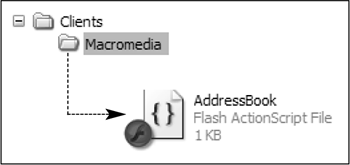
To create an instance of a class that's in a package, you must use the full package path. For example:
var myInstance:TestPackage.TestClass = new TestPackage.TestClass();
Notice that the data type and the constructor are referenced using the full path. As you can imagine, working with long class names such as this can make for a lot of typing if you're creating many instances. But there's a way to use the abbreviated name of your class (the class name without package path)by importing the class. You can import a class by using the import statement followed by the path to the class. For example:
import TestPackage.TestClass;
After the import statement, you can work with the class by using the abbreviated name. For example:
import TestPackage.TestClass;

var myInstance:TestClass = new TestClass();
You can import all class files in a package by using an asterisk (*) in place of a class name. For example:
import TestPackage.*
This line of ActionScript imports all classes found in the TestPackage package. It doesn't import any classes from subpackages.
The import statement allows you to use the abbreviated class name only within the frame on which the statement appeared. If you import TestPackage on Frame 1, you cannot use the abbreviated name on Frame 2 unless Frame 2 also imports TestPackage.
You've been introduced to a lot of new concepts up to this point, and now it's time to get your hands dirty. In this exercise, you will create a simple custom class and use it in a Flash document.
Open Flash. Select File > New. Select ActionScript File from the list. Save the file as CurrencyConverter.as.
You have just created an empty ActionScript file that will contain a class called CurrencyConverter. This class will allow you to convert an amount of currency from U.S. dollars (USD) to Great Britain pounds (GBP) or vice versa.
Later in the exercise, you will add just a few lines of script to an FLA file to use the functionality of the CurrencyConverter class.
NOTE
When creating an ActionScript file, which in this case is a class file, Flash gives you a full-screen ActionScript window in which to type. You don't have access to the normal Flash user interface elements, such as the drawing tools or components.
With the ActionScript file open, add the following line of ActionScript to start the class definition:
class CurrencyConverter {
The first word, class, tells Flash that what follows is a class definition. Not all ActionScript files contain a class, so this definition is necessary.
The text just after the class keyword is the name of the class. Remember that the name of the class must also contain the path to the class from a root classpath directory. The FLA file that will use this class (which we'll create in a moment) will be saved in the same directory as the class file (which is considered a global classpath); therefore, using just the name of the class is acceptable. If we decided to save this class file into a subdirectory called Currency, we would name the class Currency.CurrencyConverter.
The last character in the previous ActionScript is an opening curly brace ({). The last character that we will add in the class is the closing curly brace (}). Everything between these two braces defines the properties and methods of the class.Add the following variable declaration on the next line:
var exchangeRate:Number;
The purpose of this class is to convert USD to GBP or GBP to USD. The exchangeRate variable stores the exchange rate ratio between GBP and USD. If the value of exchangeRate were 0.634731, for example, there would be .634731 GBP for one USD. This exchange rate will be used by a method of this class to convert the currency.
The value of the exchangeRate variable is set via the constructor method of the CurrencyConverter class, which we'll define next.Add the following constructor method:
function CurrencyConverter(rate:Number) {

  exchangeRate = rate;

}
To use this class, you must be able to create an instance of it. A constructor method is a function that defines actions to take when creating a new instance of the class. It must have the same name as the classbut without the path to the class (if applicable).
This constructor method takes one parameter, rate, which is used to set the value of exchangeRate when an instance is created.
The way the constructor method is set up allows us to create a new instance of the CurrencyConverter class in the following manner:
var myConverter:CurrencyConverter = new CurrencyConverter(.54321);
Add the following method, which will be used to convert the currency:
function convert(convertTo:String, amount:Number):Number {

  var result:Number;

  if (convertTo == "USD") {

    return amount / exchangeRate;

  } else if (convertTo == "GBP") {

    return amount * exchangeRate;

  }

  return result;

}
This method definition is nothing more than a function, as you learned in Lesson 5, "Using Functions." We call it a method simply to indicate that it's a function specifically designed to work with a particular classin this case, our custom CurrencyConverter class. This function accepts two parametersconvertTo and amountand returns a numeric value that represents the converted value. The convertTo variable is a string that specifies to which currency type the amount parameter should be converted. If the amount should be converted to USD, the amount is divided by the value of exchangeRate to arrive at a result; otherwise, the amount is multiplied by the value of exchangeRate. The last line in this method returns the result variable.Add a closing curly brace (}) on the last line of the class to close the definition. Save the file.
You have created a class file! The next thing that we need to do is create and use an instance of this class in a Flash movie.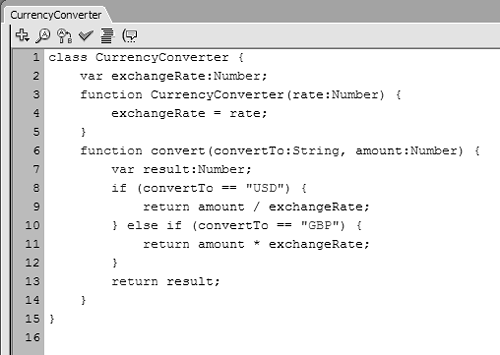
Open CurrencyConverter1.fla in the Lesson07/Assets directory.
Notice that this FLA contains only one layer called Actions, and one frame. The objective of this exercise is simply to create a custom class and then learn how to use it in an FLA file. Over the next three steps you'll add the four lines of ActionScript needed to accomplish this goal.Select Frame 1, open the Actions panel, and create the following variable:
var rate:Number = 0.634731;
This is the exchange rate that we'll pass into the constructor method of the CurrencyConverter class when creating a new instance of it. When we invoke the convert() method, it will use this value to perform the conversions.Create a new instance of the CurrencyConverter class by adding this code:
var converter:CurrencyConverter = new CurrencyConverter(rate);
The name of the instance that we're creating is converter. It has a data type of CurrencyConverter. By using the statement new CurrencyConverter(rate), we create a new instance of the CurrencyConverter class. The value of rate was passed in to set the exchange rate that this instance will use.
When the FLA is compiled into an SWF, the compiler sees that CurrencyConverter is used as if it were a class; therefore, the compiler searches the classpath directories for a class named CurrencyConverter. If the compiler finds the class, it adds the class to the SWF. If the compiler doesn't find the class, a compile error is reported.Add the following final two lines of ActionScript to convert some currency and to show the result:
var result:Number = converter.convert("USD", 130.5);

trace(result);
The name of the CurrencyConverter instance created in Step 9 is converter. Here we call the convert method on the converter instance. In the first parameter, we pass in the currency to which we want the number converted. The second parameter is the amount that we want converted. A result is returned and stored in a variable called result. In the final line, a trace action shows the value of result in the Output window.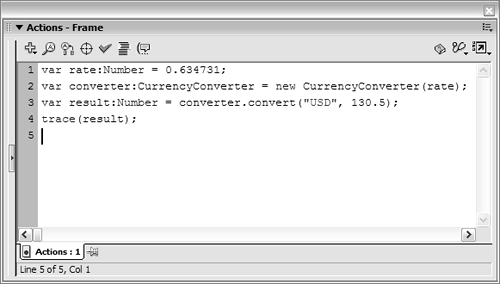
Select Control > Test Movie to test your work.
The Output window should pop up and display a number. When the SWF was compiled, the compiler detected the use of a class called CurrencyConverter, searched the classpath directories for that class, and included the class in the SWF. The ActionScript in the SWF then created a new instance of the class and used it to perform a task.Close the test movie and save your work as CurrencyConverter2.fla.
In this exercise, you created a class and then used it in a Flash movie. As this lesson progresses, you'll learn much more about classes and gain more experience working with them.


