Reacting to User Interaction
Users interact with a movie via the mouse or the keyboard, either of which can be used in a number of waysmoving the mouse pointer around the screen, clicking and releasing buttons or keys, and so forth. Using conditional logic, you can script a movie to react in various ways based on the user's interaction with the movie.
In the following exercise, you'll add functionality that allows the user to press the Spacebar on the keyboard to apply "thrusters" that move the rocket upward at a quicker-than-usual pace.
Open rocketLaunch4.fla.
We'll continue building on the file you worked with in the preceding exercise.
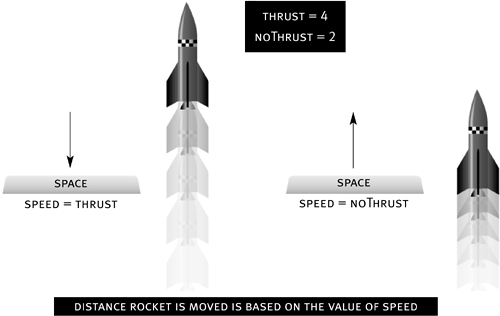
When the movie first begins to play, the setWeatherConditions() function is called and takes several actions based on the value of a variable named randomWeather: it displays a random weather graphic and sets the values of the variables thrust and noThrust. The variable thrust is given a value double that of noThrust at the time the variables are set. If noThrust has a value of 2, for example, thrust has a value of 4. Farther down in the script we've been building, the speed variable is set to the value of noThrust. If noThrust has a value of 2, for example, speed has the same value. (Remember that the value of speed is used to determine how fast the rocket moves upward.) In this exercise, we'll set the value of speed to either thrust or noThrust, depending on whether the Spacebar is pressed.
With the Actions panel open, select Frame 1 of the Actions layer and add this script at the end of the current script:
function rocketThrustIncrease(){

  if(rocketLaunched && Key.isDown(Key.SPACE)){

    speed = thrust;

    thrustBoost_mc.gotoAndStop("on");

  }

}

_root.onKeyDown = rocketThrustIncrease;
The first part of this script defines a function named rocketThrustIncrease(). The if statement in this function looks for two conditions: whether rocketLaunched has a value of true and whether the Spacebar is pressed. If both conditions are true when this function is called, two actions within the if statement are executed. The first action sets the value of speed to the value of thrust to move the rocket upward at twice its current rate. The next action tells the thrustBoost_mc movie clip instance (just below the Launch button in the scene) to go to the frame labeled on, where big red text displays the word "Thrusters."
NOTE
We check the value of rocketLaunched in the if statement because the two actions within the statement should not be executed if the rocket is stationary.
The last line in this script sets the rocketThrustIncrease() function to be called whenever a key is pressed on the keyboard. When a key is pressed, the function is called; before it executes any actions, the function evaluates whether the rocket is in motion and whether the key being pressed is the Spacebar.
We also need a mechanism that allows the rocket to return to its initial speed. That's what the next script does.Add this script after the script you just added in Step 2:
function rocketThrustReset(){

  if(!Key.isDown(Key.SPACE)){

    speed = noThrust;

    thrustBoost_mc.gotoAndStop("off");

  }

}

_root.onKeyUp = rocketThrustReset;

Key.addListener(_root);
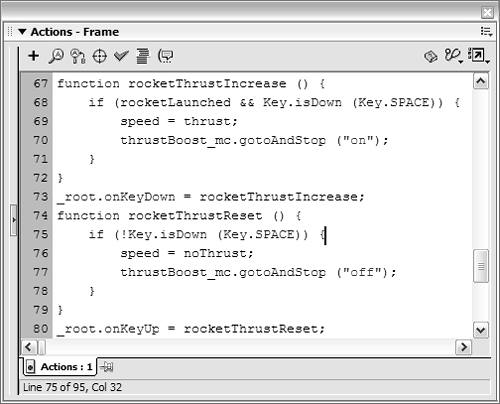
This script's syntax is similar to that of the script in Step 2, but this script works in the opposite manner. For starters, the rocketThrustReset() function is called whenever a key is released on the keyboard. A conditional statement within the function definition checks whether the Spacebar is not pressed. If the Spacebar is not pressed, two actions are executed. The first action resets the value of speed to the value of noThrust (the initial value of speed). The next action tells the thrustBoost_mc movie clip instance to go to the frame labeled off, where the text "Thrusters" appears as it did initially.
The last line registers the _root timeline to listen for Key events. (Typically, timelines don't need to be registered to listen for events such as onEnterFrame, onLoad, and so on in order to access the event's functionality.)Choose Control > Test Movie to test the functionality of your project so far.
Click and release the Launch button. As soon as you release the button, the rocket is set into motion. Pressing the Spacebar should cause the rocket to move upward at twice its current speed. Releasing the Spacebar should return the rocket's speed to its initial value.Close the test environment to return to the authoring environment, and save your work as rocketLaunch5.fla.
We'll build on this file in the next exercise.


