Targeting Movie Clip Instances
When you drag a movie clip instance into a timeline and assign it an instance name, that name (as well as the clip's relationship to other timelines) determines its target path. For example, if you place a movie clip instance on the main timeline and give it an instance name of alien_mc, the movie clip instance's absolute target path is as follows:
_root.alien_mc
You can use this syntax in a script in any timeline of your project to communicate with this particular instance.
You could also use the relative path:
alien_mc
to target the instance from the main timeline because it's a child movie of the main timeline.
If you were to place this same movie clip instance inside another movie clip instance named spaceship_mc, which resided on the root timeline, the absolute target path would become the following:
_root.spaceship_mc.alien_mc
Because the relationship between the root timeline and the alien_mc movie clip instance has changed, the root timeline must now use this relative path to target it:
spaceship_mc.alien_mc
In addition, because the spaceship_mc movie clip instance is now in the same position relative to the alien_mc movie clip instance as the root timeline was before, the spaceship_mc instance can now target the alien_mc movie clip instance like this:
alien_mc
In the next exercise, you will target specific movie clips based on their names and positions relative to the timeline that contains the script.
Open movieclipTarget1.fla in the Lesson03/Assets folder.
This file picks up where we left off in the last exercise. We will name the various instances on the stage so that we can target them in a script.With the Property Inspector open, select each instance on the stage and name it according to the value that the instance assigns to words (plus _mc) when it loads.
For example, if the selected instance were to set the value of words to "I'm Derek" on loading, you would name this instance Derek_mc. Do the same for the other instances on the stage.
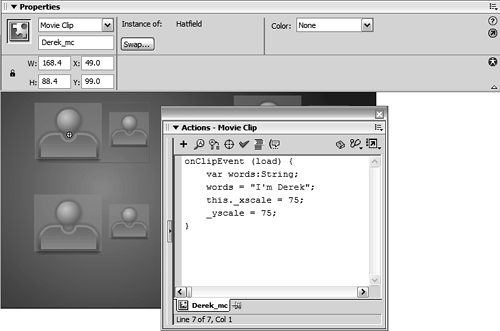
Double-click one of the instances to edit it in place. Inside this timeline is an instance of the Hatfield Child movie clip. With the Property Inspector open, select the instance and name it myKid_mc. Return to the main timeline.
You can now target six movie clip instances from any other timeline. Their absolute target paths are as follows:
_root.Derek_mc

_root.Derek_mc.myKid_mc

_root.Kathy_mc

_root.Kathy_mc.myKid_mc

_root.Ashlie_mc

_root.Ashlie_mc.myKid_mc
With the Actions panel open, select the instance named Kathy_mc. At the end of the current script (where it reads this._rotation = this._rotation + .5;), add the script:
myKid_mc._rotation = myKid_mc._rotation + 20;

_root.Derek_mc.myKid_mc._xscale = _root.Derek_mc.myKid_mc._xscale + .5;

_root.Derek_mc.myKid_mc._yscale = _root.Derek_mc.myKid_mc._yscale + .5;

_root.Ashlie_mc.myKid_mc._y = _root.Ashlie_mc.myKid_mc._y - .5;
The placement of these lines of script dictates that they are to be triggered with each mouse movement. Because this script is attached to the instance named Kathy_mc, the first action uses a relative target path to target the myKid_mc instance within Kathy_mc. This action sets the rotation property of this instance to its current value plus 20 every time the mouse is moved. The next two actions use absolute target paths to target the myKid_mc instance inside the Derek_mc instance. These actions cause that instance to grow by 0.5 percent each time the mouse is moved. The last action uses an absolute target path to target the myKid_mc instance inside the Ashlie_mc instance. Each time the mouse is moved, the instance will move 0.5 pixels up from its current position.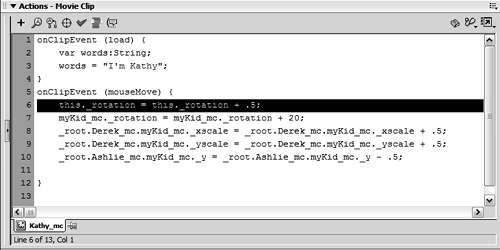
Choose Control > Test Movie to test the project.
As you move the mouse, the myKid_mc movie clip instances we targeted should perform the actions we scripted for them.Close the test movie to return to the authoring environment. Save your file as movieclipTarget2.fla.
This step completes the exercise, as well as our use of this file in this lesson.


