Orchestrating Multiple Events
As you've probably figured out by now, different events can occur simultaneously in your movie. For example, the user can have the mouse button pressed down (triggering a press mouse event) while moving the mouse around the screen (triggering a mouseMove clip event). By writing scripts that work in harmony while multiple events are occurring, you can add powerful interactivity to your projects.
In this exercise, you'll orchestrate several events to simulate a cue ball's being hit with a pool stick. Although there are some quite sophisticated ways of doing this, we take an intermediate approach.
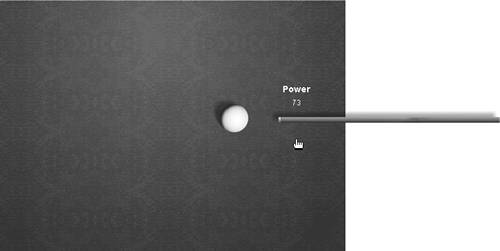
Open OrchestratingEvents1.fla in the Lesson02/Assets folder.
This project contains a single scene with six layers that are named according to their contents.
The white cue ball is a movie clip instance named ball_mc. We'll soon be attaching some scripts to this clip. To the right of this instance is a transparent-blue rectanglean invisible button that will contain some scripts, which when used in tandem with those on the ball_mc movie clip instance will facilitate the interactivity we seek. To the right of this button is a graphic of a pool stick. This is a movie clip instance named stick_mc. The timeline of this movie clip contains two frame labels, Starting and PullBack. At the Starting label, the stick is up against the ball. At the PullBack label, the stick is animated so that it looks like it's being pulled to the right, in anticipation of hitting the ball. Just above the pool stick is a text field instance named powerAmount_txt that displays the power at which the ball is hit, based on how far the stick has been "pulled" to the right.
We're going to set up our project so that when the user presses, pulls away from, and releases the invisible button, the distance between the point where it was first pressed and where it was released will be calculated. That amount will be used to move the ball to the left. The greater the distance, the farther the ball will move to the left.
Let's begin the scripting process by first creating and declaring some variables our project will eventually use.With the Actions panel open, select Frame 1 and add this script:
var power:Number;

var hitAmount:Number;

var trackMouse:Boolean;

var mouseStart:Number;

var mouseEnd:Number;
These lines of script are used to declare the five variables our project will use. All but one will hold numeric values. trackMouse will be used to hold a Boolean value of true or false.With the Actions panel open, select the invisible button and add this script:
on (press) {

  ball_mc._x = 360;

  ball_mc._y = 180;

  power = 0;

  powerAmount_txt.text = power;

  hitAmount = 0;

  trackMouse = true;

  mouseStart = _root._xmouse;

}
Notice the location of this button. It's placed at the tip of the pool stick, just between the stick and the balla logical spot because, as the point of impact, it's also the best place from which to "pull back."
Most of the actions in this script have an initializing effect in our project and are triggered when the mouse button is first pressed. Since we know that the user may want to hit the ball more than once, the first two actions are necessary in order to move the ball back to its initial horizontal (x) and vertical (y) positions, essentially resetting it for the next hit. The next action sets the value of power to 0. This variable's valuewhich will be used to determine how hard the ball is hitwill change as the pool stick is pulled back. The value must be reset to 0 at the beginning of each hit. The next action simply displays the current value of the power variable in the powerAmount_txt text field.
A script placed on the ball_mc movie clip instance will use the value of hitAmount to determine the distance the ball should move. We'll set up that script in a moment.
The next action in the script sets the value of hitAmount to 0. Because this variable's value will change after the ball is hit, this action is used to reset the value when the button is pressed.
The next action sets the value of trackMouse to true. All you need to understand at this point is that this variable's value acts like a switch for turning on a script that will be attached to the ball_mc movie clip instance.
The last action records the current horizontal position of the mouse when the button is pressed and places that value in the variable named mouseStart. Shortly, this value will be used to determine the force (hitAmount) at which the ball is hit.With the Actions panel open, add this script at the end of the current script:
on (dragOut) {

  stick_mc.gotoAndPlay ("PullBack");

}
When the user moves away from the invisible button (with the mouse button still pressed), this action is executed (the dragOut event occurs), moving the stick_mc movie clip instance to the PullBack frame. Here the stick appears to pull backa nice visual hint to emulate the action occurring onscreen.With the Actions panel open, add this script at the end of the current script:
on (releaseOutside) {

  stick_mc.gotoAndStop ("Starting");

  mouseEnd = _root._xmouse;

  hitAmount = mouseEnd - mouseStart;

  trackMouse = false;

}
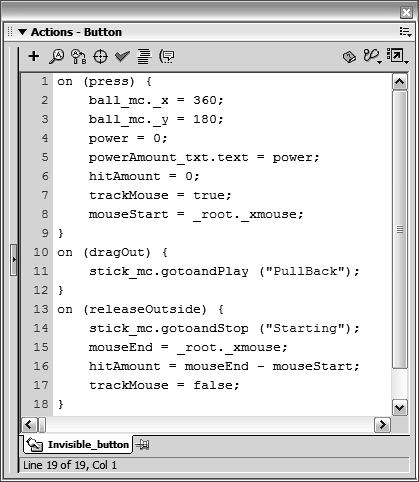
When the invisible button is pressed, moved away from (with the mouse button still pressed), and released (the releaseOutside event occurs), these actions are executed. Because the act of pressing, dragging, then letting go is similar to what you would employ when using a slingshot, we'll use it here to emulate the pool stick's hitting the ball.
The first action moves the stick_mc movie clip instance to the frame labeled Starting. The stick appears in its starting position, against the ball. This, along with the ball's being set in motion (which we'll discuss in a moment), gives the appearance of the ball's being hit and then moved.
The next action records the mouse's horizontal position at the time it's released. We now have the mouse's horizontal position when the invisible button was first pressed (mouseStart) as well as when it was released (mouseEnd). Now let's take a look at how the next action uses these two values.
The value of hitAmount is determined by subtracting mouseStart from mouseEnd. If mouseStart equals 200 and mouseEnd equals 300, hitAmount is assigned a value of 100. This represents the distance the mouse moved from the time the button was first pressed to the time it was releasedin other words, the "force" with which our ball was hit, and how far it will move to the left.
The last action sets the value of trackMouse to false. All you need to understand here is that this value acts like a switch for turning off a script that will be attached to the ball_mc movie clip instance. Remember that when the button is pressed, this value is set to true, turning the script on. Thus, this script is turned on when the button is pressed, and turned off when it's released outside. (We'll explain the script we're turning on and off shortly.)
The only thing left to do is attach a couple of scripts to the ball_mc movie clip instance. One will move the ball; the other will use the trackMouse variable we've been discussing.With the Actions panel open, select the ball_mc movie clip instance and add this script:
onClipEvent (enterFrame) {

  if (_root.hitAmount > 5) {

    this._x = this._x - 10;

    _root.hitAmount = _root.hitAmount - 2;

  }

}
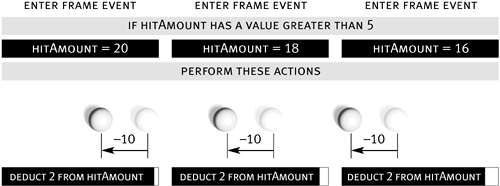
This script uses an enterFrame event handler to execute. It contains an if statement that looks at the value of hitAmount on the root timeline before taking action. (Remember that the value of hitAmount is set by the functionality of our invisible button and is used to determine how hard the ball will be hit.)
The script states that if the value of hitAmount is more than 5, move the ball_mc movie clip instance (this) to its current x position minus 10 (this moves it left) and deduct 2 from the value of hitAmount. As long as hitAmount is more than 5, these actions will be executed 24 times per second because we've used the enterFrame event. As a result, the ball_mc movie clip instance will move 10 pixels to the left 24 times a second. Because the second action subtracts 2 from the value of hitAmount each time it's executed, the value of this variable will eventually drop below 5, which will cause this script to stop executing. It will begin executing again only when hitAmount is assigned a value greater than 5, which, once again, is the functionality the button provides. This is a perfect example of orchestrating several events to accomplish a single interactive goal.
Add this script at the end of the current one:
onClipEvent (mouseMove) {

  if (_root.trackMouse == true) {

    _root.power = _root._xmouse -_root.mouseStart;

    _root.powerAmount_txt.text = _root.power;

  }

}
This script uses a mouseMove event handler to execute. It also contains an if statement that looks at the value of trackMouse on the root timeline before taking action. Remember that the value of this variable is set to true when the invisible button is pressed but false when it's released. Because this script takes action only if its value is true, alternating the value of this variableas we do with various mouse eventshas the effect of turning the script on and off.
The script states that if the value of trackMouse is true, set the value of the variable named power to equal the difference between the mouse's current horizontal position minus the value of mouseStart. Remember that mouseStart is the recorded horizontal position of the mouse at the moment the invisible button is pressed. The next action is used to display the value of power in the powerAmount_txt text field. Because these actions are executed whenever the mouse is moved (and trackMouse has a value of true), they provide a real-time display of the power used to hit the ball.
The concept you need to grasp here is the idea of turning clip eventbased scripts on and off using scripts triggered by mouse eventsa capability that gives you a great deal of control in an interactive environment. You'll see many more examples of this technique throughout this book.NOTE
In the end, the value displayed in the powerAmount_txt text field is the same as that assigned to the variable hitAmount, which determines how far the ball moves when hit.
Choose Control > Test Movie.
Press the mouse on the tip of the pool stick and move your mouse to the right. You'll notice the interaction. Release the mouse after pulling a distance and notice how the pool stick hits the ball and the ball moves to the left, based on the amount of power applied. After completing the process, try it again. Each time the ball is hit with a different amount of power, it moves accordingly.Close the test movie to return to the authoring environment and save your work as OrchestratingEvents2.fla.
This step completes the exercise.


