Using Mouse Events
Mouse events control the execution of scripts when the mouse interacts with a button or movie clip instance. You use them to emulate things you might do with your hands.
Making Contact: on (press)
In the physical world, when you touch or press somethinga person or an ice cubeyou expect a reaction: the person responds, the ice cube melts. The on (press) event handler works great for emulating touching, grabbing, or just plain pushing, as well as the results of any of these actions. You can use this event handler to trigger a script when the cursor is above a button or movie clip instance and the mouse button is pressed.
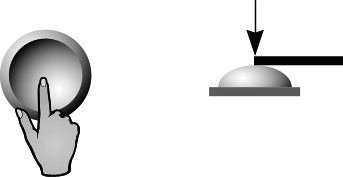
Letting Go: on (release)
When you release something or cease to make contact with it, you're usually finished interacting with it and ready to move on. This event handlerwhich emulates letting go of something (or dropping it)is the most direct way of allowing the user to make your movie take action. It's often used on buttons or movie clip instances to trigger actions. You use it to trigger a script when the mouse button is released (it was first pressed while it was over a button or movie clip instance).
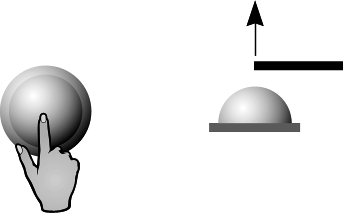
Pulling, Snapping: on (releaseOutside)
Imagine a deck of cards sitting on a table: you push down on the top card with your finger, drag it away from the deck, and then let your finger up. In Flash, this deck of cards could represent a button that the user presses, drags away from, then releases. You can use this event handler to trigger a script when your user has pressed a movie button or movie clip instance but released the mouse away from it, making this event handler useful for emulating pulling or snapping.
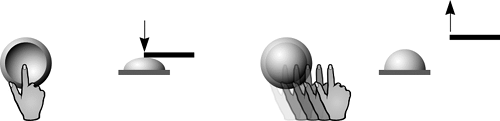
Keyboard Control: on (keyPress)
You use this event to program your movie to trigger a script when a user presses a letter, number, punctuation mark, symbol, or arrow key; or the Backspace, Insert, Home, End, Page Up, or Page Down key.
Over But Not Touching: on (rollOver)
You can place your hand over a hot stove and feel the heat without actually touching the stove. Consider using this event handler to emulate the way objects are affected by other objects that radiate heat, cold, light, air, and so onwith the button or movie clip instance as the radiation source. You can also use this event handler to display information about what a button or movie clip instance does before it's pressed (similar to a ToolTip or an HTML hotspot graphic). You employ this event handler to trigger a script when the user places his or her mouse over a button or movie clip instance.
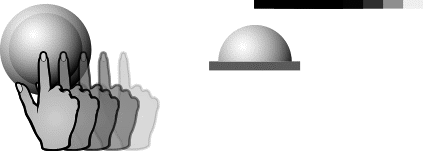
No Longer On Top Of: on (rollOut)
Obviously, when you move your hand away from that stove, you cease to feel the heat it's radiating and your hand cools down. That's what this event handler emulates. You can use this event handler to trigger a script when the user moves the mouse away from a button or movie clip instance it was formerly over.
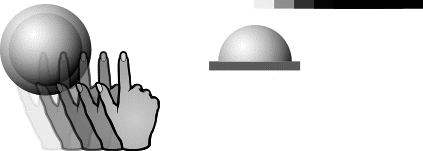
Grooves, Bumps, Rubbing: on (dragOver)
The act of rubbing entails a back-and-forth motion across an area. When a shoe is being shined (cloth dragged over it), for example, it gets slicker with each pass (action). This event handler lets you emulate this type of activity in your movie by triggering a script each time the mouse passes over the same movie button or movie clip instance while the mouse button remains pressed.

Oops: on (dragOut)
This event handler allows you to emulate what can happen when you press or touch something but then pull awayas if you were to touch someone by accident and quickly pull your hand away once you realize your mistake. You can use this event handler to trigger a script when the user places the pointer over a movie button or movie clip instance, presses the mouse button, and drags it away from the movie button or movie clip instance (while still pressing the mouse button).
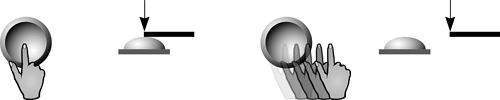
In this exercise, we'll create a fingerprint scanner that interacts with the user in various ways. In the process, you'll learn several creative uses for these event handlers, enabling you to emulate rubbing, snapping, and more.
Open MouseEvents1.fla in the Lesson02/Assets folder. Open the Scene panel and Property Inspector.
We're focusing on the ActionScript that makes this project work, so most of the elements are already in place. Let's get acquainted with what's on the stage.
The Scene panel shows that our project contains two scenes, Scan and Playroom. We'll begin our work in the Scan scene, which contains five layers that are named according to their content.
If you select the box in the bottom center of the screen, you'll see in the Property Inspector that this is a dynamic text field with an instance name of message_mc.
If you select the hand graphic, you'll notice in the Property Inspector that this is a movie clip instance named hand_mc. The black box in the middle of the screen is also a movie clip instance; this one is named scanner_mc. On top of this movie clip instance is a button that appears to be a square piece of glass. Soon we'll attach several scripts to this button.
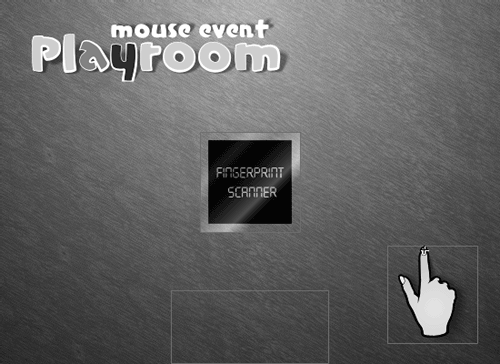
Lock the Scanner button layer and double-click the scanner movie clip instance in the middle of the stage to edit it in place.
You are now looking at this movie clip's timeline. The overall functionality of this movie clip is not important (move the playhead to see how it appears visually at various points). It is, however, important to be aware of the six frame labels on its timeline. One of the functions of the several scripts we'll attach to our Glass button (on the main timeline) will be to move this movie clip's timeline to these various labels whenever a particular mouse event occurs.Return to the main timeline. With the Actions panel open, select Frame 1 of the Actions layer and add the script:
stop (); Mouse.hide(); startDrag ("hand_mc", true); message_txt.text = "Please place your finger on the scanner and press down. Release after 2 seconds.";
The first action prevents the movie from moving past this scene until we instruct it to do so. The second action hides the mouse cursor because we will be using the hand_mc movie clip instance as a custom cursor. The third action instructs Flash to drag this instance and move it around the screen as if the instance were the normal mouse cursor. The true parameter in this action automatically centers the dragged clip's center on the tip of the mouse cursor. The last action places the initial text in the text field named message_txt.
Because these actions are on Frame 1 of the first scene, they occur as soon as the movie begins to play.With the Actions panel still open, unlock the Scanner button layer, select the button on that layer (which appears as a square sheet of glass), and add the script:
on (rollOver) {

  scanner_mc.gotoAndPlay ("Active");

  message_txt.text = "Please press on the screen to continue.";

}
When the hand moves over the Glass button, we want to give the impression that it's being "sensed" by the scanner. The rollOver event lets us do that by triggering an action when the hand first hovers over the button. This event handler triggers two actions: it sends the scanner_mc movie clip instance to the Active frame, where a short animation provides a visual cue that the scanner is active and ready to be pressed. It then changes the text being displayed in the message_txt text field.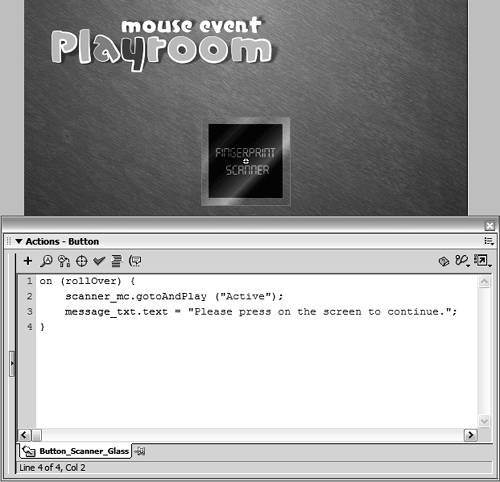
Add this script just below the current script:
on (rollOut) {

  scanner_mc.gotoAndPlay ("Inactive");

  message_txt.text = "Please place your finger on the scanner and press down. Release

 after 2 seconds.";

}
As you can see from this addition, a single button can respond to multiple events.
This script (and the rollOut event that triggers it) addresses what happens when the mouse moves away from the button without pressing it. In this case, the scanner_mc movie clip instance is sent to the Inactive frame, where a short animation provides a visual cue that the scanner is resetting.
The next action in this script changes the text displayed in the message_txt text field. This is the same text that appears when the movie is first played, once again giving the impression that the scanner has been reset.Add this script just below the current script:
on (press) {

  scanner_mc.gotoAndPlay ("Scan");

  message_txt.text = "Now scanning...";

}
When the user presses the button and holds it down, this script is triggered. The first action sends the scanner_mc movie clip instance to the frame labeled Scan, where a short, repeating animation of scan lines moving up and down on a scanner provides a visual cue that a scan is taking place.
The next action in this script changes the text displayed in the message_txt text field.Add this script below the current script:
on (dragOut) {

  scanner_mc.gotoAndPlay ("Error");

  message_txt.text = "An error has occurred. You have removed your finger prior to

 processing. Please try again.";

}
This script, and the dragOut event that triggers it, addresses what happens when the mouse button is pressed while over the button but then is dragged away from it while remaining pressed. The thinking here is that the user pressed the button to start the scanning process but then pulled away, abruptly ending the scan. As a result, the scanner_mc movie clip instance is sent to the frame labeled Error, where a short animation provides a visual cue that there was an error in the scan.
The next action in this script changes the text displayed in the message_txt text field.Add this script below the current script:
on (release) {

  scanner_mc.gotoAndPlay ("Process");

  message_txt.text = "Processing your scan...";

}
When the user presses the button and releases it, this script is triggered. The first action sends the scanner_mc movie clip instance to the frame labeled Process, where a short animation indicates that something is being processed and then cleared. At the end of this animation, a frame action instructs the main timeline to go to the Room frame and stop. This frame label is actually on Frame 1 of the Playroom scene, the next scene in our project. This functionality allows an action on the movie clip's timeline to move the main timeline between scenes.
The next action in this script changes the text displayed in the message_txt text field.
You've now finished setting up this scene. During playback, with proper user interaction, our project should progress to the Playroom scene. Let's continue our work there.With the Scene panel open, click the scene named Playroom.
This scene contains seven layers, named according to their contents.
In this scene, we attach mouse events to movie clip instances to facilitate interactivityand in doing so demonstrate how you can employ mouse events in almost the same fashion on buttons as on movie clip instances. In the upper-left portion of the work area, just above the stage, a small circle represents an empty movie clip instance (no graphical content). We'll attach a couple of mouse events to this instance. In the middle of the square piece of wood is a smaller piece of wood, which is a movie clip instance named bump_mc. We'll place a mouse event on this instance that allows us to emulate sanding this bump away. The card on the right side of the stage is a movie clip instance. We'll script this instance to "snap" into place when it's clicked and dragged.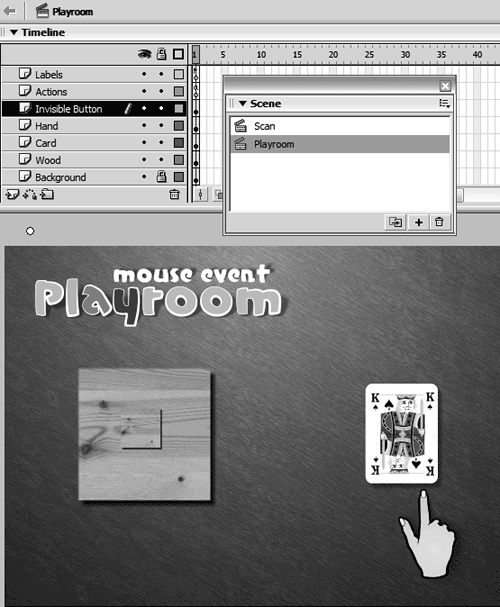
With the Actions panel open, select Frame 1 of the Actions layer and add this script:
startDrag ("hand_mc", true);
This action is the same as the one in the previous scene that enabled the hand_mc movie clip instance to be dragged around the stage. Although the mouse remains hidden when the timeline moves from one scene to another (as our project is set up to do), dragging of objects needs to be reinitiated whenever a scene changes, which is what this step does.With the Actions panel still open, select the small piece of wood (with an instance name of bump_mc) and add this script:
on (dragOver) {

  this._alpha = this._alpha - 10;

}
If the user presses and holds down the mouse button while moving the cursor back and forth over this instance, its opacity will decrease by 10 percent with each pass (dragOver). After 10 passes, the bump will be invisible, producing the effect of rubbing away the bump.
The way this script works is simple: with each dragOver event, we set the movie clip instance's alpha property (transparency) to equal its current value minus 10. The term this is a contextual reference to the object to which the script is attached.
NOTE
For more information about the term this, as well as other target paths, see Lesson 3, "Understanding Target Paths."
With the Actions panel still open, select the card_mc movie clip instance and add the following script:
on (releaseOutside) {

  this._x = _root._xmouse;

  this._y = _root._ymouse;

}
If the mouse is placed on top of the instance, pressed, moved away from the instance (while remaining pressed down), and then released, this script will be executed. The script will move the card_mc movie clip instance's x and y positions to match the x and y positions at the time the event occurs. In other words, suppose the card_mc movie clip instance is on the left side of the stage. If the user places the mouse over the instance, presses and holds down the mouse button, drags the cursor away from the instance (to the right side of the stage, for example), and releases the mouse button, the card_mc instance's position will snap to the right side of the stagethe cursor's location on release of the mouse button.With the Actions panel open, select the empty movie clip instance (above the stage) and add this script:
on (keyPress "<Space>") {

  _root.bump_mc._alpha = 100;

}

on (keyPress "<Left>") {

  _root.gotoAndStop (1);

}
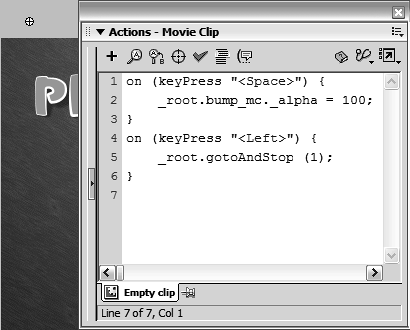
Here we've added two keyPress events to this movie clip instance. Note that you don't need to place the instance on a visible portion of the stage because the actions attached to it are triggered by keyboard presses rather than cursor interaction.
The first keyPress event is triggered when the user presses the Spacebar. When this occurs, the transparency of the bump_mc movie clip instance is reset to 100, making it fully visible again (in case it had been rubbed away).
The second keyPress event is triggered when the user presses the Left Arrow key. When this occurs, the main timeline (_root) is sent back to Frame 1, which contains the Scan scene where the user must scan his or her fingerprint again to return to the Playroom.
This completes the scripting for our project.From the menu, choose Control > Test Movie to see the movie in action.
Interact with the scanner and elements in the Playroom to solidify your understanding of how these events work.Close the test movie to return to the authoring environment. Save your project as MouseEvents2.fla.
This completes the exercise. You should now have a thorough understanding of mouse events and the ways you can use them to enhance your projects.


