Manipulating Numerical Data Using Math
Earlier in this lesson, we introduced you to the numeric operators, which perform simple arithmetic in your expressions. Flash's Math class allows you to access a variety of useful methods for further manipulating numbers. We'll introduce a few of the most commonly used methods of the Math class here. You'll use many of the other methods in other lessons in this book.
Common methods of the Math class include:
Math.abs() The absolute-value method is used to return the scalar (positive) value of a number. For example: var distance:Number = Math.abs(here - there); If subtracting the value of there from here results in a negative value (for example, 375), the Math.abs method will convert it to a positive value (for example, 375), ensuring a positive result.
Math.round() The round method accepts a number as a parameter and returns an integer. If the digit in the tenth placeholder of the number is 5 or greater, the number is rounded to the next highest integer; if it's less than 5, it's rounded to the next lowest integer. For example: var cupsOfCoffee:Number = Math.round(3.7); Because 7 is greater than or equal to 5, this number is rounded up to the next highest integer, 4.
Math.floor() This method works like Math.round() except that it always rounds down to the next lowest integer.
Math.ceil() This method works like Math.round() except that it always rounds up to the next highest integer.
Math.sqrt() The square-root method accepts a positive number as an argument and returns the square root of that number. For example: var answer:Number = Math.sqrt(9); answer; is assigned a value of 3.
In this exercise, using operators, expressions, and Math class methods, you will write a simple algorithm that will convert Fahrenheit temperatures to Celsius. You will also program a thermometer to display the correct mercury level.
Open tempConverter1.fla in the Lesson06/Assets folder.
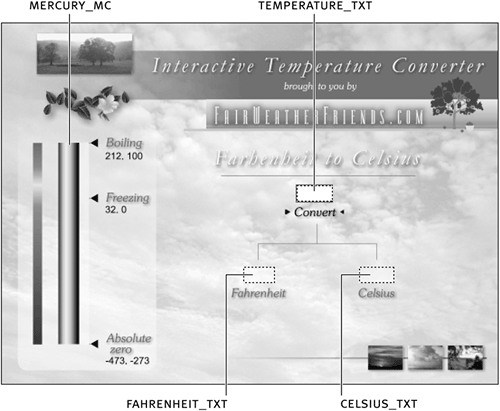
All of the symbols and text fields have been created and are on the stage so that we can focus on ActionScript. The main timeline contains four layers: Actions, Thermometer, Temperature Input, and Background.
The Background layer contains the main graphics. The Temperature Input layer contains an input text field with an instance name of temperature_txt. This is where the temperature to be converted will be input. This layer also contains two additional text fields, fahrenheit_txt and celsius_txt, which will be used to display those values. Also on this layer is a button containing the text "Convert." The Thermometer layer contains a movie clip instance named mercury_mc that will be scaled vertically to indicate the proper temperature.
With the Actions panel open, select Frame 1 of the Actions layer and add the script:
function changeTemp () {

}
The script represents the beginning of a function definition. Ultimately, this function will be executed when the Convert button is pressed, and it will do the following:
- 1. Convert a Fahrenheit value to Celsius.
- 2. Make sure that the Fahrenheit value entered to convert is within the range on the thermometer.
- 3. Scale the mercury on the thermometer to the correct height.
- 1. Convert a Fahrenheit value to Celsius.
At the beginning of the function definition you started in the preceding step, create these variables:
var boilingPoint:Number = 212;

var absoluteZero:Number = -460;
Our thermometer covers a large temperature rangefrom absolute zero (approximately 460 degrees Fahrenheit) to the boiling point of water (212 degrees Fahrenheit), temperatures that will be treated as the highest and lowest acceptable input temperatures.To ensure that the input temperature is within acceptable limits, add this script after var absoluteZero:Number = -460:
if (temperature_txt.text > boilingPoint) {

  temperature_txt.text = boilingPoint;

} else if (temperature_txt.text < absoluteZero) {

  temperature_txt.text = absoluteZero;

}

fahrenheit_txt.text = temperature_txt.text;
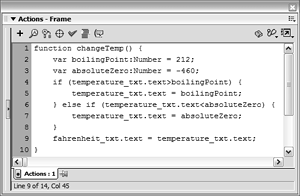
This part of the function is an if/else if statement that acts as a data filter. It says that if the value the user inputs (temperature_txt.text) is greater than the value of boilingPoint (which is 212), the user-input value will be automatically set to the value of boilingPoint. Otherwise, if the user inputs a value less than absoluteZero (460), that value will be automatically set to the value of absoluteZero. After the filter, the value of temperature_txt.text is set to display in the fahrenheit_txt text field instance.
Filter statements such as this are used frequently in programming because functions rarely accept all possible input extremes.After the statement we added in the preceding step, add this expression, which is used to convert Fahrenheit to Celsius:
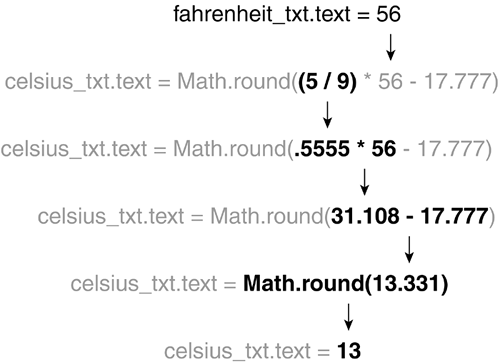
celsius_txt.text = Math.round((5 / 9) * fahrenheit_txt.text - 17.777);
The expression to the right of the equal sign converts a Fahrenheit value to Celsius. This expression sets the value of celsius_txt.text, which is the name of the corresponding text field on the stage. This line is used to display the converted value in that text field.
Notice the use of parentheses in the expression. As Flash executes this line of code, it will evaluate the first part of the expression that it can find that is fully enclosed in parentheses (in this case, 5 / 9). Flash performs the multiplication, then the subtraction. The Math.round() method is not invoked until its entire argument is evaluated and replaced with a numeric result. This method will then round the final, resulting value to the next integer up or down, depending on the value in the tenth place of the argument.
Add these lines at the end of the current script:
var scalePercent:Number = (Math.abs(absoluteZero - fahrenheit_txt.text) / Math.abs
 (absoluteZero - boilingPoint)) * 100;
mercury_mc._yScale = scalePercent;
(absoluteZero - boilingPoint)) * 100;
mercury_mc._yScale = scalePercent;
These two lines first create a variable to store the percent used to scale the mercury_mc movie clip instance; then they use that value to scale it.
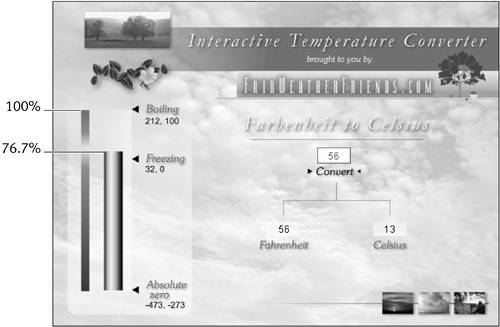
The expression used to set the value of scalePercent is based on the ratio of the difference between absolute zero and the temperature submitted when compared against the full temperature range. To help you understand, let's assume that the user has entered a value of 56 in the fahrenheit_txt text field. We know that absoluteZero equals 460 and that boilingPoint equals 212. The expression is evaluated like this:
(Math.abs(-460 - 56) / (Math.abs(-460 - 212)) * 100;
or
(Math.abs(-516) / (Math.abs(-672)) * 100;
or
((516) / (672)) * 100;
or
(.767) * 100
or
76.7
The absolute-value method of the Math class is used here to ensure that the expression evaluates to a positive percentage value. (A negative percentage value wouldn't make sense in the context of this script.)
The second line of the script scales the mercury_mc movie clip instance vertically using the value of scalePercent. Thus, the instance is scaled to 76.7 percent of its original value, which works well because the mercury_mc movie clip was built in Flash to be the maximum height when at normal size (100 percent).
Add this button event handler to the selected frame (outside and below the changeTemp() function definition):
convert_btn.onRelease = function() {

  changeTemp();

};
When the convert_btn button is released, the changeTemp() function you just built will be called.Choose Control > Test Movie. Enter a temperature value and press the button.
When the button is pressed, you'll see the mercury_mc movie clip scale appropriately. The celsius_txt and fahrenheit_txt fields on the screen will also get populated with data. Try entering a temperature that falls outside the acceptable range, and you'll see that the filter if/else if statement catches and replaces it with either the upper or lower boundary.Close the test movie and save your work as tempConverter2.fla.
You have now used the Math class in an expression. With it, you converted Fahrenheit to Celsius and scaled a movie clip based on a percent calculated.


