Remote Desktop for Administration
Remote Desktop for Administration is the former Terminal Services Remote Administration Mode, with a few improvements, of course. With Windows 2000, Terminal Services is integrated into the operating system as an optional service. It can be installed using Add/Remove Programs, Add/Remove Windows Components, and when installed, the administrator is prompted for the terminal server mode. The two choices are Remote Administration Mode and Application Server Mode. Application Server Mode is designed for installing the server to be used in the role of a traditional terminal server or Winframe/Metaframe server. In this role, applications are to be installed on the box for use by remote users; making these applications available to remote users is the primary purpose of the box. Traditionally, Citrix Metaframe has offered several additional features that make it more worthwhile as an enterprise application hosting solution than Microsoft's terminal server.
 |
For a comparison of terminal services and Citrix Metaframe, visit www.samspublishing.com and enter this book's ISBN number (no hyphens or parenthesis) in the Search field; then click the book cover image to access the book details page. Click the Web Resources link in the More Information section, and locate article ID# A011101. |
Windows 2000 Remote Administration Mode
Remote Administration Mode was something new for terminal services introduced in Windows 2000. Installing Terminal Services in Remote Administration Mode allows up to two (free) concurrent connections. Plus, when using terminal server in this mode, you don't have to worry about keeping track of licenses, as you do in Application Server Mode and previous versions of terminal server.
|
For information on terminal services licensing for Application Server Mode, visit www.samspublishing.com and enter this book's ISBN number (no hyphens or parenthesis) in the Search field; then click the book cover image to access the book details page. Click the Web Resources link in the More Information section, and locate article ID# A011102. |
The purpose of Remote Administration Mode is to allow system administrators to remotely access Windows 2000 servers. By installing Terminal Services in Remote Administration Mode, administrators can get much of the same functionality as with third-party applications such as pcAnywhere?namely access to the server desktop via a graphical interface, right out of the box. This provides for a lower total cost of ownership for managing remote servers. No longer do you have to be physically at the server to perform various types of maintenance, nor do you have to buy expensive third-party software. (Management likes this because it improves the bottom line, but poor administrators no longer have an excuse to fly out to Hawaii for server maintenance?at least not as often.)
Windows Server 2003 Terminal Services Modes
Window Server 2003 no longer has a Terminal Services Remote Administration Mode. The so-called Remote Administration Mode and Application Server Mode are now treated as two separate entities and are installed differently. Under the hood, they are both still technically terminal services?they just have different names now and are installed differently. The former Remote Administration Mode is now called Remote Desktop for Administration. Windows 2003 Server comes preinstalled with Remote Desktop for Administration (although it is disabled). There is still an optional Windows component for installing terminal services, but it is now called Terminal Server. Installation of this service converts the Remote Desktop for Administration installation into a full-blown Terminal Server (Application Server Mode) installation; uninstalling Terminal Server returns the system to the Remote Desktop for Administration mode. Once again, Remote Desktop for Administration is always installed. It can be enabled simply by selecting Allow Users to Connect Remotely to This Computer in the Remote Desktop section on the Remote tab of the System Properties screen, as shown in Figure 11.1. To highlight this distinction, Windows Server 2003, Web Edition does not have Terminal Server (it cannot be an application server); however, it does have Remote Desktop for Administration, so it can be accessed remotely via a terminal services client.
Figure 11.1. Enable Remote Desktop for Administration from the Remote tab of the System Properties dialog box.
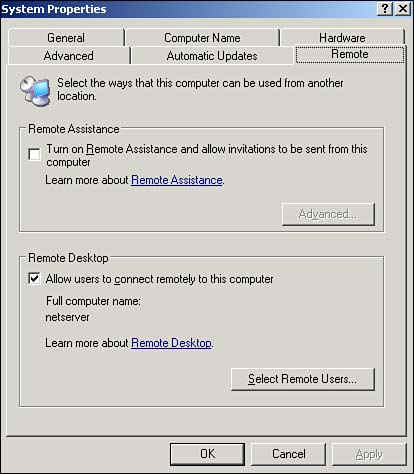
When Remote Desktop for Administration is enabled, a security message pops up warning that local accounts might not have passwords and that a port on the firewall might need to be opened to allow communication. This is just an informational message to remind you that enabling Remote Desktop for Administration is a potential security risk because it allows direct access to your machine across the network.
NoteThe whole point of Remote Desktop is to allow you to log on to the machine from a remote location, so you should ensure that the user accounts that are granted access are secure. If the client and server are on opposite sides of a firewall, you also need to open the port used by RDP for the Remote Desktop sessions to work. By default this port is TCP 3389. However, for security purposes, the server can be reconfigured to listen to a different port (Q306759) and the client can then be configured to connect via that port (Q304304). If this is the case, you will need to know the port used to be able to open it on the firewall. |
In addition to selecting the check box to enable Remote Desktop, you must also designate who is permitted to use Remote Desktop for Administration. By default, the Administrator account is the only one that has access. To grant additional users (domain or local) permissions to be allowed to connect to the server via Remote Desktop for Administration, click the Select Remote Users button and then simply add the user or group accounts as appropriate. This adds the users on this list to a local group called Remote Desktop Users, which has permissions to log on to the terminal server.
New Client(s)
Windows Server 2003 has two installed clients that can be used for connecting to Remote Desktop for Administration (or Terminal Server). The Remote Desktop Connection application is found by selecting Start, All Programs, Accessories, Communications?just like in Windows XP. This is the terminal services client application, and it is used for connecting to a single Terminal Server/Remote Desktop for Administration machine. In fact, Remote Desktop Connection is the same terminal services client application Windows XP uses. This client uses the RDP 5.1 protocol, which provides several enhancements over the previous terminal services. (See "Remote Desktop Protocol 5.1," later in this chapter, for more information.)
The other client installed by default is the Remote Desktops MMC, which is installed under Administrative Tools. Although it too uses the RDP 5.1 protocol, the interface limits the configurable options. This console can be particularly useful for enterprise administrators because it has a tree pane view of remote desktop connections, which enables an administrator to create several connections in the left pane and then connect and view them in the right pane. It makes switching between sessions and keeping track of multiple sessions much easier. These connections can also be configured to automatically connect (and even log on, provided the terminal server allows it) when selected. Both clients also have the capability to connect to the server console session. This can be accomplished with the Remote Desktops MMC simply by selecting the Connect to Console check box, as shown in Figure 11.2. You can also connect to the console session via the Remote Desktop Connection application by launching mstsc.exe/console from a command line. The console session is a special session that shows what's actually displayed on the server's monitor (although the physical monitor gets locked when the console session is accessed remotely). With Terminal Server installed (thus putting it in Application Server Mode), applications must be installed via the server console session so that they can be made available for all user sessions.
Figure 11.2. Connecting to the terminal server console session using the Remote Desktops console.
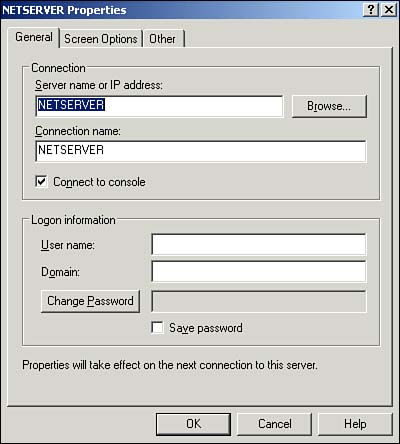
NoteCertain functions cannot be performed from the console session. For example, using Terminal Services Manager to Connect to or remote control another session can be performed only when connected to the terminal server via a client session, not when connected via console. |
Another benefit of the Remote Desktop MMC console is that it is an MMC snap-in. Just like any other MMC snap-in, it can be used to create customized administrative consoles.
|
If you're not familiar with the MMC and would like a quick tutorial, visit www.samspublishing.com and enter this book's ISBN number (no hyphens or parenthesis) in the Search field; then click the book cover image to access the book details page. Click the Web Resources link in the More Information section, and locate article ID# A011301. |
Either client can be used for connecting to Windows Server 2003 Remote Desktop for Administration or Terminal Server sessions. In fact, the RDP 5.1 protocol is backward-compatible to previous versions, so these clients can be used to connect to Windows 2000 (RDP 5.0) or even NT Terminal Server 4.0 (RDP 4.0). Of course, you won't get the new features of the RDP 5.1 protocol when connecting to these down-level servers. Similarly, previous versions of the terminal services client can connect to Windows Server 2003 Remote Desktop for Administration or Terminal Server sessions.
Although down-level clients can't get the features of the new RDP 5.1 protocol when connecting to a Windows 2000 or NT 4 terminal server, they can get the new features when connecting to Windows Server 2003 by installing the Remote Desktop Connection client application. This client can be installed on the Windows 9x platform (Windows 95, 98 Special Edition, and Millennium) as well as Windows NT 4 and Windows 2000. To install it and thereby gain the new features, simply run the Remote Desktop Connection installation program from the Windows XP CD (\Support\Tools\msrdpcli.exe) or download it from http://www.microsoft.com/windowsxp/remotedesktop. A version for Windows CE is available in the Windows CE .NET Platform Builder, and there is even a version available for the Macintosh (http://www.microsoft.com/mac/DOWNLOAD/MISC/RDC.asp). With this Remote Desktop Connection client, you can have a Windows "window" on a Macintosh (although some might consider this blasphemous).
One particularly nice feature of the new Remote Desktop client is Full Screen mode, which enables you to use the full screen when connected to a terminal server. Windows 2000 terminal server client sessions show as a window that cannot be maximized. With the Remote Desktop Client, you can expand to full screen, so it feels like you are actually on the box. Additionally, you can configure how control keys (except Ctrl+Alt+Del) function: on the client, on the server, or in Full Screen mode only. With these settings, you can get the same look and feel as if you were on the server?even the keys behave the same (except Ctrl+Alt+Del, of course).
Full Screen ModeAn option on the client configuration displays the Connection bar when in Full Screen mode. This puts a little note-style bar at the top of the screen to let you know you're in a terminal server session, as opposed to the local system. I recommend pinning the bar (by selecting the push pin icon) so the Connection bar won't disappear. This serves two purposes: First, it lets you know at a glance that you're connected to a terminal server, and secondly, it tells you to which server you are connected. You can connect using Full Screen mode in Windows 2000; a separate Terminal Services Connection Manager allows configuration of terminal services client connections, similar to the Remote Desktops MMC console in Windows Server 2003. You can configure these client connections for Full Screen mode. However, you cannot configure the control key functionality, and you also don't get the connection bar. Additionally, you have to manually configure each connection to use Full Screen mode because it is not the default. In Windows Server 2003, however, Full Screen mode is the default screen resolution setting and is configurable on the default Remote Desktop Connection client. |
The last terminal services client, the Remote Desktop Web Client, allows connections to a terminal server via a Web browser, as shown in Figure 11.3. The name is somewhat deceptive because you don't actually install a client. Remote Desktop Web Client is installed on an IIS server and enables machines with IE 5 or better to connect to terminal server sessions. To allow Remote Desktop Web Clients to connect to your terminal server, simply install the Remote Desktop Web Connection component on the server. This component is installed just like any other component, by selecting Add or Remove Programs, Add/Remove Windows Components. After the Windows Components Wizard screen displays, select Web Application Server and click the Details button. On the Web Application Server screen, select Internet Information Services (IIS) and click the Details button. Next, select World Wide Web Service and click the Details button. Finally, select Remote Desktop Web Connection, click OK three times, and then click Next.
Figure 11.3. Log on to a remote computer using Remote Desktop Web Client.
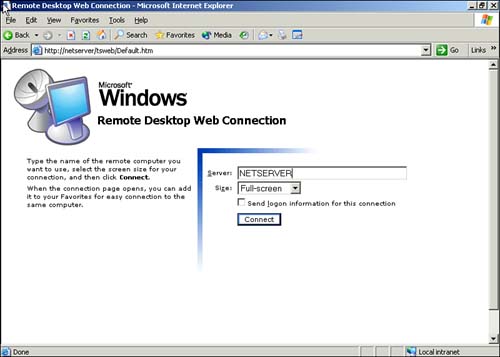
The Remote Desktop Web Client opens in a browser window, which is obviously different from the normal Remote Desktop Connection Client. However, if you choose to log on in Full Screen mode, the view is just like that of the Remote Desktop client.
New Administration
In addition to a new name and a new client, terminal services in Windows Server 2003 provides new features for administration. Terminal services settings can be configured with the usual Terminal Services Configuration MMC snap-in and administered with the Terminal Services Manager MMC snap-in. Plus, these settings have now been exposed so they can be configured with Windows Management Instrumentation (WMI) through scripts, the WMIC command line, or Active Directory Services Interface (ADSI). Probably the most useful enhancement is the addition of a number of group policy settings for configuring these terminal services settings, as shown in Figure 11.4.
Figure 11.4. Group policy settings for configuring Terminal Services.
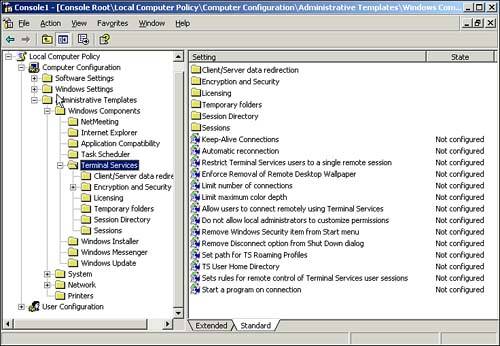
Figure 11.4 shows the settings under the Computer Configuration section of Group Policy. In addition, a few group policy settings can be configured under the User Configuration section.
A lot of the new terminal services group policy settings are available simply for centrally managing settings previously available in Windows 2000. These settings can still be managed via Terminal Services Configuration (for per-server settings) or Active Directory Users and Computers (for per-users settings). Because many administrators are already familiar with the Windows 2000 settings and enumerating all the available group policy settings is too lengthy, we will concentrate here on the new settings. Just remember that for almost every setting you could configure manually in Windows 2000, you can now configure it with group policy. I will point out a couple of notable exceptions.
General Terminal Services Policies
The new settings in the main Terminal Services policy section include the following:
Keep-Alive Connections? Maintains persistent terminal server connections. By default, this is off. In certain cases, if a client loses connection to the terminal server, the server might not detect it, so the connection might stay in an active state. When the client attempts to reconnect, the terminal server will treat it as a new connection. The user would then have a fresh sign-on (assuming she is allowed more than one connection), and it would appear as though what she was previously working on is gone. This is particularly annoying in Remote Desktop for Administration because now the user is using both available connections and preventing anyone else from getting in. Enabling Keep-Alive Connections adds more overhead on the Terminal Server because it is more actively monitoring the link state, but it prevents the scenario mentioned here.
Automatic Reconnection? Designates whether to allow clients to automatically attempt to reconnect dropped sessions.
Restrict Terminal Services Users to a Single Remote Session? Just as it says, users are allowed only one connection to the terminal server, which prevents a user from leaving a bunch of disconnected sessions and wasting terminal server resources.
Limit Maximum Color Depth? Allows control of the number of colors available to all clients. This is generally used to improve performance. Higher color depths require more data to be transferred across the session and put more of a burden on the terminal server.
Do Not Allow Local Administrators to Customize Permissions? Disables modification of the security tab in Terminal Services Configuration. This prevents modification of the discretionary access control list (DACL) that specifies which users/groups have which levels of access to the server. Access can still be granted and revoked by modifying the membership of the groups specified on the DACL; the DACL itself just can't be modified (read-only). In other words, an administrator could look at the list to see which group has access and then add or remove a user from that group (assuming he has access to modify the group). This is essentially an enforcement of Microsoft's recommendation of assigning permissions to resources based on groups and then managing those permissions by adding and removing users to and from those groups.
Remove Windows Security Item from Start Menu? Just as it sounds, the Windows Security item is basically like pressing Ctrl+Alt+Del (because pressing Ctrl+Alt+Del in a terminal server session affects your client machine, not the actual terminal server session). This is one way to prevent users from shutting down or restarting the entire server.
Remove Disconnect Option from Shut Down Dialog? This feature is set up to try to force users to log off rather than disconnecting. This is an attempt at preventing users from leaving disconnected sessions active on the terminal server. Even with this setting, users can still disconnect without logging off by simply closing the Remote Desktop Window. However, if they do that, they will at least be prompted with a reminder that their sessions will still be active.
Client/Server Data Redirection
The settings in this new section determine the types of resources that are allowed to be redirected to the client:
Allow Time Zone Redirection? Changes the session time zone to be the time zone on the client instead of the server (if different). Personally, I like to keep the time zone of the server so I know what the local time is for the box on which I am working.
Do Not Allow Smart Card Device Redirection? Essentially prevents using a smart card to connect to the terminal server. By default, this is disabled, so you can use a smart card to log on to the server by inserting the card in your local card reader (redirected so the server can view it). If this smart card redirection is disabled then to use a smart card to log on, you would have to put the smart card in a card reader physically attached to the terminal server, which kind of defeats the purpose.
Encryption and Security
These settings are covered later in this chapter in the section "Security Enhancements."
Licensing
These settings are used to configure the behavior of a terminal services license server:
License Server Security Group? Allows control over to which terminal servers a terminal services license servers will issue licenses. Enabling this setting creates a Terminal Services Computers local groups. The terminal server license server will issue licenses only to those terminal servers that are a member of this group.
Prevent License Upgrade? Prevents the terminal services license server from issuing Windows .NET Client Access Licenses (CALs) to clients attempting to connect to Windows 2000 terminal servers.
Session Directory
These settings are covered later in this chapter in the section "Terminal Server Session Directory."
Special Settings
The following settings cannot be configured via group policy:
Permission Compatibility - Full Security or Relaxed Security? This setting determines the terminal services compatibility level and is configured when Terminal Server is installed. Full Security increases the security of the terminal server by restricting user access to various Registry keys.
NIC for Session Directory to Use for Redirection? Tells the Session Directory which IP address to use for client connections. Because this is server specific, it has to be configured on a per-server basis using Terminal Services Configuration.
Enable TS per NIC? Tellsthe server which NIC to listen to for terminal server requests. Because this is server specific, it has to be configured on a per-server basis using Terminal Services Configuration.
In addition to being able to centrally manage terminal server settings with group policy, Windows Server 2003 server provides interfaces for configuration with WMI and ADSI. By querying and manipulating the appropriate objects, the previously listed settings can be configured in batch files or scripts. For more information on WMI or ADSI scripting, see www.microsoft.com/technet/scriptcenter.
All these new management interfaces make configuring terminal services and managing them centrally much easier. They can also be used for managing Remote Desktop settings on Windows XP. This is particularly useful for implementing Remote Desktop for Administration throughout your organization.


