Other Interface Changes
Traditionally, Microsoft has increasingly added new features to enhance the desktop user's experience, and Windows Server 2003 is no exception. A number of new display settings and effects are available for customizing the look and feel of the desktop in Windows Server 2003. Historically, settings that enhance the user experience have had the potential to degrade performance and as such are not appropriate on a server platform. In Windows Server 2003, although these settings exist, a lot of them are either disabled by default or can be disabled relatively easily. For example, the default desktop is blank?there is no flashy background wallpaper, just the standard blue Windows desktop.
The Desktop
One of the first things you will probably notice when you log on to Windows Server 2003 is that there is nothing on the desktop (except the Recycle Bin). Where did everything go? All the icons formerly on the desktop have been moved to the Start menu, although you can adjust the display settings to put some of them back on the desktop.
In addition, several settings are available for enhancing the behavior of menus and windows that can unnecessarily impact performance, such as animating windows when maximizing and minimizing, fading menus into view, and so on.
Fortunately for the server platform where minimizing such performance degradations is of concern, a single location is provided to modify these settings based on their impact to server performance. On the Advanced tab of the System control panel applet is a Performance section. Clicking the Settings button brings up the Performance Options window shown in Figure 3.8.
Figure 3.8. Customize the desktop appearance to optimize performance.
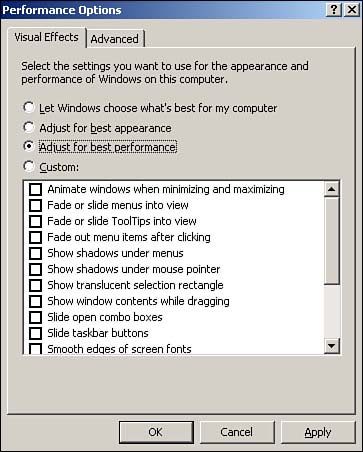
As you can see, you have the option to manually enable or disable each of the various display settings, or you can choose a single radio button to optimize for performance.
The Start Menu
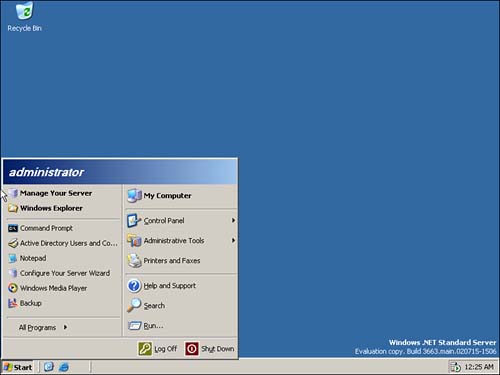
At first glance, it looks like the entire Start menu has been rearranged. In actuality, as you can see in Figure 3.9, the Start menu has been broken down into the following sections:
Pinned Programs? This section allows you to "pin" shortcuts for easy access right off the Start menu. By default, it contains shortcuts for the Manage Your Server Wizard and Windows Explorer. You can also add the special desktop shortcuts for Internet or email applications, such as Internet Explorer or Outlook, or any other shortcuts you want.
Recently Used Programs? This section is similar to the former Documents section, except it contains a list of all recently used programs, such as Command Prompt, Active Directory Users and Computers, and the like, as shown in Figure 3.9. You can specify how many recently used items will appear by modifying the Start menu properties.
All Programs Menu? This section contains the items that were formerly on the Programs menu, including Windows Update and any installed programs, as well as user-added shortcuts at the root of the Start menu.
Standard Folders? This section contains the items that were formerly on the desktop, such as My Computer, My Documents, My Network Places, and My Recent Documents, if enabled. By default, only My Computer is displayed.
Control Panel? This section contains the Control Panel applet, Administrative Tools, Printers and Faxes, and potentially other control panel items (such as Network Connections and so on).
Default Utilities? This section contains most of the former Start menu items, including Run, Search, and Help (now called the Help and Support).
Figure 3.9. The new Start menu.
These sections can be modified by customizing the Start menu and Taskbar properties. Follow these steps:
Right-click anywhere on the taskbar or Start menu, and select Properties.
Select the Start Menu tab; then click the Customize button next to the Start Menu radio button.
On the General tab of the Customize Start Menu screen, you can modify the number of programs that appear in the Recently Used Programs section as well as select the Internet and email application to display in the Pinned Programs section.
Select the Advanced tab, where you can choose which items to display in each of the other sections?for example, whether to show Administrative Tools and Network Connections. You can also specify to display recently opened documents, such as the former Documents Start Menu item. One final setting on this tab is the option labeled Highlight Newly Installed Programs (or not). This setting causes a balloon to pop up over the Start menu notifying you when a new application has been installed. The pop-up balloon can be somewhat annoying, but it also highlights the new application in a different color on the Start menu, making it easier to find.
NoteYou can only add your own shortcuts to the Pinned Programs and All Programs Menu sections; the other sections of the Start menu do not allow the creation of shortcuts. |
As you have seen in this chapter, several user interface and functionality improvements have been made in the Windows Server 2003 shell. Most of these improvements were first introduced in the corresponding client platform, Windows XP. As such, many of them, such as Remote Assistance, are more appropriate for the client platform. However, they do provide a potentially richer user experience, even for the bleary-eyed administrator still logged on to the server at 3 a.m. Some of them, such as compressed folders, provide utilitarian functionality previously available only through third-party add-ons. One nice thing about all these new features is that they are not being forced down your throat. You can enable or disable most of these settings and customize your environment the way you like. If you don't like the minimal functionality provided by compressed folders and CD burning, you can still purchase the third-party solutions.


