Remote Desktop and Remote Assistance
Other new features introduced by Windows XP that are now incorporated in Windows Server 2003 include two features for remotely controlling users' workstations: Remote Desktop and Remote Assistance. Both Remote Desktop and Remote Assistance use the Remote Desktop Protocol (RDP) for communicating between local and remote systems.
Remote Desktop
The term Remote Desktop is somewhat deceptive and can be confusing. There are actually two components to Remote Desktop?the client-side component (Remote Desktop Connection) and the server-side component (Remote Desktop for Administration). These two pieces are just a rename of the previous Terminal Services client and Terminal Services server from previous versions of Windows.
For more information about Remote Desktop, see "Remote Desktop for Administration," p. 180.
The main point here is that with Remote Desktop for Administration enabled, you can remotely connect to your Windows Server 2003 (or Windows XP) machines by using the Remote Desktop Connection (or any other Terminal Services client) and obtain a graphical interface as if you were physically at the server. This can be done whether anyone is at the server or not.
Remote Assistance
Remote Assistance is similar to Remote Desktop, but it is designed primarily for helping someone who is physically at the box. As such, it has some significant differences. First, and probably most important, Remote Assistance is totally user (client-side) driven. The sessions are initiated by the user, and the decision to allow someone to remotely take control is determined by the user. Second, to protect the user, Remote Assistance imposes time restrictions on the length of the remote control session.
Just like Remote Desktop, Remote Assistance needs to be enabled before it can be used. Remote Assistance is enabled from the Remote tab of System properties. Simply select Turn on Remote Assistance and Allow Invitations to be Sent from This Computer.
Remote Assistance is part of the Help and Support Center. To access it, select Help and Support from the Start menu. In the Help and Support Center, click Support. Next, select Get Remote Assistance. To initiate the Remote Assistance process, the user must select Invite Someone to Help You. The following are three methods by which a user can send the invitation:
Instant message? Uses Windows Messenger to send the invitation to the helper. Unlike Windows XP, Windows Messenger is not installed by default on Windows Server 2003. To send an invitation via Windows Messenger, Internet access is required.
Email? Sends the invitation to the helper via email. The user fills in the address of the helper and sends the email. When the helper receives the email, she simply clicks the link to open a session. To send by email, some type of email application (such as Outlook or Outlook Express) needs to be installed. Outlook Express is installed by default.
File? This method specifies a file location to save the invitation file. The file location must be accessible to both the user (to create the invitation) and the helper (to open and use it).
No matter which method is used to create the invitation, the user also specifies the duration (in hours) of how long the invitation is good. The invitation is then used by the helper to connect to the user's machine. After the interval for the invitation expires, it is no longer good for accessing the machine. Further protection of the invitation can be provided by specifying a password. Of course, the password must be communicated to the helper somehow so she can open the invitation. The process works like this:
The user configures and sends an invitation to the helper.
The helper receives the invitation and clicks the URL or opens the file to respond.
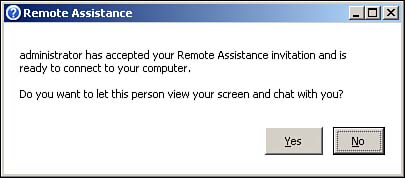
As shown in Figure 3.5, the user is prompted to allow the helper to connect.
Figure 3.5. This dialog box shows the helper attempting to connect to a Remote Assistance session.
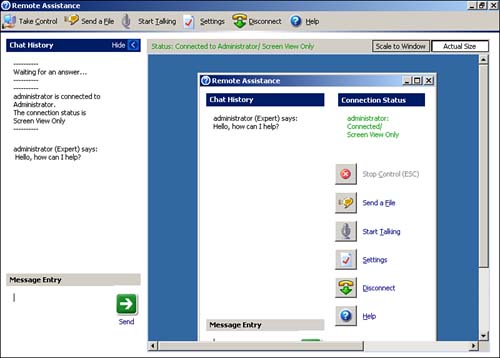
After the user accepts, the helper can see the user's desktop and send and receive chat messages, as shown in Figure 3.6.
Figure 3.6. A Remote Assistance session has been initiated.
Once connected, the user and helper can exchange files, but it is still user driven. If the helper initiates sending a file, the user must accept it and designate where to store it.
The helper can request to take control of the user's desktop (see Figure 3.7).
Figure 3.7. The helper can only request to take control.
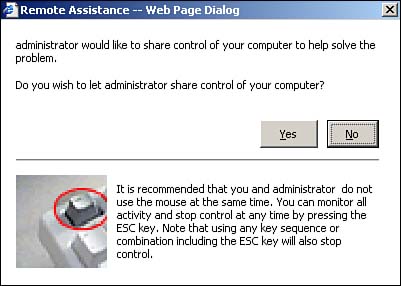
If desired, the user can allow the helper to take control. This then gives the helper access to the user's desktop, but the user can still see what the helper is doing.
Consistent with giving the user full power over the remote control session, the user can cancel the remote control session at any time simply by pressing the Esc key. It's sort of a fail-safe to give the user a warm fuzzy. If the helper starts doing something the user doesn't like, the user can just press Esc.
NoteA group policy enables helpers to solicit users for remote assistance. This just enables the helper to prompt the user; the user still initiates the session, and it is still totally user driven. |
Quite frankly, the Remote Assistance model is designed more for end user desktops. As such, it will probably be used more in Windows XP than in Windows Server 2003. Chances are the user and the help desk support personnel will be running Windows XP instead of Windows Server 2003. You wouldn't ordinarily have anyone logged and sitting at the server console to send and respond to Remote Assistance messages. Remote Desktop for Administration is the more viable remote control console for the server platform because it enables administrators to connect to the server without anyone being there, just like the former Terminal Services.


