File Sharing
Probably the most significant new feature for file share management is the capability to create shadow copies. Shadow copies enable you to save point-in-time copies of files. These captures are performed at the file system level, so they even capture open files.
CautionEven though shadow copies can capture open files, you should still be careful using shadow copies with databases. Check with the database manufacturer first to make sure it is safe. |
The intended implementation for shadow copies is as a safety net to easily recover deleted or modified files without resorting to backups, not as the sole method for disaster recovery. Even better, a shadow copy enables the user to restore files, freeing the administrator from the headache of sifting through backup tapes to find a particular version of a file.
Shadow copies are enabled at the volume level (Volume Shadow Copies or VSS). To enable shadow copies for a particular volume, simply right-click the volume, click Properties, and then select the Shadow Copies tab. From this tab, you can create shadow copies for any given volume. When creating a shadow copy, you must choose where to store it. The default is to store shadow copies on the same volume as the original file, but you can configure (on a per-volume basis) the location of shadow copies. It is recommended that you save your shadow copies to a different volume so as not to consume more space on the original volume. Additionally, if the volume fails, you won't lose the files and the copies. You also can specify how much disk space to allow the shadow copies for a particular volume to consume (minimum 100MB). After they use up this space, previous shadow copies are overwritten and lost, so choose the amount of disk space carefully based on how much data is in your file shares.
TipShadow copies can also be managed from the vssadmin command-line utility. |
After shadow copies are enabled, the contents of all file shares (including the administrative shares, C$, IPC$, and so on) are saved as shadow copies. The Shadow Copies tab lists the existing volumes, when the next shadow copy is scheduled to run (if enabled), the number of shares (not including administrative shares) on each volume, and the amount of disk space used by shadow copies. For each volume you can enable or disable shadow copies of all shares on that volume.
CautionShadow copies can be enabled only for entire volumes. They cannot be enabled per share?it's either all or nothing). |
You can also schedule when to perform shadow copies (the default is twice per day?weekdays at 7 a.m. and 12 p.m.) or perform one manually.
After shadow copies are enabled, clients can view them. This essentially provides a type of versioning capability, where a user can compare changes between an existing file and a shadow copy of the same file.
NoteClients prior to Windows Server 2003 can also view shadow copies, but they will need to install the shadow copies client, which is in the \\%systemroot%\system32\clients\twclient directory. |
It can also be used for a type of disaster recovery. Consider the following scenario:
Mary creates a file in a shared folder that has been enabled for shadow copies. The file is there long enough to be captured by a scheduled shadow copy. Another user, Jim, overwrites the original file. Mary accesses the file and realizes her changes are gone. She can simply click the file and then select View Previous Versions under File and Folder Tasks in Windows Explorer. This opens a dialog box that displays a list of the shadow copies where she can choose to view, copy, or restore her original file. Alternatively, she could select the folder (not the file), select View Previous Versions, and she would once again be given the option to view, copy, or restore (see Figure 8.4). In this case, clicking View opens a new window and displays the contents of the entire folder from the selected shadow copy. This method is particularly useful for recovering multiple files or deleted files.
Figure 8.4. Recover accidentally deleted files with shadow copies.
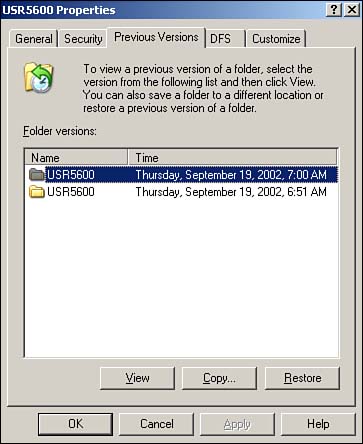
TipTo see the option to View Previous Versions, the user must connect to the folder via a file share. (\\servername\sharename). The file share has to be enabled for shadow copies, of course. One more requirement is that the user's Windows Explorer must be configured to Show Common Tasks in Folders, not Use Windows Classic Folders. |
Windows Server 2003 provides some enhancements to the Computer Management console for file share administration. One such enhancement is the new Publish tab on the shared folder properties. This enables resource administrators to publish and maintain information about their file shares in Active Directory, without giving them the Active Directory Users and Computers snap-in. The new File Share wizard has also been improved: The folder path and selection options are clearer, as are the folder caching (now simply called Offline Settings) options.
CautionOne thing that could potentially cause confusion is that the default permission for file shares is all users (Everyone) read-only?not full control as in Windows 2000. |


