Upgrading from Prior Versions
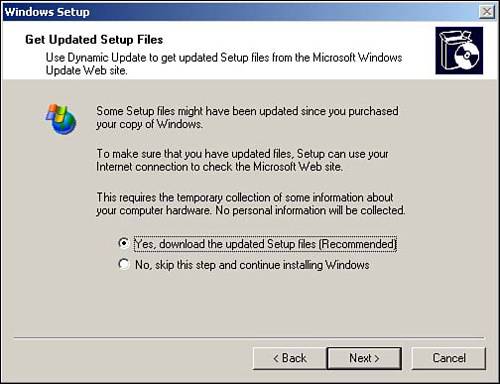
As mentioned previously, existing operating systems can be upgraded by running winnt32.exe. This launches the setup wizard, where you are given the choice to perform an upgrade or a fresh install. Next, you are prompted to accept the license agreement and then enter the license key. The next step is something new in Windows Server 2003: You are prompted to connect to the Internet to update the setup files, as shown in Figure 2.8. This downloads the latest setup files and drivers, as well as updates the compatibility database.
Figure 2.8. Windows Setup can use dynamic update to check for critical product updates prior to installing Windows Server 2003.
Setup then scans your system and compares it to the compatibility database in an attempt to detect any known hardware or software incompatibilities. Before performing any upgrade, you should always verify that the current hardware and software are compatible with the new OS.
TipYou can run the compatibility check without actually installing Windows Server 2003 by running winnt32.exe /checkupgradeonly, just like in Windows 2000. The compatibility check is also available as a download from www.Microsoft.com/windowsserver2003, and the downloadable version is kept updated. The version on the Windows Server 2003 CD can be expected to be out of date a few months after it's released. |
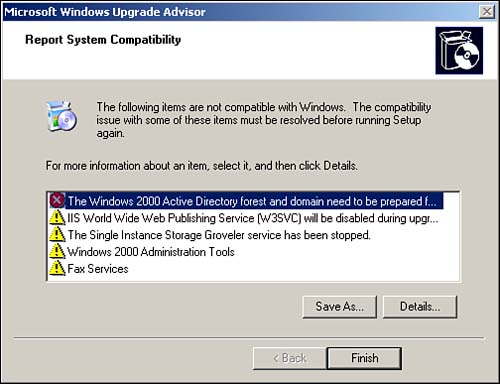
After the compatibility scan, a report is displayed showing any detected incompatibilities and suggestions on how to correct them, as shown in Figure 2.9.
Figure 2.9. The Windows Compatibility Report displays any applications or drivers that might not be compatible with Windows Server 2003.
Provided there are no critical incompatibilities, Setup then copies the setup files from the source location (CD or network) to the system and reboots. The rest of the setup process is virtually identical to a fresh install. It proceeds with the DOS phase of setup and then the GUI phase. The only difference is that, if you chose to upgrade the existing system instead of a fresh install, you aren't prompted for anything because it uses the same configuration settings as the previously installed operating system.
Supported Upgrade Paths
One of the things restricting your choice of whether to do an upgrade or a full install is the supported upgrade paths. The following are the supported upgrade paths for Windows Server 2003, Standard Edition:
Windows NT Server 4.0 with Service Pack 5 or later
Windows NT Server 4.0 Terminal Server Edition with Service Pack 5 or later
Windows 2000 Server
The supported upgrade paths to Windows Server 2003, Enterprise Edition are
Windows NT Server 4.0 with Service Pack 5 or later
Windows NT Server 4.0 Terminal Server Edition with Service Pack 5 or later
Windows NT Server 4.0 Enterprise Edition with Service Pack 5 or later
Windows 2000 Server
Windows 2000 Advanced Server
Windows Server 2003, Standard Edition
The supported upgrade paths can be summed up in a single statement: Any Windows NT 4.0 (with SP5) or Windows 2000 server platform can be upgraded to the same platform or better, but downgrades are allowed.
Operating systems prior to Windows NT 4.0, such as Windows NT 3.51, require an upgrade to one of the previously mentioned operating systems first; then you can upgrade to Windows Server 2003 (or reinstall from scratch, of course).
NoteUpgrading to the Standard Server version of Windows Server 2003 is supported only on systems with one or two processors. If you have more than that, such as three or four processors, you must select Windows Server 2003, Enterprise Edition. Also, you cannot upgrade to Windows Server 2003, Standard Edition from Windows NT 4.0 Server Enterprise Edition or Windows 2000 Advanced Server. |
The easiest upgrade to Windows Server 2003 is from Windows 2000 as the underlying technology, and much of the processes is basically the same.
Although the upgrade from Windows 2000 is the smoothest, special care needs to be taken when upgrading domain controllers. Before you can upgrade Windows 2000 domain controllers or install new Windows Server 2003 domain controllers into an existing Windows 2000 domain, the Active Directory schema must be extended to support the new Windows Server 2003 domain controllers. This schema extension is performed by first running adprep /forestprep, allowing it to replicate, and then performing adprpep /domainprep. Does this mean you have to raise the domain functional level to Windows 2000 Native or Windows Server 2003? No. You can still have "down-level" domain controllers. Windows Server 2003 maintains compatibility at the lower functional levels with Windows NT 4 domain controllers and Windows 2000 domain controllers.
For more information about Active Directory, see "Active Directory Functional Levels," p. 66.
Whenever possible, I recommend a fresh install over an upgrade to ensure that no legacy files or Registry settings are left lying around that could potentially cause problems. You also have the opportunity to reconfigure the underlying hardware, such as hard drive partitions, and even reformat the drives to start clean. The choice of whether to upgrade is usually a matter of logistics and what is possible. Usually, it comes down to how difficult it would be to reinstall the existing applications. An upgrade maintains the installed applications and Registry settings, whereas a fresh install obviously does not. Sometimes taking a server down and doing a complete reinstall is simply not feasible. For example, you might have an application whose configuration settings are not completely documented. That, of course, never happens, right? All the configuration settings of every application on every server throughout the entire organization are all completely documented, right? Okay, maybe not. In those cases you might be forced to upgrade.
Mass Upgrades
For mass deployments of fresh installations of Windows Server 2003, the same methods are available as Windows 2000: RIS, automated installations, or third-party imaging applications. However, to perform mass upgrades of existing systems, your only option is to automate the upgrade by using answer files. You can create an unattended installation file that upgrades the existing OS; the trick is kicking off the upgrade and specifying the answer file. If you have some type of software distribution infrastructure then you can use that to deploy the upgrade package. Alternatively, you can use group policy to deploy the upgrade package.
As you have seen in this chapter, deploying Windows Server 2003 is very similar to deploying Windows 2000. It should be because it is based on the same technology. However, although the basic processes and techniques are the same, a few improvements and additions have been included that could help smooth your deployments.


