Correcting Errors by Using Spell Check and AutoCorrect
Using spell check and AutoCorrect to correct data entry errors improves the accuracy of the data in tables. You generally do not want to use spell check for data that contains names and addresses because that type of data contains many entries that are not in the dictionary.
Using the Spell Check Feature
The spell check feature in Microsoft Access is shared with the rest of Microsoft Office. So if you are familiar with spell check in a product such as Microsoft Word, this section should be easy for you. Here's how you run spell check:
Select the columns of data that you want to check.
Choose Tools | Spelling or click the Spelling tool on the toolbar.
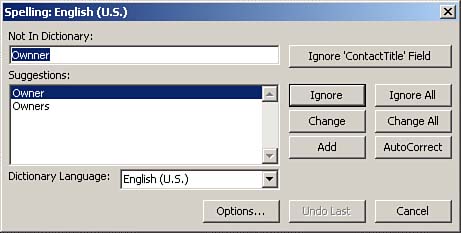
If the spell checker locates a spelling error, the Spelling dialog box appears (see Figure 2.17). After you select the appropriate option for an error, the spell checker locates the next error. This process continues until the spell checker finds no additional errors. At that time, a dialog box appears, indicating that the spell check process is complete.
Figure 2.17. The Access spell checker, which is shared with the rest of Microsoft Office.
Using AutoCorrect
Like the spell checker, AutoCorrect is a feature that Access shares with the rest of Microsoft Office. It is a feature that is designed to automatically correct common spelling errors as you type. In addition to catching those "common" errors, you can add your own common misspellings to AutoCorrect so that AutoCorrect will immediately correct your common mistakes in the future. Here's how you use AutoCorrect:
Type a commonly misspelled word (for example, recieve).
Press the spacebar. AutoCorrect changes the spelling to receive.
 | AutoCorrect corrects commonly misspelled words. You can add your own AutoCorrect information by choosing Tools | AutoCorrect and filling in the Replace and With text boxes. Any words you add to AutoCorrect are available in other Microsoft Office applications. |


