The AutoReport Feature and the Report Wizard
To help you create reports, Access provides the Report Wizard. The Report Wizard asks questions about the report and then creates the report based on your answers. In Access you can also use the AutoReport feature to create a report.
Using the AutoReport Feature
 | Using the AutoReport feature is the quickest and easiest way to create a report. Access creates a report via the AutoReport feature without asking you any questions. Although you can create this type of report effortlessly, as you will see, it is not very flexible in that it does not ask you any questions. Here's how it works: |
Select Tables or Queries in the list of objects in the Database window.
Select the table or query on which you want to base the report.
Click the New Object button drop-down arrow (see Figure 5.6).
Figure 5.6. The New Object drop-down arrow, which allows you to create a report with the AutoReport feature.

Select AutoReport. Access creates a report based on the selected table or query.
Creating a Report by Using the Report Wizard
Although the AutoReport feature is great at producing a quick report, it does not offer much in terms of flexibility. The Report Wizard asks a series of questions and then better customizes the report to your needs. Let's take a look at how it works:
Select Reports in the list of objects in the Database window.
Click Create Report by Using Wizard.
In the first step of the wizard, select the table or query on which you want to base the report.
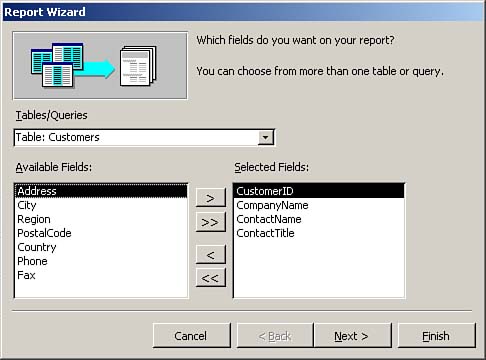
Select the fields you want to include in the report (see Figure 5.7). You can add any type of field to a report. You can also add as many fields or as few fields as you'd like. In fact, you can even include fields from more than one table! Click Next.
Figure 5.7. Step 1: Selecting the fields you want to include in a report.
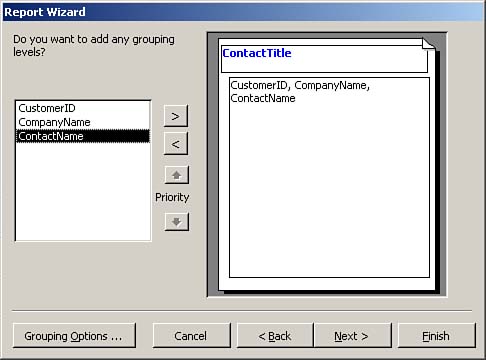
In the second step, the wizard prompts you to select any fields that you want to group by (see Figure 5.8). Click Next.
Figure 5.8. Step 2: Selecting the fields that you want to group by.
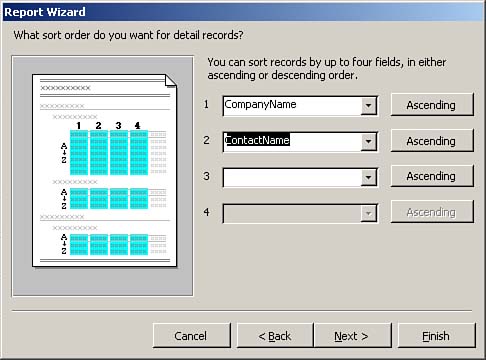
In the third step of the wizard, select the desired sort order (see Figure 5.9). You can select either ascending or descending. In Figure 5.9, ascending is selected. Click Next.
Figure 5.9. Step 3: Selecting a sort order for a report.
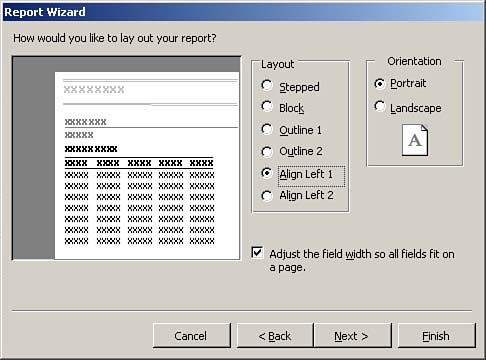
In the fourth step of the wizard, select the desired layout for the report (see Figure 5.10). The layout you select is a matter of personal preference, as well as which layout will work best with the data selected for the report. Click Next.
Figure 5.10. Step 4: Selecting a layout for a report.
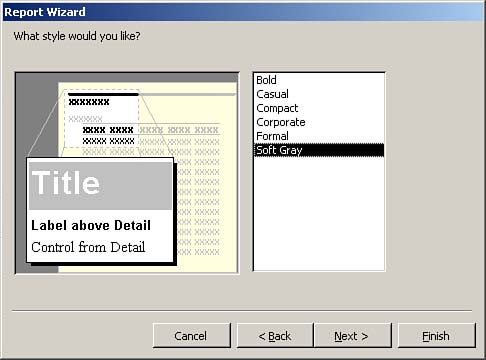
The fifth step of the wizard prompts you to select the desired style for the report (see Figure 5.11). The style you select is mostly a matter of personal preference. After you complete the wizard, you can modify the selected style to, for example, format the report header differently from the rest of the report. Click Next.
Figure 5.11. Step 5: Selecting a style for a report.
The sixth step of the wizard prompts you to type the report title.
Click the Finish button. Access creates the report and places you in Preview mode.
As you can see, the Report Wizard offers quite a bit more flexibility than the AutoReport feature. By using the Report Wizard, you can designate the fields you want to include on a report, the data groupings you want to add to a report, the sort order for a report, the layout for a report, and a style for a report. I find that the Report Wizard can generally do most of the work for me, and then I can add finishing touches.


