Using the Query Designer
Don't search for the Query Designer button in Enterprise Manager. It's not there. Instead, Query Designer is accessed as the result of another operation. Select New View from the View folder and Query Designer pops up to create the Select statement for your view. In DTS Designer, selecting Build Query from an Execute SQL task will also invoke Query Designer. If you just want to design a query, then right-click one of the tables that will appear in your query, select Open Table, and then Query. The Query Designer opens, as illustrated in Figure 4.27.
Figure 4.27. Accessing Query Designer.
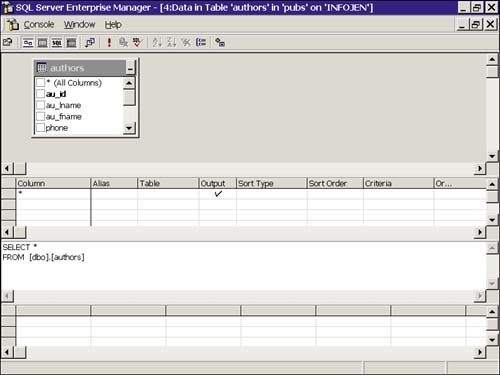
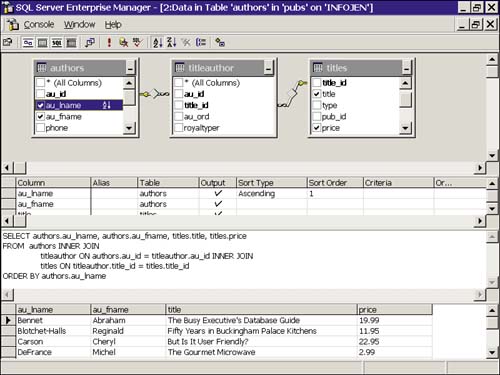
The Query Designer has four panes. At the top is the Diagram pane, which has a graphic representation of the query. This is where you can add additional tables and build your query by checking the columns to include. The next pane is the Grid pane. This is an alternative way to select columns via drop-down boxes, and it is useful for adding WHERE clauses. Note that by default, * is selected for the column list. Uncheck this from the output if you want to narrow the column list. Below this is the SQL pane where the actual code generated is listed. You can edit this directly if you choose, and your changes will be reflected in the other panes. The cause and effect seen between the panes can be a great learning tool if you are new to the query language. Last is the Result pane. When you execute your query, the results will be seen here, so you can modify the query if necessary before saving it.
Actions such as adding tables, grouping, sorting, saving, and running the query can be done through the icons on the toolbar or by right-clicking in the Diagram pane. In Figure 4.28, I have added two more tables, producing a join statement to report authors' names, their book titles, and prices. Keep in mind that for this to work, the tables must have a valid relationship.
Figure 4.28. Expanded viewing space allocation in Taskpad.