Viewing Your Page

There are several ways to view and navigate your InDesign documents. These methods are not all equal; some are without doubt better than others. For the myriad options you have, you can do most everything you need with just three shortcuts.
Figure 1.8. The Zoom Tool and the Hand Tool. Only a rank amateur ever chooses them from the Tool palette. Use the shortcuts instead:
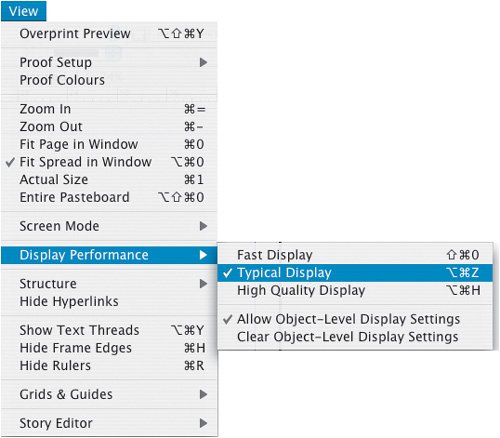
Tip There are actually two ways to access the Hand Tool: When in any tool other than the Type Tool, pressing the Spacebar temporarily switches the current tool to the Hand Tool. However, if you are in the Type Tool, holding down Spacebar gets you a whole mess of spaces. An obvious point, but you'd be surprised how easy it is to make this mistake. If you are in the Type Tool, instead, hold down the Option (Alt) key to temporarily access the Hand Tool. When working quickly it's easy to forget where you are and which key you need, so I've found it's easier to standardize on Option/Alt+Spacebar, which works in all situations. Figure 1.9. Typical Display: Don't choose Fast unless you like your type jagged. These settings do not affect print quality.
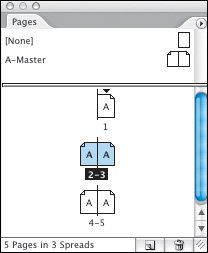
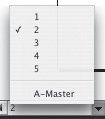
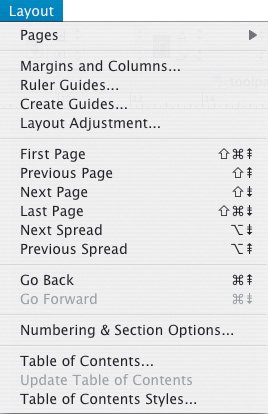
Tip: A Case of the Jaggies If your type looks bitmapped on screen it's probably because you have switched to the Fast Display mode, InDesign's low-resolution, quick screen redraw option. Choose View>Display Performance and switch to Typical or High Quality. You can also change this option permanently in the Preferences dialog. Moving Between PagesFor documents consisting of only two pages or spreads, you can navigate from one page to the next efficiently with the Hand Tool. For longer documents, use the Pages palette, the Pages pop-up menu at the bottom left of your document window, or the options under the Layout menu. When using the Pages palette to navigate between spreads with facing pages, double clicking the page numbers will fit the spread in the window, whereas double clicking the page icon will fit that specific page in the window. Figure 1.10. The Pages palette.
Figure 1.11. The Pages Pop-up.
Figure 1.12. The Layout Menu showing the options for navigating between pages.
Tip: Alphabetizing Menus It's a small thing, perhaps a feature you'll never use, but it's nice to know it's there. You can view your menu items in alphabetical order by holding down Cmd+Shift+Option (Ctrl+Shift+Alt) when you choose the menu. This comes in handy when you're searching for that pesky menu item you can't find but you know is there. |