Getting Started with Windows Vista
Getting Started with Windows Vista
From the moment you start Windows Vista, you’ll know it’s a different kind of operating system from its predecessors. During the installation of Windows Vista (described in the appendix), Setup prompts you to create a local machine account. This account is created as a computer administrator account. When the operating system starts, you can log on using the account and password you specified during setup.
Working with the Welcome Center
By default, the operating system displays the Welcome Center at startup. You can access the Welcome Center console, shown in Figure 1-1, from Control Panel.
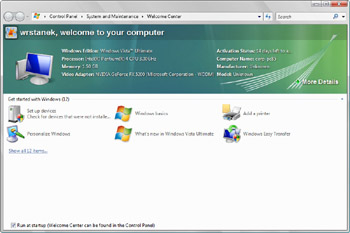
Figure 1-1: The Welcome Center
The Welcome Center provides an overview of the system and quick access to perform tasks that help you get started using Windows Vista. To display all the available options, click Show All 12 Items. The available options include the following tasks:
-
Add New Users Configure user accounts for each person who will log on locally to the computer. You can manage account settings and parental controls for accounts, as discussed in Chapter 9, “Protecting User Accounts and Using Parental Controls.” This option isn’t available when you log on to a domain.
-
Personalize Windows Control the appearance and sound effects used by Windows Vista. You can manage settings for the display, visual appearance, desktop background, screen saver, sound effects, mouse pointers, and themes.
-
Set Up Devices Check for devices that Setup did not install as part of the upgrade or installation. If you elect to set up devices and new hardware is found, you’ll be guided through the process of installing the device.
-
Windows Easy Transfer Run the Windows Easy Transfer Wizard, which can be used to transfer user accounts, files and folders, program settings, Internet settings (including favorites), and e-mail settings (including contacts and messages) from your old computer. For the transfer, you can use CDs, DVDs, a universal serial bus (USB) flash drive, or external hard drives, as well as network folders and a USB cable that connects to both computers. To transfer settings, the old computer must be running Windows 2000, Windows XP, or Windows Vista.
-
View Your Computer Details Display the default view for the Welcome Center, which provides an overview of the system configuration. Use the More Details link to access the System console and view additional information about the computer.
By default, the Welcome Center displays each time you start the computer. If you don’t want the Welcome Center to be displayed the next time you start the computer, clear the Run At Startup check box.
Getting Basic System Information
In the Welcome Center, you can click More Details to access the System console and view additional information about the computer, as shown in Figure 1-2.
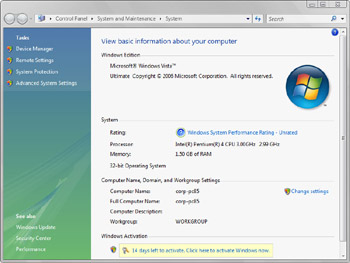
Figure 1-2: The System console
The System console is divided into four basic areas that provide links for performing common tasks and a system overview:
-
Windows Edition Displays the operating system edition and version.
-
System Shows the processor, memory, and performance rating of the computer. If the computer has not yet been rated for performance, you can click Performance under See Also to access the Performance Rating And Tools console. In this console, click Rate This Computer to start the performance rating process and then follow the prompts.
-
Computer Name, Domain, And Workgroup Settings Lists the computer name, description, domain, and workgroup details. If you want to change the computer’s name, domain, or workgroup, click Change Settings, and then make changes in the Computer Name Changes dialog box. In the System Properties dialog box, click the Network ID button, and then make the necessary changes.
-
Windows Activation Shows whether you have activated the operating system and the product key. If Windows Vista isn’t activated yet, click the link provided to start the activation process and then follow the prompts.
When you’re working in the System console, links in the left pane provide quick access to key settings, including the following:
-
Device Manager
-
Remote Settings
-
System Protection
-
Advanced System Settings
If you prefer, you can view the classic-style System Properties dialog box at any time by clicking Change Settings under Computer Name, Domain, And Workgroup Settings.
Activating Windows Vista and Changing Product Keys
Volume-licensed versions of Windows Vista might not require activation or product keys. For retail versions of Windows Vista, however, Windows Activation and product keys are just as important as they are in Microsoft Windows XP. Retail versions of Windows Vista are validated by using Windows Activation and product keys. In the Welcome Center, the Activation Status entry specifies whether you have activated the operating system. If Windows Vista has not been activated, you can activate the operating system by clicking More Details to access the System console and then selecting Click Here To Activate Windows Now under Windows Activation.
Unlike in Windows XP, you can easily change the product key used by the operating system. In the System console, click Change Product Key under Windows Activation. In the Windows Activation window, shown in Figure 1-3, type the product key, and then click Next. As in Setup, you do not need to type the dashes in the product key.
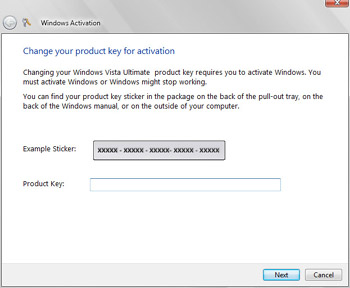
Figure 1-3: Changing the product key


