Chapter 4: Using Internet Explorer7
Chapter 4: Using Internet Explorer 7
Microsoft Internet Explorer 7 is included in Windows Vista and is available as a download to anyone using an earlier version of Microsoft Windows. This newest version of Internet Explorer reflects the input of the user community, many of whom have been asking for usability improvements for easier navigation and more continuity between windows. Internet Explorer 7 also promises to be the safest and most secure version of Internet Explorer produced so far. New safety and security features are provided as part of the Dynamic Security Protection package, which is designed to safeguard the integrity of the computer and any information you’ve entered into HTML forms on Web pages.
| Note |
This book was written using the Windows Vista Beta to provide early introduction to the operating system. More so than any other area of Windows Vista, the security features discussed in this book are subject to change. Some of the features might not be included in the final product, and some of the features might be changed substantially. |
Introducing Internet Explorer 7
User experience was one of the key focuses in the redesign of Internet Explorer. New interface enhancements, such as tabs and integrated search, make Internet Explorer 7 much easier and much more intuitive to work with. However, these enhancements will take some getting used to, and the more pointers you have up front, the easier it’ll be to work with Internet Explorer 7.
Getting Around in the Internet Explorer 7 Window
Internet Explorer 7 has many interface enhancements, as Figure 4-1 shows. These enhancements include:
-
The streamlined interface, which maximizes Web page display while reducing the toolbar size.
-
The use of tabs instead of separate windows, which handily organizes Internet Explorer windows and allows you to navigate between Web pages by clicking tabs.
-
The addition of a Web Search box as a standard feature on the toolbar.
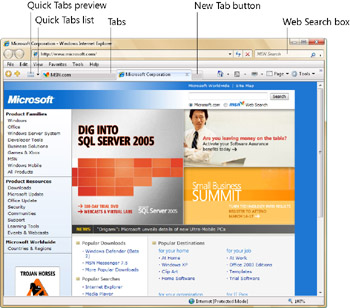
Figure 4-1: The new interface in Internet Explorer 7
The enhancement that changes the way you use Internet Explorer is tabbed browsing. With tabbed browsing, you can view multiple Web pages in a single window. You switch from one Web page to another by clicking the tabs at the top of the browser frame. Internet Explorer still allows you to open new windows, but you typically don’t need to do this.
When you want to access a new page and still have access to a current page, you display a new tab by pressing Ctrl+T or by clicking the New Tab button. The New Tab button is always displayed to the right of the last tab in the line of available tabs. Internet Explorer gives you several options for managing tabs. Whenever there are at least two tabs in use, Quick Tabs preview and Quick Tabs list buttons are added to the toolbar to the left of the tabs:
-
The Quick Tabs preview button depicts four open windows. Pressing Ctrl+Q or clicking this button displays a thumbnail preview of all tabbed pages in the current window. To access one of the tabbed pages, you simply click the page’s thumbnail.
-
The Quick Tabs list button depicts a down arrow. When you click this button, Internet
Explorer displays a list of open Web pages. To access one of these pages, you click its entry in the list.
Working with the Internet Explorer Toolbars
Tabbed browsing and Quick Tab options are just a few of the many ways Internet Explorer has changed. While these changes are fairly clear, some of the other changes are more subtle but just as powerful. By default, Internet Explorer 7 displays the following toolbars:
-
Classic Menu bar
-
Standard toolbar
-
Address bar
-
Status bar
The sections that follow discuss these toolbars and the related options.
Using the Classic Menu Bar and the Standard Toolbar: What’s Changed
Figure 4-2 shows the Classic Menu bar and the standard toolbar. The Classic Menu bar is the menu bar used in previous versions of Internet Explorer. The standard toolbar is the main toolbar in Internet Explorer 7.

Figure 4-2: The Classic Menu and the standard toolbar in Internet Explorer 7
The standard toolbar is always displayed, unless you are using full-screen mode. On the far left of the standard toolbar, you’ll find the Favorites Center button and the Add To Favorites button.
Favorites Center is a new feature that provides a single location to view and access the following:
-
Favorites Lists of your favorite pages for quick access.
-
Feeds Lists of Really Simple Syndication (RSS) feeds to which you’ve subscribed.
-
History Lists of pages you’ve accessed by date, site, most visited, or order visited.
RSS feed integration is a new feature in Internet Explorer 7. RSS feeds can contain news headlines, lists, and other information provided by businesses or individuals. Once you subscribe to an RSS feed, you can display it by:
-
Opening Internet Explorer.
-
Clicking the Favorites Center button.
-
Clicking the Feeds tab.
-
Selecting the feed you want to view.
Note You can also view RSS subscriptions by using the Feed Viewer gadget. See the “Working with Windows Gadgets” section in Chapter 3 for more information.
 |
RSS is a great way to keep up with the flood of news and opinion out there on almost any subject you’re interested in. Until recently, I’ve been using a third-party RSS plug-in for Outlook, while many of my colleagues are using standalone third-party RSS news aggregators. But in Windows Vista with RSS functionality built right into Internet Explorer, I can subscribe to a feed simply by clicking the red RSS button that appears on most news media and tech Web sites (such as http://technet.microsoft.com) and then, as William has already explained, I can view my feeds in the Favorites Center anytime I want to read them. I’m definitely switching to Internet Explorer 7 on Vista as my news aggregator—once I finish “dogfooding” the beta versions!
Mitch Tulloch
Author and MVP—For more information, see http://www.mtit.com.
|
Other new features in Internet Explorer 7 have to do with home pages and printing. Internet Explorer 7 allows you to have more than one home page. The Home button on the right end of the standard toolbar allows you to access the default home page. The Home Options button (depicting a down arrow) to the right of the Home button allows you to:
-
Display and select from a list of additional home pages that you’ve configured.
-
Add, change, or remove home pages.
If you want to add the current page as a home page, click the Home Options button, and then select Change Home Page. In the Change Home Page dialog box, choose an appropriate option for configuring your home pages, and then click Yes.
The Print button on the right end of the standard toolbar allows you to print the current page. If you select the Print Options button to the right of the Print button and then select Print Preview, you can customize the print layout. The most important new option is the Change Print Size button, which lets you set the print size as a percentage of the actual page size. You can click the Change Print Size button and then select Shrink To Fit to ensure that a page prints properly.
Using the Classic Menu and the Standard Toolbar Menu Options
The Classic Menu features the Internet Explorer menus from earlier versions: File, Edit, View, Favorites, Tools, and Help. Once you get used to the new interface, however, you probably won’t need the Classic Menu. By clicking Tools, Toolbars, Classic Menu, you can stop displaying the Classic Menu to further streamline the interface.
Instead of using the File menu to work with tabs, you can use the standard toolbar options. Clicking the New Tab button on the standard toolbar (or pressing Ctrl+T) creates tabs. If you right-click a tab, you can select Close to close the tab or select Close Other Tabs to close all tabs except for the currently selected one.
The Page menu on the standard toolbar combines many of the features of the Edit and View menus from the Classic Menu. One of the most useful new features is the Zoom option. Instead of simply increasing the font size of text, Zoom allows you to shrink or expand the entire page. You can shrink a page by selecting a Zoom size smaller than 100%. You can expand a page by selecting a Zoom size larger than 100%.
The Tools menu on the standard toolbar combines many of the features of the View and Tools menus from the Classic Menu. The options include:
-
Delete Browsing History Deletes all cached browsing information, including temporary files, page history, cookies, saved passwords, and Web form information. Thus, instead of having to access separate options to clear out this information, you can completely clear the cached browsing information with a single option.
-
Diagnose Connection Problems Helps you determine the possible cause of connection and access problems.
-
Full Screen Displays Internet Explorer in full-screen mode. You can toggle between fullscreen mode and standard mode by pressing F11.
-
Internet Options Displays the Internet Options dialog box, which you can use to configure Internet Explorer.
-
Manage Add-Ons Displays a dialog box that depicts add-ons currently loaded in Internet Explorer. You can then enable, disable, or delete add-ons.
-
Phishing Filter Allows you to specify phishing filter options. Malicious Web sites use hidden forms and other phishing tactics to steal information you’ve previously entered into form fields. For more information, see the “Using the Internet Explorer Safety and Security Features” section later in this chapter.
-
Pop-Up Blocker Allows you to enable or disable pop-up blocking. You can also select Pop-Up Blocker Settings to configure pop-up blocking options.
-
Toolbars Allows you to configure which toolbars are displayed in the browser window.
-
Work Offline Sets Internet Explorer to work offline. When you are working offline, Internet Explorer attempts to retrieve pages you access from its offline browsing cache. If a page is available for offline browsing, Internet Explorer displays the page. Otherwise, Internet Explorer displays an error message.
Using the Address Bar: What’s Changed
As shown in Figure 4-3, the Address bar in Internet Explorer 7 features Forward and Back buttons, an Address Path text box, a Path History button, Refresh and Stop buttons, and a Search box. To access a page from the currently selected tab, you can type an address in the Address Path field. At the far right side of the Address Path field is the Path History button, which depicts a down arrow. Clicking this button shows the paths from the history.
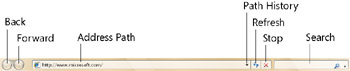
Figure 4-3: The Address bar in Internet Explorer 7
Internet Explorer 7 integrates a search feature directly into the browser window. To search the Web using the default search provider, click in the Search box, type your search text, and then press Enter or click the Search button. The Search Options button to the right of the Search button allows you to:
-
Choose from the currently configured search providers.
-
Find text on the current page rather than searching the Internet.
-
Get a list of search providers from the Microsoft Web site, which can be configured.
-
Change search default settings.
On most configurations of Internet Explorer 7, the default search provider is MSN Search.
Using the Status Bar: What’s Changed
As in earlier versions, the status bar in Windows Vista displays browser status messages. The following new items have been added on the right end of the status bar:
-
A phishing status indicator Specifies the phishing status as it relates to the currently accessed site or page. On less well-known Web sites, the phishing filter status indicator displays a warning icon. Clicking this icon allows you to check the Web site, report the Web site, and configure phishing filter options. On trusted or well-known Web sites, such as MSN or Microsoft.com, the phishing filter status indicator is blank. That doesn’t mean, however, that the phishing filter isn’t active or available. If you click in the empty space to the immediate left of the Internet Security indicator, you can display all the standard phishing filter options.
-
An Internet Security indicator Specifies the current security zone and mode being used. There are separate security zones for Internet, Local Intranet, Trusted Sites, and Restricted Sites. When accessing sites in the Internet zone, Internet Explorer uses protected mode by default. For more information, see the “Using the Internet Explorer Safety and Security Features” section later in this chapter.
-
A view magnifier Depicts the current Zoom setting. You can use Zoom settings to shrink or expand the textual and graphical contents of a Web page. Shrink the page by selecting a Zoom size smaller than 100%. Expand the page by selecting a Zoom size larger than 100%.


